Install
Babel Obfuscator is available as the Babel Desktop application for Windows, macOS and Linux, as zip packages with the command line tool and the MSBuild task, and as NuGet packages and a dotnet CLI tool.
Babel Desktop
Babel Desktop is the cross-platform application for Windows, macOS and Linux that edits and runs .babel obfuscation projects and manages a Babel Licensing Service. See Install Babel Desktop for the installers and Product Activation for the license requirements.
[!NOTE] Babel Desktop does not install the babel command line tool. To run Babel from a terminal, a build script or MSBuild, use the zip packages or the dotnet tool described below.
Command Line and MSBuild Task (zip packages)
The command line tool and the MSBuild task are distributed as zip packages, one for each target framework:
| Package | Framework |
|---|---|
babel_net472_<ver>.zip | .NET Framework 4.7.2 |
babel_net80_<ver>.zip | .NET 8 |
babel_net90_<ver>.zip | .NET 9 |
babel_net100_<ver>.zip | .NET 10 |
Each package contains:
- babel, the Babel Obfuscator command line tool
- lic, the Babel Licensing command line tool
- HardwareId, the tool that reads the hardware identifier of the machine
- the MSBuild task in the MSBuild folder: Babel.Build.dll, Babel.Build.targets and Babel.Build.xsd
To install the command line tool:
Extract the package
Extract the zip package to a folder of your choice, for example C:\Tools\Babel on Windows or ~/Babel on Linux and macOS.
Add the folder to PATH
Add that folder to the PATH environment variable.
Copy the license file
Copy your license file babel.licenses into the same folder, next to babel. See Product Activation for the other ways to provide the license.
Verify the installation
Open a new PowerShell or terminal window and enter:
> babelThe .NET Framework package runs on Windows only. The .NET 8, .NET 9 and .NET 10 packages also run on Linux and macOS through the dotnet host, provided the matching .NET runtime is installed:
dotnet ~/Babel/babel.dllOn Linux and macOS you can also install babel as a dotnet tool, as described in Installing Babel CLI dotnet Tool.
The Babel Encrypt plugin is distributed separately in the babel_encrypt_plugin_<ver>.zip package.
Babel NuGet Packages
Upon purchasing the Babel Obfuscator Ultimate Edition or the Babel Licensing Server and Data Center editions, you acquire several NuGet packages. These contain the Babel Obfuscator NuGet packages:
| Package | Description | Edition |
|---|---|---|
| Babel.Obfuscator.x.y.z.nupkg | This package allows using Babel Obfuscator in any .NET project | Ultimate |
| Babel.Obfuscator.Tool.x.y.z.nupkg | Babel Obfuscator dotnet CLI tool | Ultimate |
| Babel.Licensing.Tool.x.y.z.nupkg | Babel Licensing dotnet CLI tool | Server, Data Center |
| Babel.Licensing.x.y.z.nupkg | Babel Licensing client components | Server, Data Center |
| Babel.Data.x.y.z.nupkg | Babel Licensing data components | Server, Data Center |
These NuGet packages are not available on the public NuGet repository. To use them in your projects, you need to install them on your private NuGet feeds or your local machine.
There are several NuGet private feeds available:
- Azure Artifacts
- GitHub Package Registry
- GitLab Package Registry
- MyGet
- TeamCity
- Gitea (Open Source)
- NuGet Server (Open Source)
If you don’t have a private NuGet feed, you can create one on your local machine.
[!NOTE] Regardless your packages are hosted on a server or your local machine, you can access them using the nuget CLI tool or Visual Studio .
Create a Local NuGet Feed Using dotnet
If you have installed Visual Studio or dotnet SDK, you can access NuGet directly from the dotnet CLI tool. Now you have to decide where to store your packages on your local machine. For this example, we will create the folder NuGet under the user Documents folder. If you are on Linux or Mac OS, you can create the folder under the user home directory ~/NuGet.
You can add the packages to your local feed using dotnet nuget add command.
Windows PowerShell or DOS shell:
dotnet nuget add source %UserProfile%\Documents\NuGetLinux or Mac OS:
dotnet nuget add source ~/NuGetThe dotnet tool should report that the package was successfully added, and you can now access your packages through the dotnet command.
Create a Local NuGet Feed Using Visual Studio
Open the Package Sources options
Open Visual Studio and from the Tools menu select Options. In the Options panel, search for NuGet and select the Package Sources node under the NuGet Package Manager tree item.
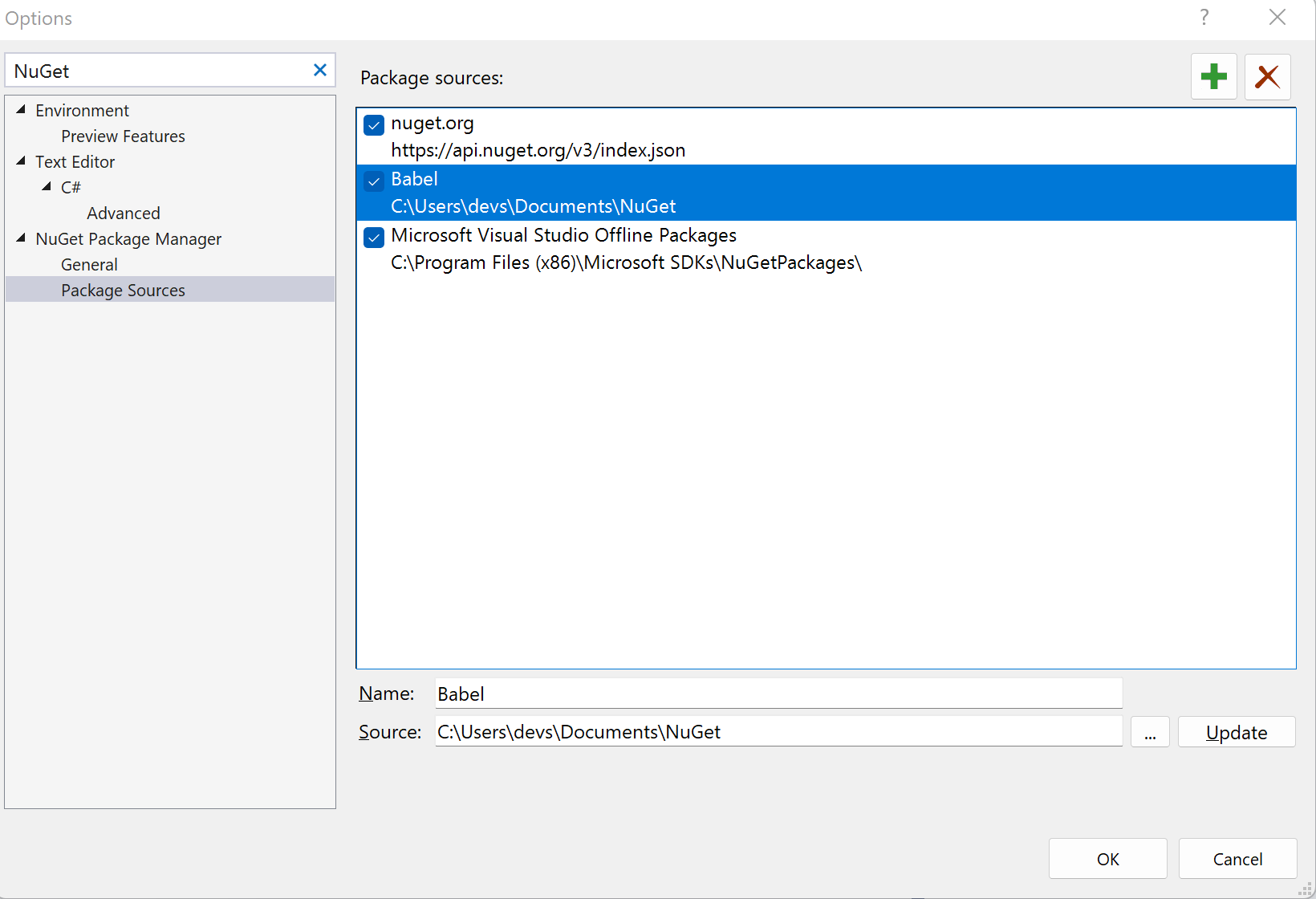
Visual Studio Options Package Sources
Add the Babel package source
Press the button with the plus icon and enter the Name field Babel and the Source field the full path to the folder containing the Babel Obfuscator NuGet package files. Press the OK button.
Reference the Babel.Obfuscator package
In the Solution Explorer right click your project file. Select Manage NuGet Packages…
Select your newly added Babel package source in the Package source combo box, then Install the Babel.Obfuscator package.
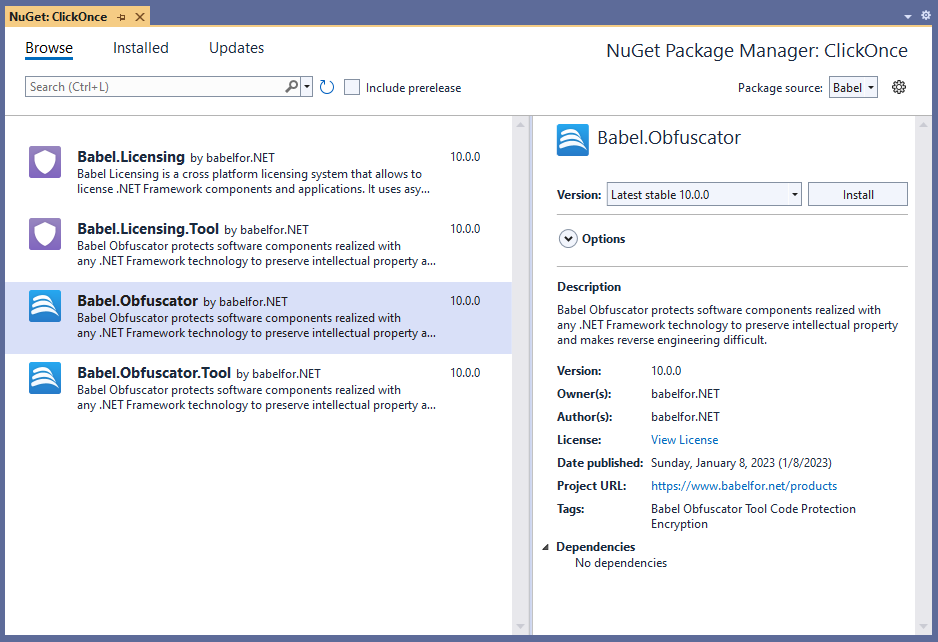
Visual Studio NuGet package manager
Add the license file
Copy your license file babel.licenses in the solution folder and rebuild the solution.
Installing Babel CLI dotnet Tool
Once the Babel NuGet packages are in your local NuGet repository, you can install the CLI tools using dotnet tool install command.
Install Babel Obfuscator CLI tool babel:
dotnet tool install Babel.Obfuscator.Tool -gInstall Babel Licensing CLI tool lic:
dotnet tool install Babel.Licensing.Tool -gTo show the versions of the dotnet tool installed, use the following command:
dotnet tool list -g

Package Id                 Version      Commands
------------------------------------------------
babel.licensing.tool       12.0.0.1     lic
babel.obfuscator.tool      12.0.0.1     babel
Update Babel CLI dotnet Tool
To update Babel Obfuscator CLI tool babel, run in your terminal:
dotnet tool update Babel.Obfuscator.Tool -gTo update Babel Licensing CLI tool lic, run in your terminal:
dotnet tool update Babel.Licensing.Tool -gUninstalling Babel CLI dotnet Tool
To remove Babel Obfuscator CLI tool babel, run in your terminal:
dotnet tool uninstall Babel.Obfuscator.Tool -gTo remove Babel Licensing CLI tool lic, run in your terminal:
dotnet tool uninstall Babel.Licensing.Tool -g