Updates
Babel Desktop checks for new versions through a signed update feed served by babelfor.NET, downloads them in the background and installs them when you restart the application.
How Updates Work
Babel Desktop checks for updates at start-up, every four hours while it runs and whenever the loaded license changes. When a new version is available for your platform and license, the application downloads it and shows a Restart to update banner on the canvas. Click Restart now to install the update and restart, or Later to hide the banner.
Babel Desktop does not install an update while an obfuscation is running or the project has unsaved changes. Save your work or let the run finish, then restart.
Babel Desktop checks the signature of the update feed before using it. If the signature is invalid, the feed is refused and the check is reported as failed.
Automatic updates apply to the per-user Windows installer (EXE), the macOS application and the Linux AppImage. The Windows MSI and the Linux DEB and RPM packages are managed by your deployment tools or package manager: in these installations updates show as disabled, and you upgrade by installing the package of the new version. See Install.
Update Settings
The Application category of Settings shows the installed version and controls updates:
- Download and install updates automatically: on by default. When it is off, Babel Desktop only reports a new version, and Download now starts the download.
- Check for updates checks the feed immediately. The same check is available as Check for Updates… in the application menu on macOS and in the Help menu on Windows and Linux.
The status line below the buttons shows the result of the last check, the download progress, or why updates are disabled. When an update is available, its release notes appear underneath.
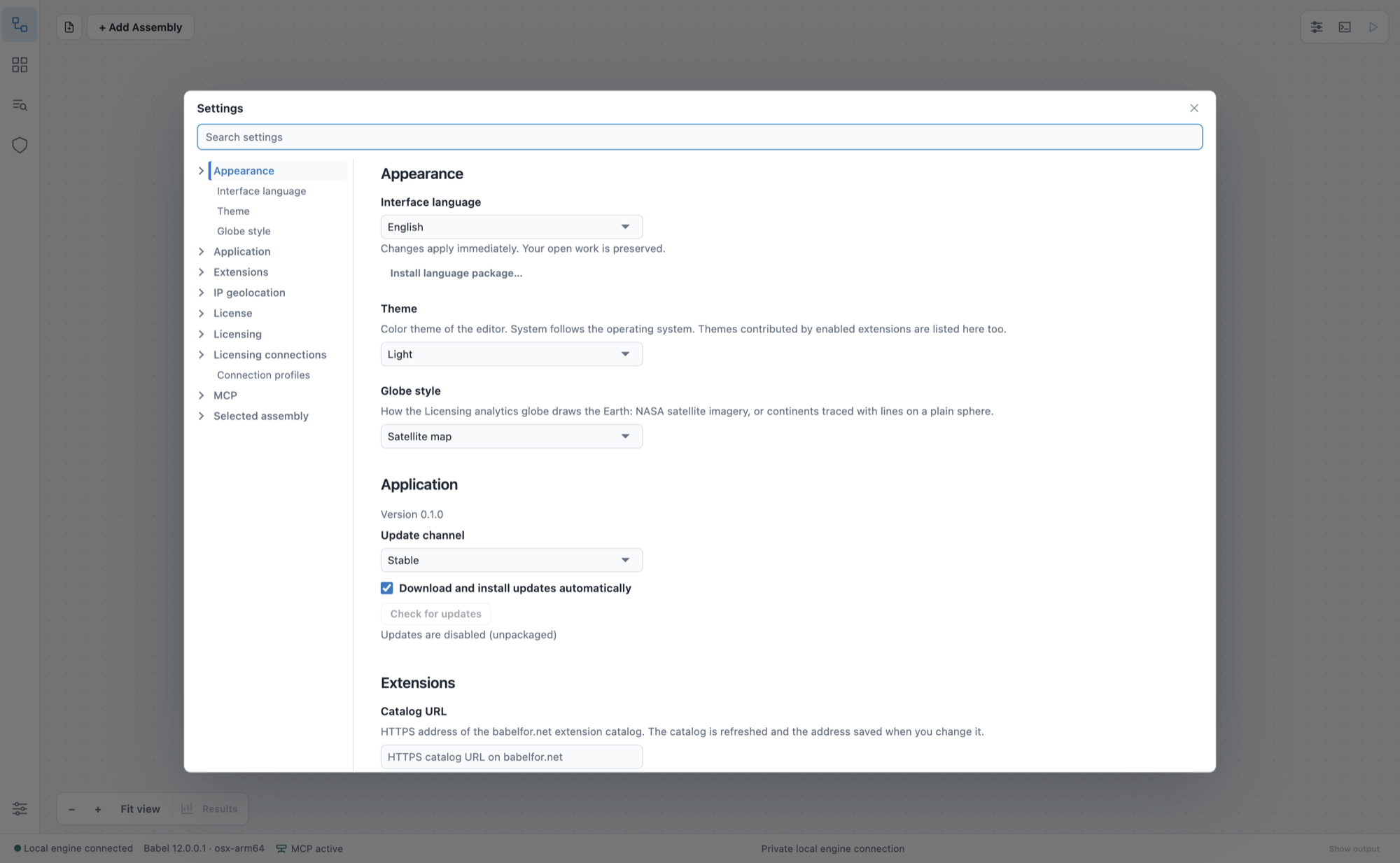
Settings > Application, here in a development build where updates are disabled
Development Versions
Some versions of Babel Desktop are published first as development versions: newer builds that have had less testing than a stable release. You receive stable versions unless you choose otherwise.
When a development version is available for your license, Settings > Application shows Development version … is available. with its release notes and a Try it button. When there is nothing else to tell you, the banner on the canvas shows the same offer. Click Later to hide the banner: it stays hidden until a different version is offered.
Try it downloads the version that was offered. If it is no longer offered for your license, or the download fails or is cancelled, nothing is downloaded and Babel Desktop stays on the stable channel. When the download is complete, the banner asks you to restart. From then on Babel Desktop follows the development channel and offers the newest version of either kind, so a stable release that comes out later reaches you too.
While you are on the development channel, Settings > Application says You are using a development version. To return, click Back to stable, followed by the version number:
- If a stable version newer than the one you run is available, Babel Desktop updates to it.
- Otherwise it downloads the stable version named on the button, which is older than the one you run, and installs it when you restart.
- If the version you run has become the stable version in the meantime, there is nothing to go back to. The panel says You receive development versions of Babel Desktop. and Stop receiving development versions leaves the channel without installing anything.
Babel Desktop goes back only to the version shown on the button. If the update service names a different one when you click, nothing is downloaded and the button shows the new version. If going back fails or is cancelled, nothing changes and you can click the button again.
The same license, platform and maintenance rules apply to development and stable versions. In installations where updates are disabled, nothing is offered.
What Babel Desktop Reports
Babel Desktop sends a short report to the licensing service at start-up and periodically while it runs. It contains:
- the version of Babel Desktop, its update channel (stable or development) and the platform, for example Windows x64;
- a random identifier of the installation;
- for each extension installed from the gallery, its identifier, version and channel.
The identifier is not derived from your hardware, your user name or your license. When a license is activated, the report is linked to that license. Like any request the application makes, the report also carries the standard request headers and comes from your IP address.
The report does not contain project names, paths or file contents, or any other setting. Extensions that you made yourself or that come with the application are not listed, and neither are extensions installed from a file. The exception is an extension installed from a file with an earlier version of Babel Desktop: it is listed if the gallery has an extension with the same identifier.
The report is sent also when automatic updates are off, and there is no setting that turns it off. The service keeps the latest report of each installation and deletes it 180 days after the last one.
License and Maintenance
Which updates you receive depends on the license loaded in Settings > License:
| Platform | Updates require |
|---|---|
| Windows | Any valid Babel license |
| macOS and Linux | An Ultimate edition license or a demo license. Server and Data Center licenses do not qualify. |
An installation without a license reports that a license is required to install updates. On macOS and Linux, a license of any other edition, including Server and Data Center, reports that Babel Desktop for that platform requires the Ultimate edition.
Releases that require active maintenance are offered only when the maintenance period of your license covers the release date. The maintenance period ends on the maintenance expiration date of the license or, when the license has none, one year after its issue date. If your maintenance has expired, you do not get the new version. The banner and the settings show the expiration date and a link to renew. Babel Desktop also reminds you shortly before maintenance runs out. The installed version keeps working either way.
Troubleshooting
| Status | Meaning |
|---|---|
| Babel Desktop is up to date | No newer version is available for your license. |
| Version … is available | A newer version is available; it is downloading, or Download now starts the download. |
| Babel Desktop … is ready. Restart to update. | The update is downloaded; restart to install it. |
| Your maintenance expired on … | The new version requires maintenance that your license no longer covers. Renew the maintenance. |
| A Babel license is required to install updates | Load a license in Settings > License. |
| Babel Desktop for … requires the Ultimate edition | Updates on macOS and Linux require an Ultimate edition or demo license. |
| Update check failed: … | The feed could not be reached or its signature was not valid. Check the network connection and try again later. |
| Updates are disabled (…) | The installation is managed by an MSI, DEB or RPM package, or the application is not an installed build. |
Update failures are also written to the Activity log.