Interface
The Babel Desktop window is laid out like a code editor: an activity bar on the left, the project in the middle, the properties of the selected target on the right and the progress of the current run at the bottom.
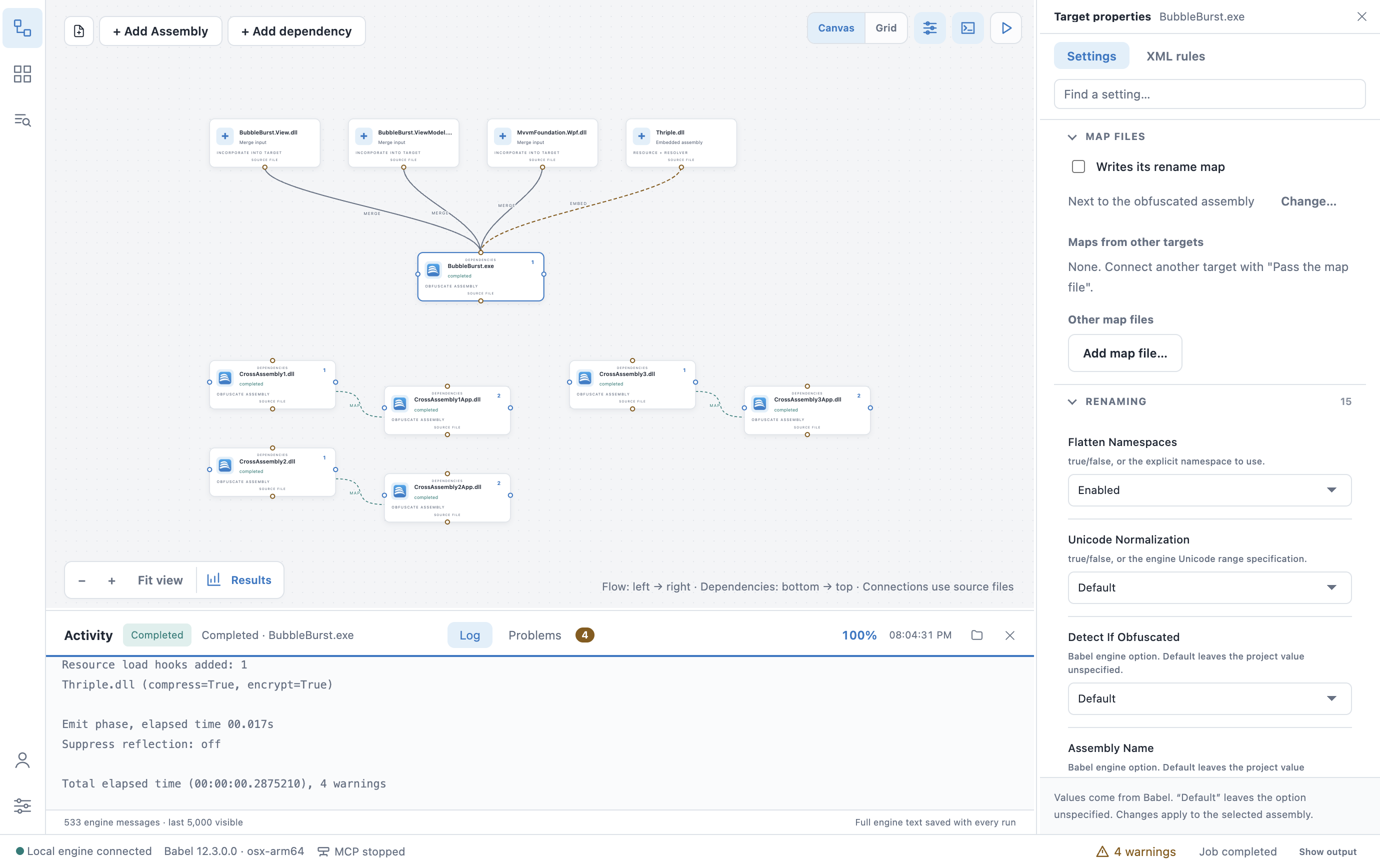
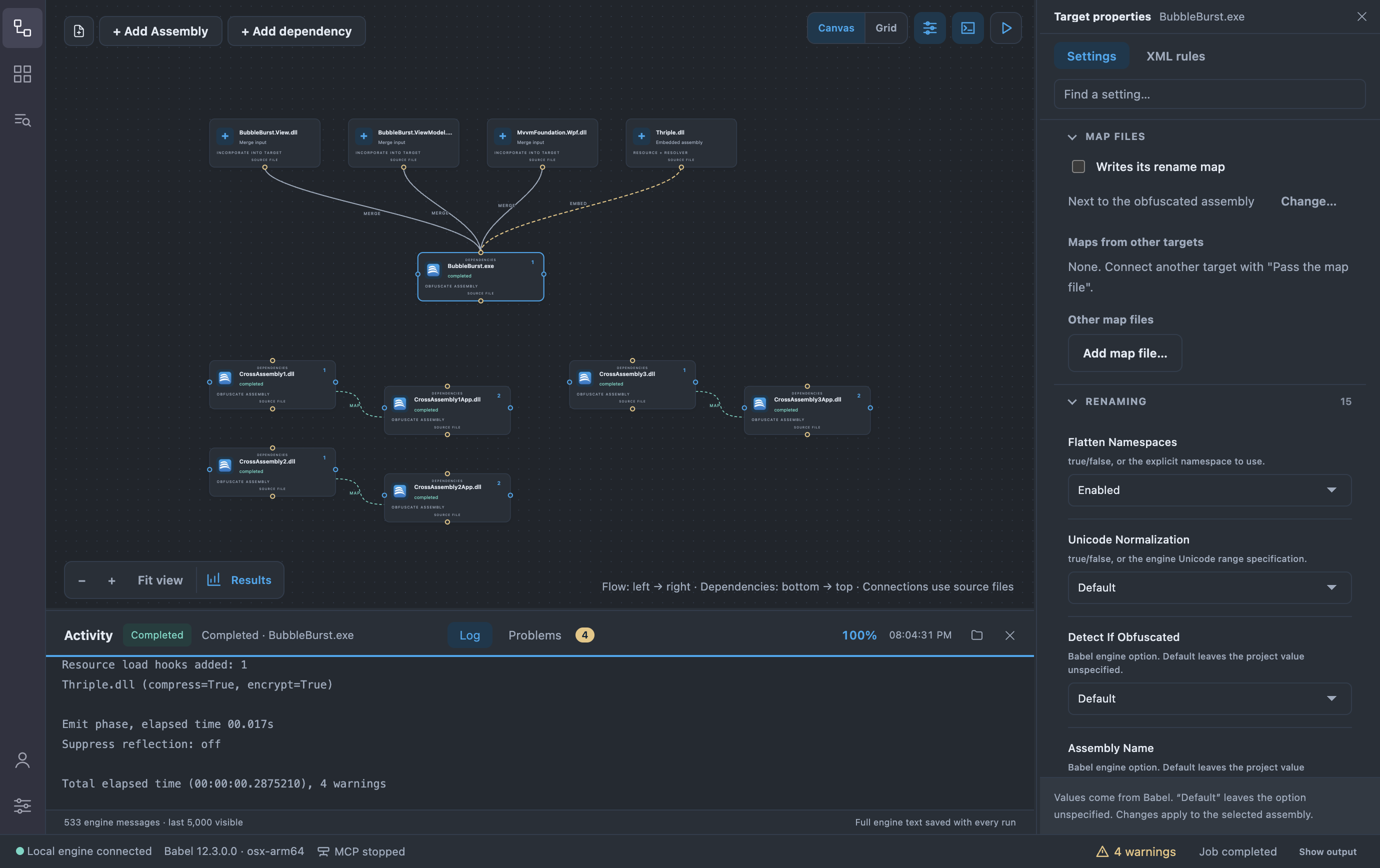
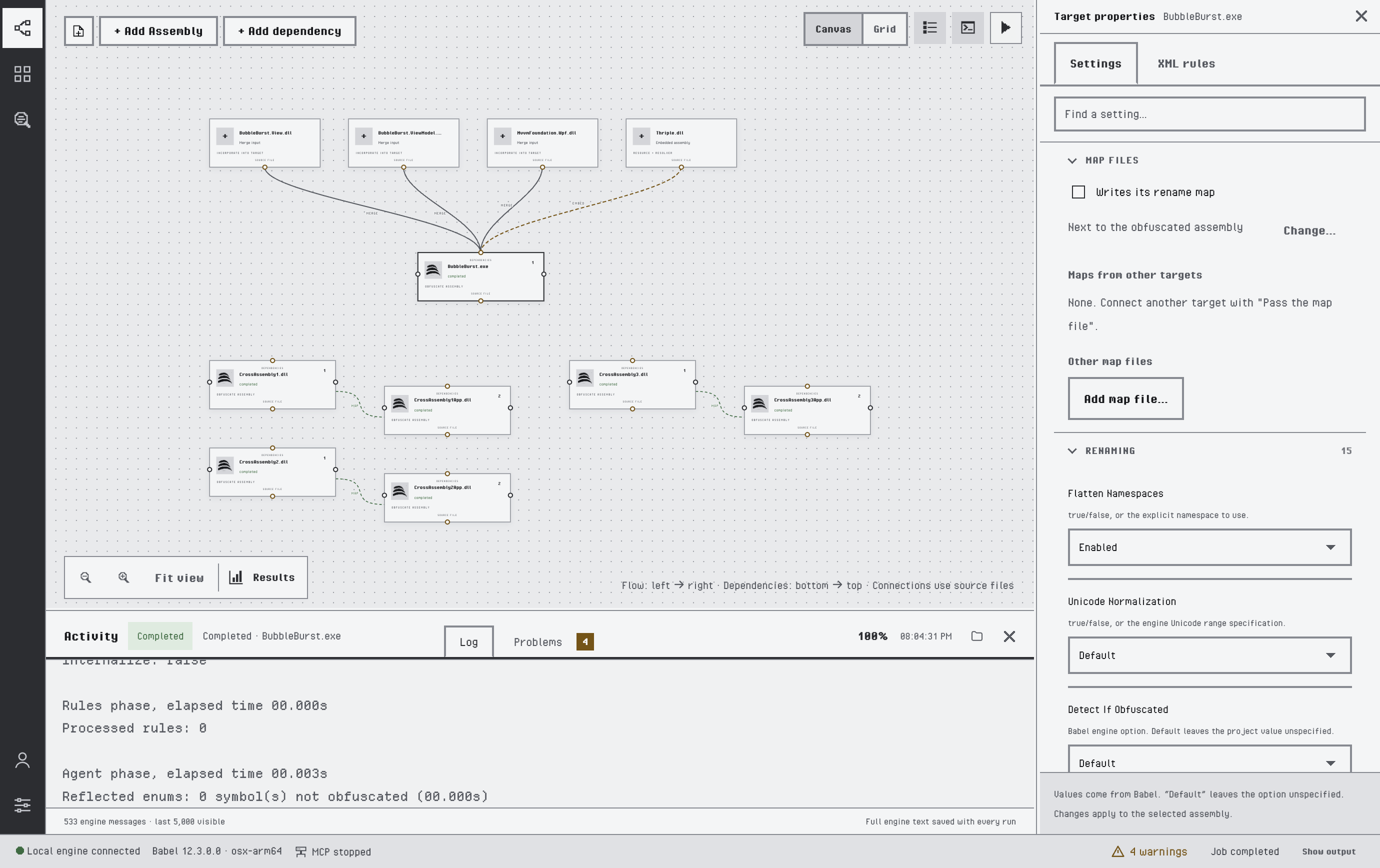
The main window with the properties panel and the Activity panel open
Parts of the Window
The main window has six parts. The project is in the middle, on the canvas or in the grid, and the panels around it show the settings of the selected target and the progress of a run.
| Part | What it holds |
|---|---|
| Activity bar | The column of icons on the left. It opens the Project view, the Extensions view, the Stack decoder, each Licensing connection and the views added by installed extensions. At the bottom are the account menu and Settings. |
| Toolbar | New project, + Add Assembly and + Add dependency on the left; the Canvas / Grid switch, Properties, Activity and Run project on the right. In the grid it also has Run results. |
| Canvas or grid | The project as a graph or as a table. See The Project Canvas and The Project Grid. |
| Properties panel | The settings and XML rules of the selected target, docked on the right. See Target Settings. |
| Activity panel | The progress, the engine log and the problems of the current run, docked at the bottom. See Running the Project. |
| Status bar | The engine connection, the engine version and platform, the state of the MCP server, the warning count of the last run, the job state and Show output. |
To resize a panel, drag its separator. Babel Desktop remembers the sizes. Properties and Activity on the toolbar show and hide their panels.
Right-click the activity bar to choose which icons it shows, to move the icon you clicked with Move up or Move down, or to go back to the default order with Restore sidebar order. Settings is always shown.
On Windows and Linux the window has its own title bar. It holds the menu bar, a search box in the middle that opens the command palette and shows where you are, and three buttons on the right that show and hide the left, bottom and right panels. On macOS the menus are in the system menu bar.
Menus
Many menu commands also have a keyboard shortcut and an entry in the command palette, so you can reach them without the mouse.
| Menu | Commands |
|---|---|
| File | New Project, Open Project…, Save, Save As…, Add Assembly…, Reveal Output; on Windows and Linux also Settings… and Exit |
| Edit | Undo, redo and the clipboard commands of text fields |
| View | Command Palette…, Project, Extensions, Stack Decoder, Canvas, Grid, Auto Layout Graph, zoom and full screen |
| Run | Run Obfuscation, Run Obfuscated App, Cancel |
| Help | Documentation, and on Windows and Linux Check for Updates… and About Babel Obfuscator |
On macOS, About Babel Obfuscator, Check for Updates… and Settings… are in the application menu.
Command Palette
Press Ctrl+Shift+P (Cmd+Shift+P on macOS) to open the command palette. The commands you used last are at the top, under recently used, and each command shows its keyboard shortcut when it has one. Type to filter the list. The palette lists all application commands: project commands (Project: New, Project: Open…, Project: Open Recent…, Project: Save, Project: Save As…), assembly commands (Assembly: Add primary targets…, Assembly: Replace input and keep settings…, the dependency commands), the setup commands (Obfuscation: Setup merge into main assembly, Obfuscation: Setup public obfuscation (all assemblies), Obfuscation: Set level…), view commands (View: Canvas, View: Grid, View: Fit graph, View: Target settings, View: XML rules, View: Activity), tools (Tools: Stack decoder, Tools: Warning reference, Tools: Job warnings), Engine plugins commands, appearance commands, MCP server commands, commands added by extensions, and the About commands with the third-party notices.
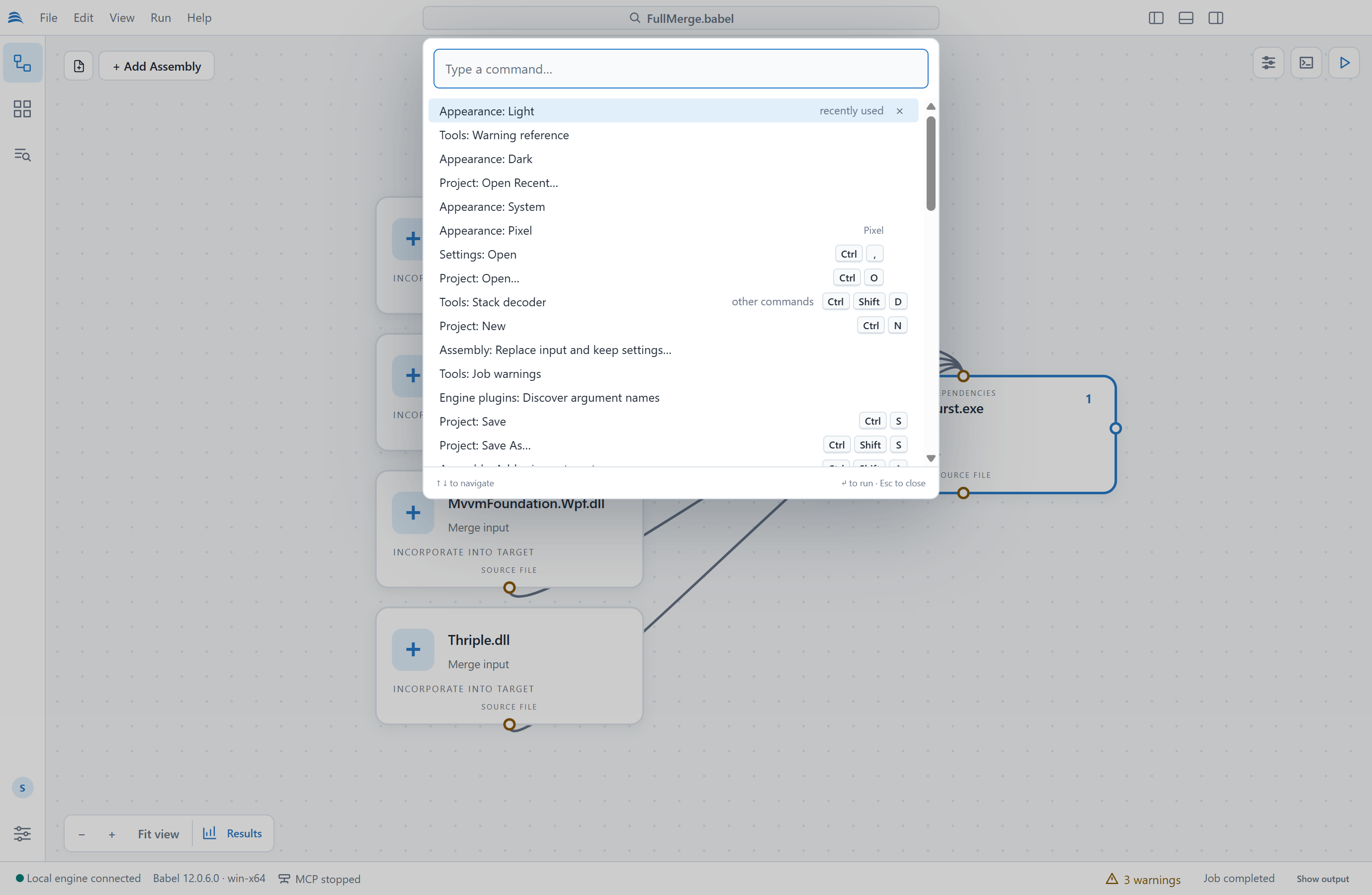
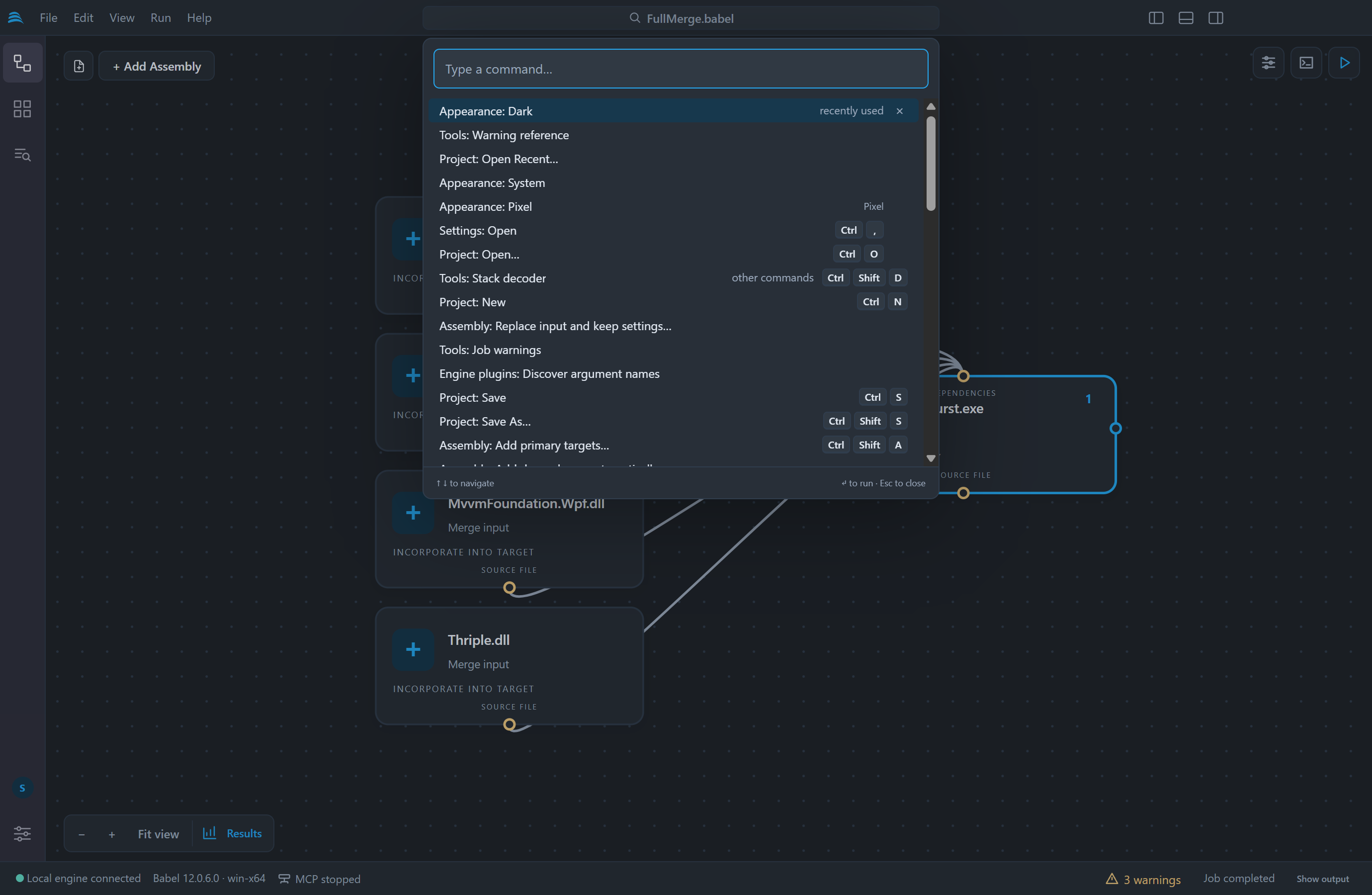
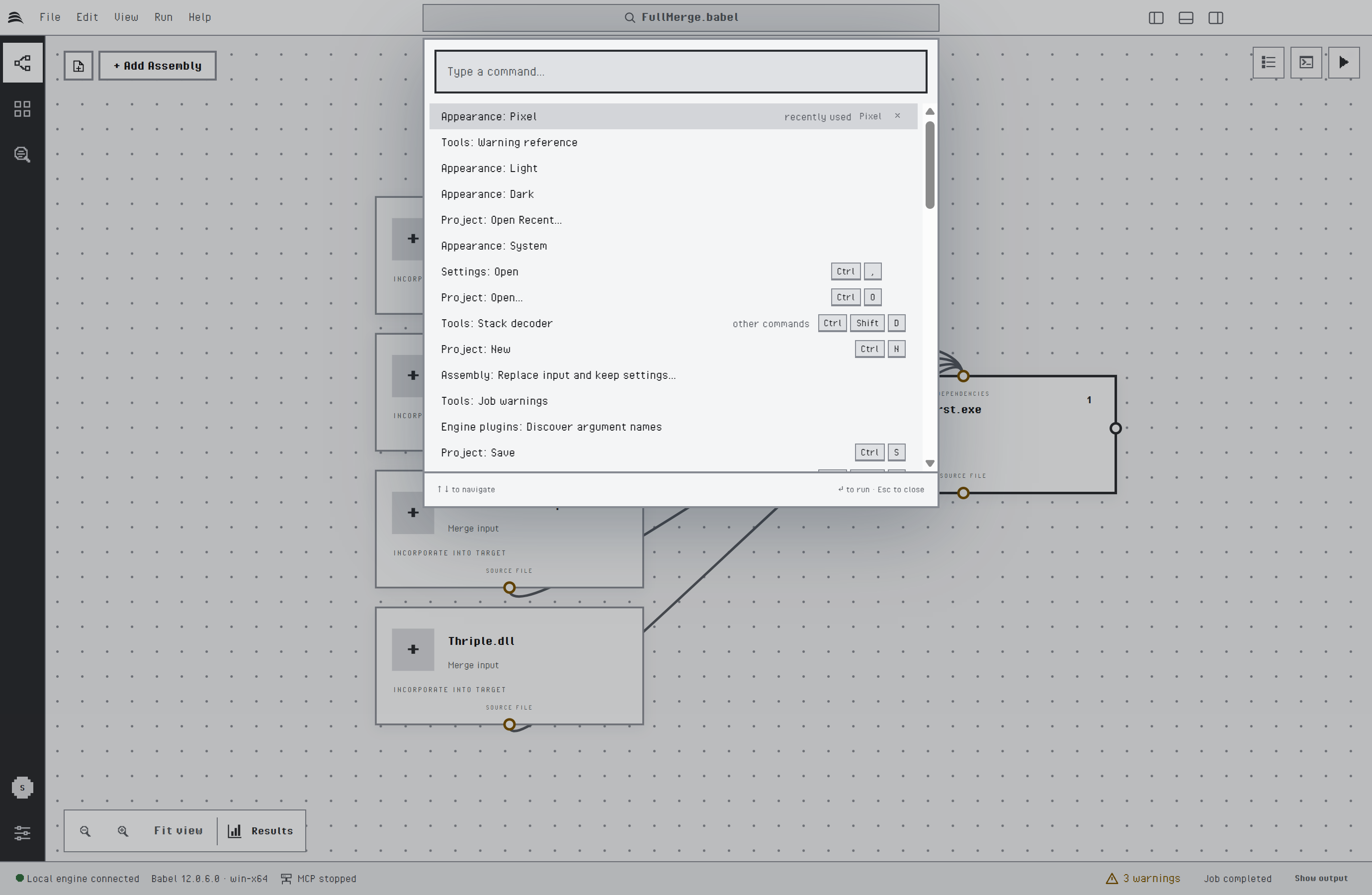
The command palette
Keyboard Shortcuts
macOS uses the same keys as Windows and Linux, with Cmd in place of Ctrl.
| Command | Windows and Linux | macOS |
|---|---|---|
| Command palette | Ctrl+Shift+P | Cmd+Shift+P |
| New project | Ctrl+N | Cmd+N |
| Open project | Ctrl+O | Cmd+O |
| Save project | Ctrl+S | Cmd+S |
| Save project as | Ctrl+Shift+S | Cmd+Shift+S |
| Add assembly | Ctrl+Shift+A | Cmd+Shift+A |
| Run obfuscation | Ctrl+Enter | Cmd+Enter |
| Run obfuscated app | Ctrl+F5 | Cmd+F5 |
| Canvas view | Ctrl+Shift+C | Cmd+Shift+C |
| Grid view | Ctrl+Shift+G | Cmd+Shift+G |
| Auto layout graph | Ctrl+Shift+L | Cmd+Shift+L |
| Project view | Ctrl+Shift+E | Cmd+Shift+E |
| Extensions view | Ctrl+Shift+X | Cmd+Shift+X |
| Stack decoder | Ctrl+Shift+D | Cmd+Shift+D |
| Settings | Ctrl+, | Cmd+, |
On the canvas and in the grid, the menu key or Shift+F10 opens the menu of the focused node, row or column header, and Esc cancels what is in progress. The keys of the grid are listed in Selecting and Editing.
Work Recovery
Babel Desktop takes recovery snapshots of project changes you have applied but not saved. If the application or the engine stops unexpectedly, a banner on the next start offers to restore that work. Session passwords, such as signing key passwords, are never written to snapshots or project files, so you have to enter them again.