Floating License
A floating license is a pool of licenses shared among the users or machines on a network. With Babel Licensing, you create floating licenses on the Babel Licensing Service using Babel Desktop. This page shows how to create a floating license with Babel Desktop and how to configure a client .NET application to use it with the Babel Licensing library.
Prerequisites
To enable floating license functionality in Babel Licensing Service, follow these steps. First, ensure that Babel Licensing Service is up and running on your server according to the instructions provided in the Getting Started section. Then, create a test product and a corresponding template license by referring to the instructions provided below. This will establish the foundation for generating floating licenses.
Next, you’ll need to download the floating license client source code from GitHub. This client code will be used to integrate floating license capabilities into your .NET application.
git clone https://github.com/babelfornet/floating-license-console-example.gitThe creation of a floating license for this example requires the creation of a corresponding license template.
Creating a Floating License
Babel Desktop connects to the Babel Licensing Service and lets you create and configure floating licenses. You define the size of the license pool, that is the number of users or machines allowed to use the license at the same time. Your application then acquires a license from the pool when it needs one and releases it when it is done. Each checked-out seat is a token that counts against the token limit of the service; see License Tokens.
To register a floating license in Babel Desktop, follow these steps:
Connect to the service
Open Babel Desktop and click the icon of your Babel Licensing Service profile in the activity bar. Generating licenses requires a Local test profile with Local management, so run Babel Desktop on the service machine; for a remote service use the web application or the Management API.
Generate a license
Open the Licenses view and choose Generate license on the toolbar.
Select the template and signature key
In the Template group, select the license Template created in the previous paragraph (see License Templates) and the Signature key. When no signature key is selected, the key of the template, or of its product, is used.
Set the mode to Floating
In the Terms group, set Mode to Floating.
Set the pool size
In Sites, enter the size of the floating pool: the number of licenses that can be in use at the same time.
Generate the user key
In the License information group, press the Generate button at the right end of the User key field. The client application will use this unique code to request a floating license.
Enter the licensee and license details
Enter the licensee information (a licensee name or company is required) and any additional Fields, Features or Restrictions you want for this license.
Select the format
Select the license Format: XML, XML signature, ASCII or Base32.
Save the license
Save the form. The service generates and signs the license.
The public key extracted from the Keys.snk file, which is necessary for license validation, is already configured in the example source code.
The newly registered floating license will now appear in the licenses grid with a unique license key and other relevant information. With the Data Center edition you can also create floating licenses on the Licenses page of the web application.
The Babel Licensing Service limits the concurrent use of the license to the number of floating sites you entered.
Configuring a Client
Once the floating license is created on the Babel Licensing Service, you need to configure your client .NET application to consume the license. This involves integrating the Babel Licensing library into your application and implementing the necessary code to request and release licenses from the floating license pool. The Babel Licensing library provides the APIs for license validation and enforcement.
To open the floating license sample project, follow these steps:
Open the solution
Navigate to the location where the floating license sample project is stored and double-click on the ClientFloating.sln solution file to open it in your preferred Integrated Development Environment (IDE), such as Visual Studio.
Check the client library reference
Once the project is open, ensure that the Babel Licensing client library is referenced correctly. If the reference is missing, please refer to the Client Components paragraph to configure a local NuGet repository.
Build the solution
After ensuring the correct references, build the solution by selecting the “Build” or “Rebuild” option from the IDE’s menu.
Run the application
Once the solution is successfully built, you can run the application in debug configuration by pressing the “Start Debugging” button or using the keyboard shortcut specific to your IDE (e.g., F5 in Visual Studio). The floating license sample application will launch, allowing you to interact with the licensing functionality and test the floating license workflow.
Enter the floating license key
Enter the floating license key generated for the license and press ENTER.
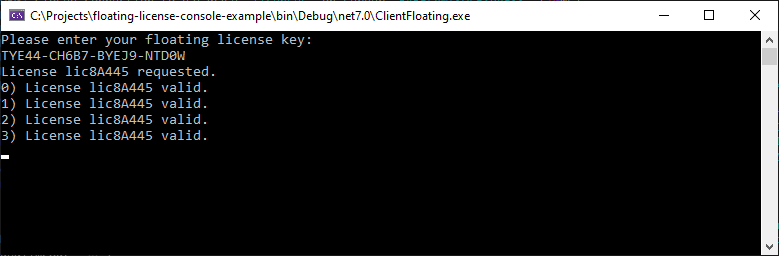
Floating License Console
Follows the complete license activation example source code:
using Babel.Licensing;

// Create a new configuration object
BabelLicensingConfiguration config = new BabelLicensingConfiguration() {
    // Set the service URL
    ServiceUrl = "http://localhost:5005",

    // Set the public key used to verify the license signature
    SignatureProvider = RSASignature.FromKeys("MIGfMA0GCSqGSIb3DQEBAQUAA4GNADCBiQKBgQDE1VRiIdr6fiVZKve7NVgjIvGdRiRx0Mjjm+Yzf6tLbzFnxLs0fat5EoRcubxx0QQQDfydsJBE/fc7cwRWSrE2xK6X4Eb4W8O47pCMjqvTQZfDqQywEZJrLlxpp9hlKz6FDYX4SagrjmP1gdw8olo+n+IBz8ubkNxRhvycikxuDQIDAQAB"),

    // Set a unique client ID in case multiple instances of the application are running on the same machine
    ClientId = Guid.NewGuid().ToString()
};

// Create the client object used to communicate with the server
BabelLicensing client = new BabelLicensing(config);

// Ask the user to enter the floating license key
Console.WriteLine("Please enter your floating license key: ");
string? userKey = Console.ReadLine();

try
{
    var result = await client.RequestFloatingLicenseAsync(userKey, typeof(Program));

    Console.WriteLine($"License {result.License.Id} requested.");
}
catch (Exception ex)
{
    Console.WriteLine($"Could not request floating license: {ex.Message}");
    return;
}

try
{
    // Simulate a long task which requires the allocation of a license
    for (int i = 0; i < 10; i++)
    {
        // Validate the license
        // This will contact the server to validate the license
        var result = await client.ValidateLicenseAsync(userKey, typeof(Program));
        Console.WriteLine($"{i}) License {result.License.Id} valid.");

        // Wait 1 second
        await Task.Delay(1000);
    }

    try
    {
        // Release the license to allow other clients to use it
        await client.ReleaseFloatingLicenseAsync(userKey);
        Console.WriteLine("License released.");
    }
    catch (Exception ex)
    {
        Console.WriteLine($"Could not release license: {ex.Message}");
    }

}
catch (Exception ex)
{
    Console.WriteLine($"License not valid: {ex.Message}");
    return;
}
The BabelLicensing class is instantiated to communicate with the licensing server. The public key to validate the license is assigned in the service configuration as well as the URL to communicate with the service.
The user is prompted to enter the floating license key. The license key is used by the client to request a floating license by calling the RequestFloatingLicenseAsync method. The user key and the type of the program are passed as parameters. If successful, the method returns a result object containing the requested license information.
The code simulates a long-running task that requires the allocated license. In a loop, the license is validated using the ValidateLicenseAsync method. The user key and the type of the program are passed as parameters. If the license is valid, the method returns a result object containing the license information. The loop also includes a delay of one second to simulate the task’s duration.
After the task is completed, the client releases the floating license using the ReleaseFloatingLicenseAsync method.
Floating licenses let you share a limited number of licenses across a network of users or machines, with less administrative work than assigning a license to each one. They suit a growing user base, or licenses shared between departments or teams.