Settings Data Center
Open Settings from the navigation to manage appearance, account security and the server settings your role permits. Account security is available to signed-in users; server configuration is restricted to administrators.
Preview of the redesigned interface: these pages and screenshots cover the updated Data Center web application. Previously downloaded service packages may still show the earlier interface; the new controls and optional 2FA require a service build that includes this update.
Appearance and language
Choose System, Light or Dark in the header or Appearance & language. System follows your operating system. The application supports English, Italian, German, French and Spanish.
Under Theme palette, edit light and dark background, accent and secondary colours independently. Editing the inactive palette does not switch the page theme. The light default is cream; chart colours follow the active palette. Changes apply immediately and are saved for this account in this browser. Restore actions return to the defaults.
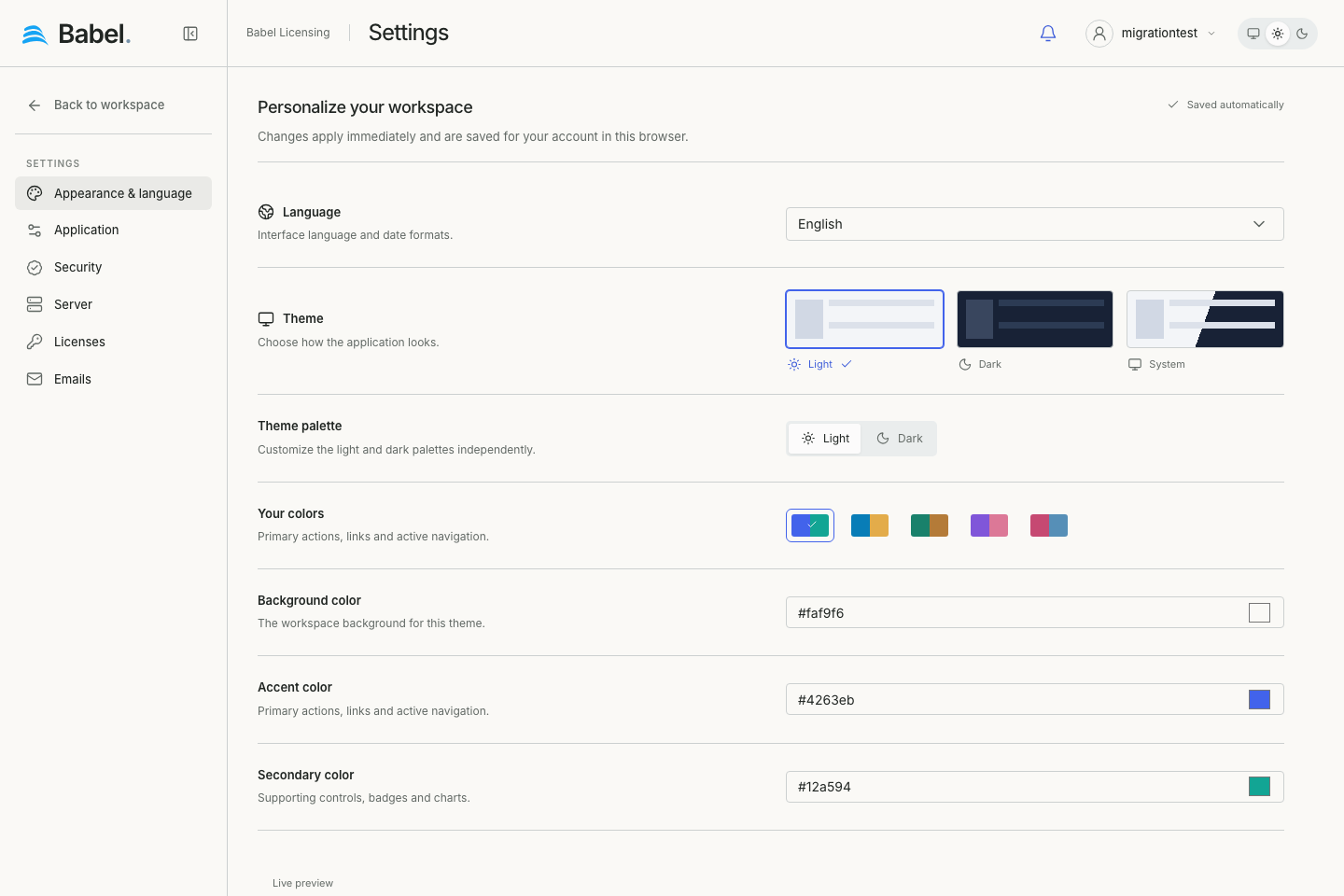
Updated web interface with fictional demonstration data. Screenshots use English labels.
Account security and optional 2FA
Two-factor authentication is optional and disabled by default. Each user decides whether to enable it under Security, separately from server-wide access rules.
- Choose Set up two-factor authentication.
- Enter your current password.
- Scan the QR code with an authenticator app, or enter the manual setup key in that app.
- Enter its six-digit code. Protection is enabled only after verification succeeds.
- Save the ten recovery codes with Download recovery codes, then confirm that you have saved them.
Later sign-ins require username, password and an authenticator code. No account token is issued before verification succeeds.
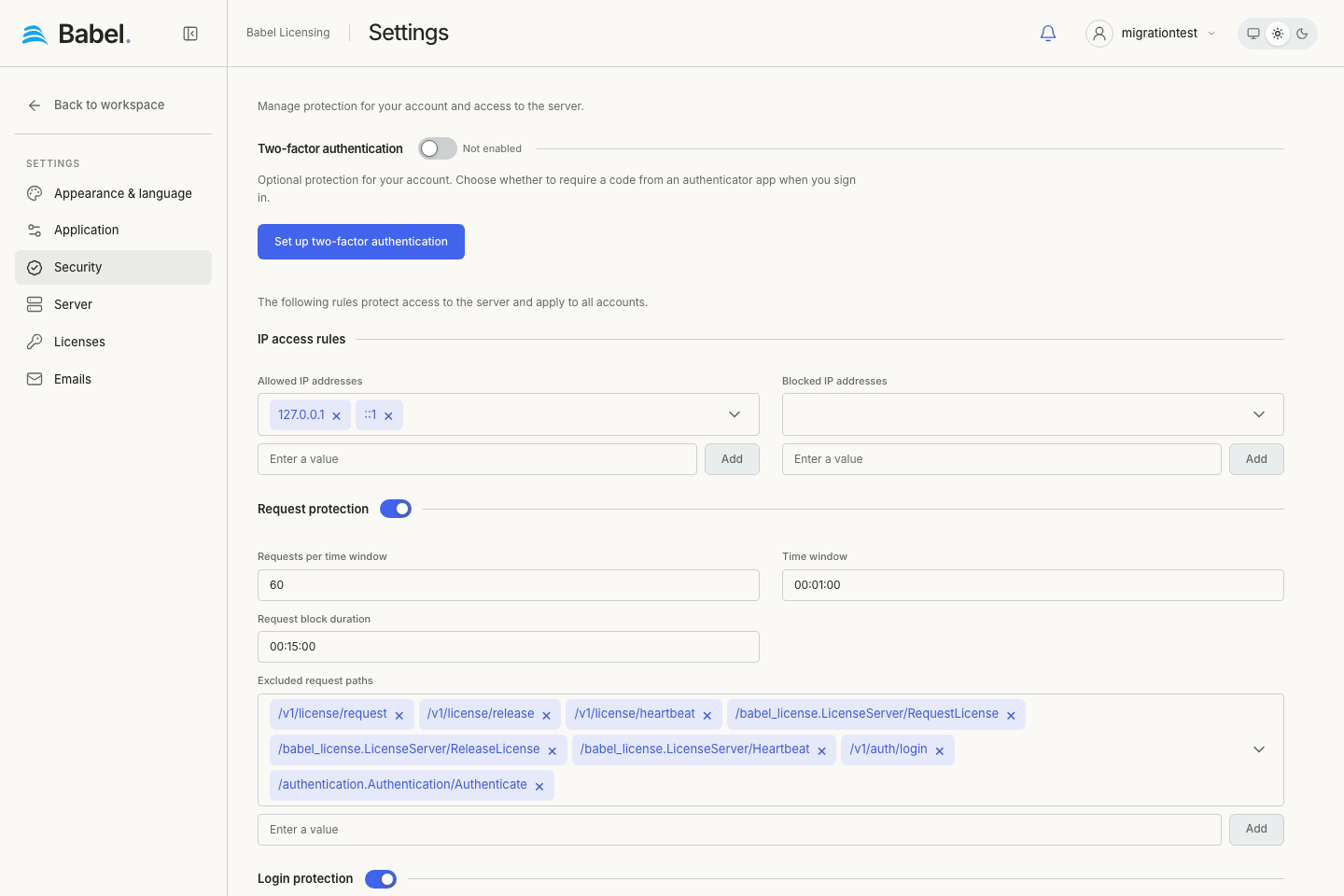
Updated web interface with fictional demonstration data. Screenshots use English labels.
Recovery and disabling 2FA
If the authenticator is unavailable, choose Use a recovery code at sign-in. Each code works once and is shown only when generated. Generate new recovery codes replaces the old set after password and second-factor verification. Disable two-factor authentication also requires your password and an authenticator or recovery code.
Account 2FA does not change API-key permissions, expiry or revocation. Store integration keys separately from recovery codes.
Server-wide security rules
Administrators configure allowed/blocked IP addresses, request protection and login protection. Enable switches sit beside section headings. Limits, windows and block durations apply to the server independently of personal 2FA. Use Save server rules to persist changes.
Application and server settings
Application groups API/UI, gRPC Web, JSON, health checks, API keys, logging, Swagger, geolocation and webhook settings. Server exposes supported Database, Extensions/downloads, Updates and Reporting settings. Licenses and Email have separate sections. Fields reflect the settings returned by the installed service.
The Licensing MCP server remains a separate component distributed with Data Center; these panels do not install or enable it. See MCP Server. For environment variables, connection strings and file-based settings, see Service configuration.
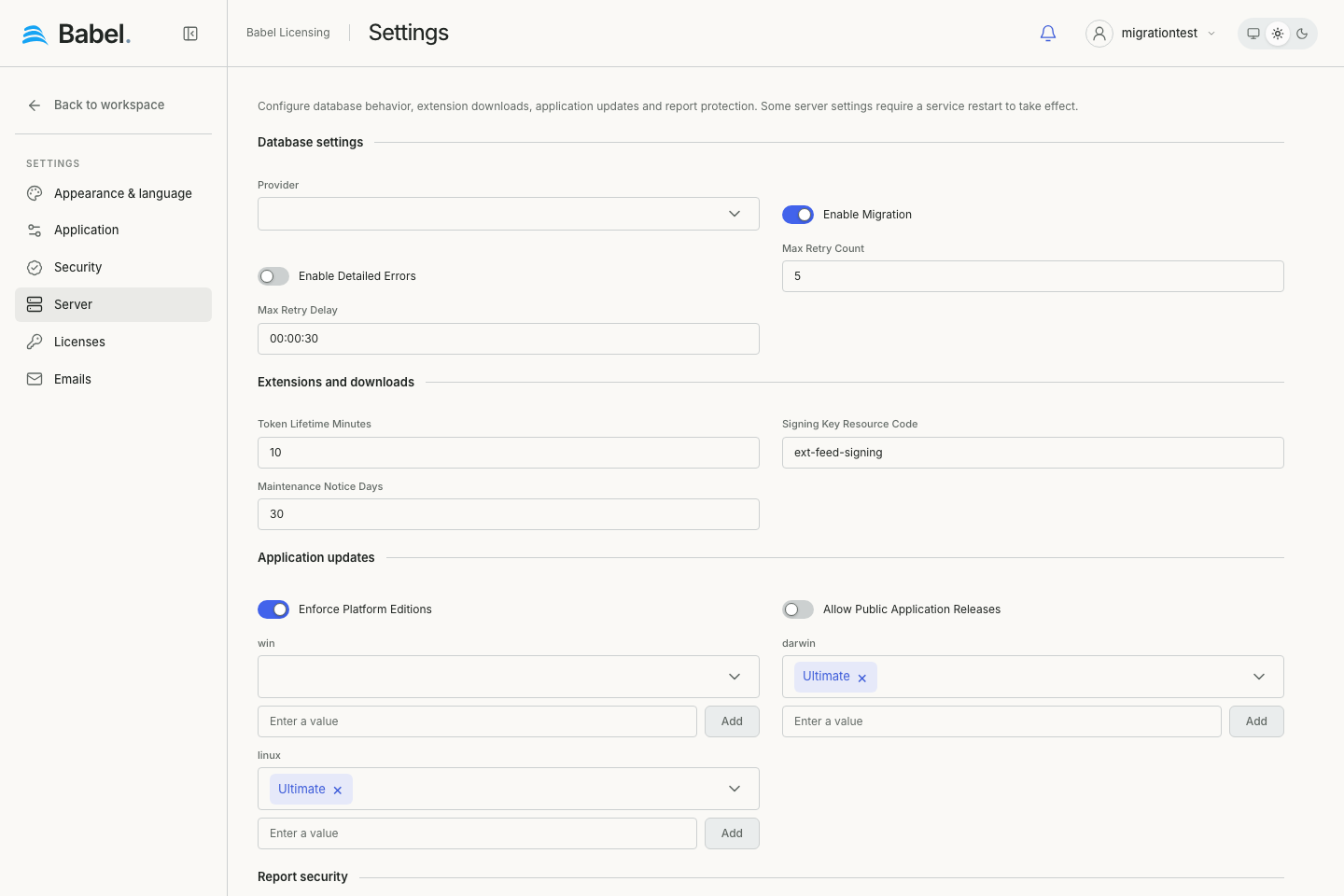
Updated web interface with fictional demonstration data. Screenshots use English labels.
Saving settings
Save writes supported server settings; Reset discards unsaved edits. Some changes require a service restart. Environment variables can override saved file values. Appearance and verified 2FA setup have immediate save flows; the server Save button does not enable 2FA.