Babel Desktop
Babel Desktop is the cross-platform application for Windows, macOS and Linux that edits and runs Babel Obfuscator projects and manages a Babel Licensing Service.
License requirements
| License edition | Supported platforms |
|---|---|
| Enterprise | Windows |
| Ultimate or higher | Windows, macOS, Linux |
A demo license can be used for evaluation. Licensing management also requires the appropriate Babel Licensing Server or Data Center entitlement.
Babel Desktop is new in Babel 12.0. It replaces Babel UI, which ran only on Windows. The desktop runs the Babel Obfuscator engine itself, so with the same settings a run produces the same output as the command line tool or the MSBuild task. Projects are saved as the .babel files the MSBuild task reads, which means a project set up in the desktop can later be built unattended on a build server.
The application covers:
- Obfuscation projects: add assemblies, connect merge, embed and reference dependencies on a canvas, edit every engine option and the XML rules, run the obfuscation and review the statistics. See Obfuscation Projects.
- Tools: decode obfuscated stack traces with XML map files in the Stack Decoder, browse the engine warning reference and discover engine plugin arguments.
- Licensing: the built-in Licensing views connect to a Babel Licensing Service with an API key and manage customers, products, orders, licenses, templates, tokens, reports, users, API keys, webhooks and server settings, with a dashboard and an activity globe.
- Personalization: extensions, themes and interface languages (English, Italian, French, German, Spanish and Japanese).
- Automation: an opt-in local MCP server lets an AI assistant such as Claude Code operate the application.
- Updates: new versions are installed automatically from a signed update feed.
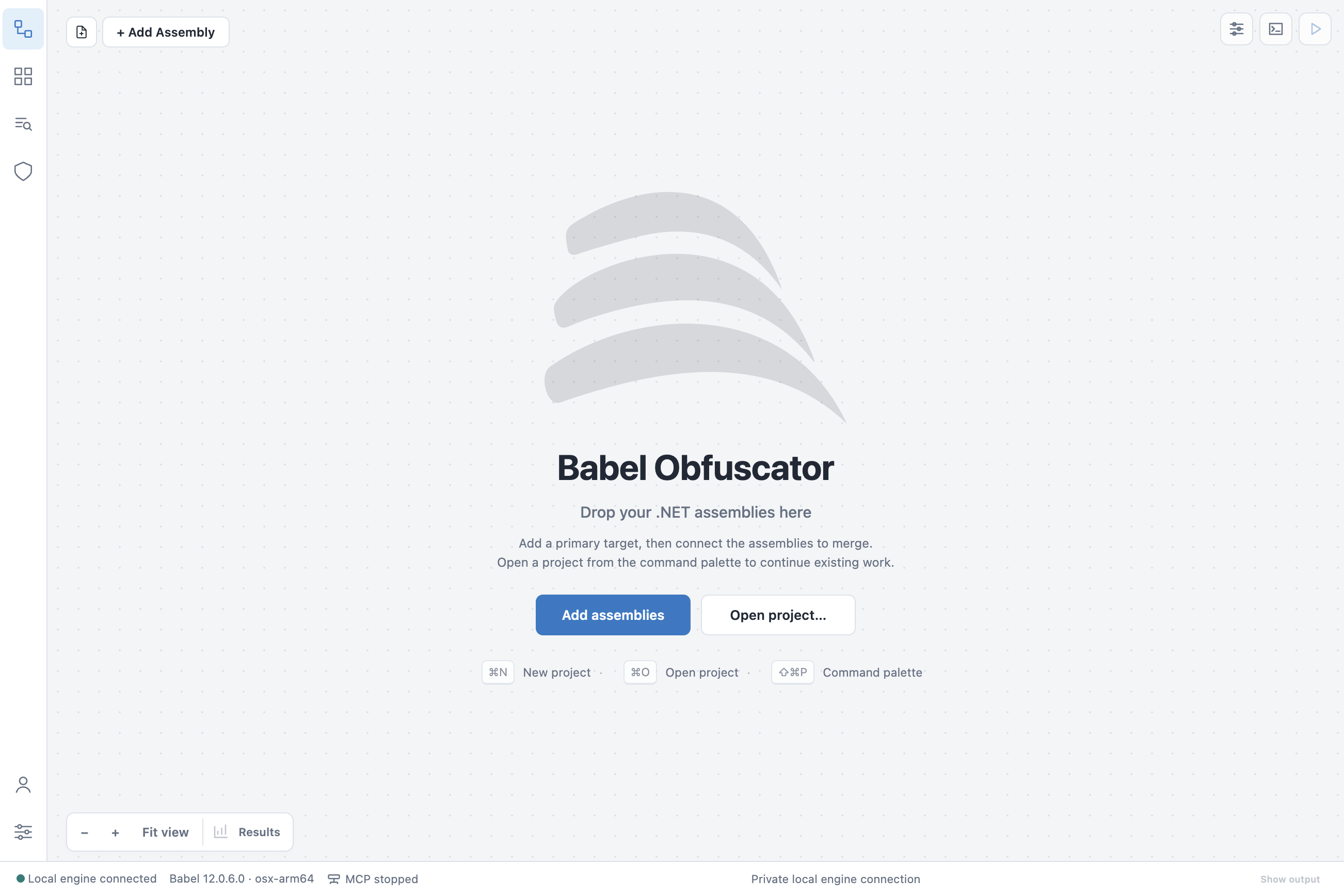
The start screen: add assemblies or open a project to begin
Babel Desktop does not install the babel command line tool or the MSBuild task. To run Babel from a terminal, a build script or MSBuild, use the zip packages or the NuGet tools described in Install.
Getting Started
- Install: installers for Windows, macOS and Linux.
- Product Activation: load your license from a file, an activation key or a floating license, and what each license enables.
The Application Window
The main window is laid out like a code editor:
- Activity bar: the column of icons on the left opens the Project sidebar, the Extensions view, the Stack decoder, each Licensing connection, the views added by installed extensions, the account menu and Settings.
- Canvas: the project graph, with the Add Assembly button and the zoom controls. See Obfuscation Projects.
- Properties panel: the settings and XML rules of the selected assembly, docked on the right.
- Activity panel: the progress and the engine log of the current run, docked at the bottom.
- Status bar: the engine connection state and the engine version.
To resize a panel, drag its separator. Babel Desktop remembers the sizes.
Command Palette
Press Ctrl+Shift+P (Cmd+Shift+P on macOS) to open the command palette. The commands you used last are at the top, under recently used, and each command shows its keyboard shortcut when it has one. Type to filter the list. The palette lists all application commands: project commands (Project: New, Project: Open…, Project: Open Recent…, Project: Save, Project: Save As…), assembly commands (Assembly: Add primary targets…, Assembly: Replace input and keep settings…, the dependency commands), the setup commands (Obfuscation: Setup merge into main assembly, Obfuscation: Setup public obfuscation (all assemblies), Obfuscation: Set level…), tools (Tools: Stack decoder, Tools: Warning reference, Tools: Job warnings), Engine plugins commands, MCP server commands, commands added by extensions, and the About commands with the third-party notices.
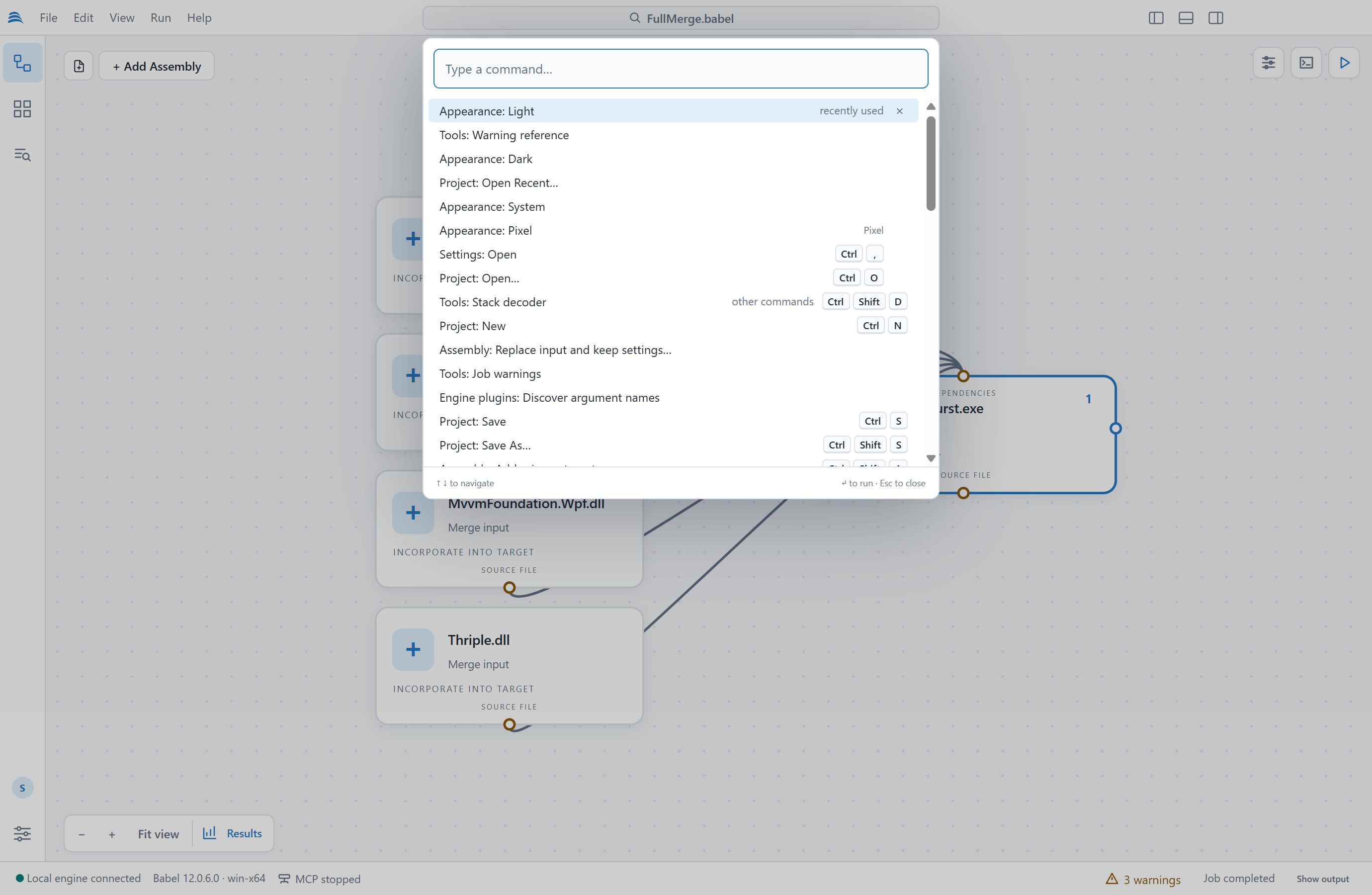
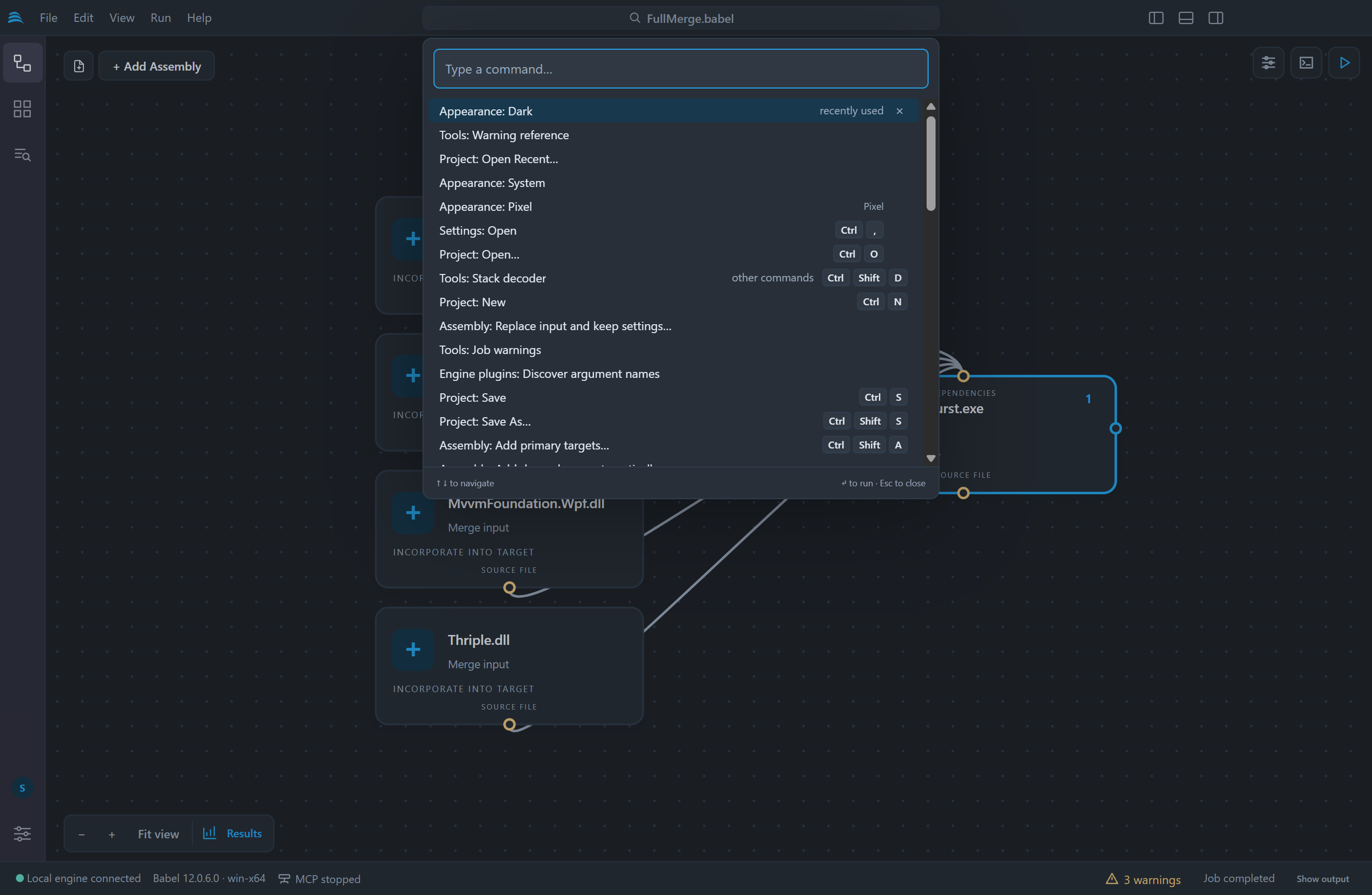
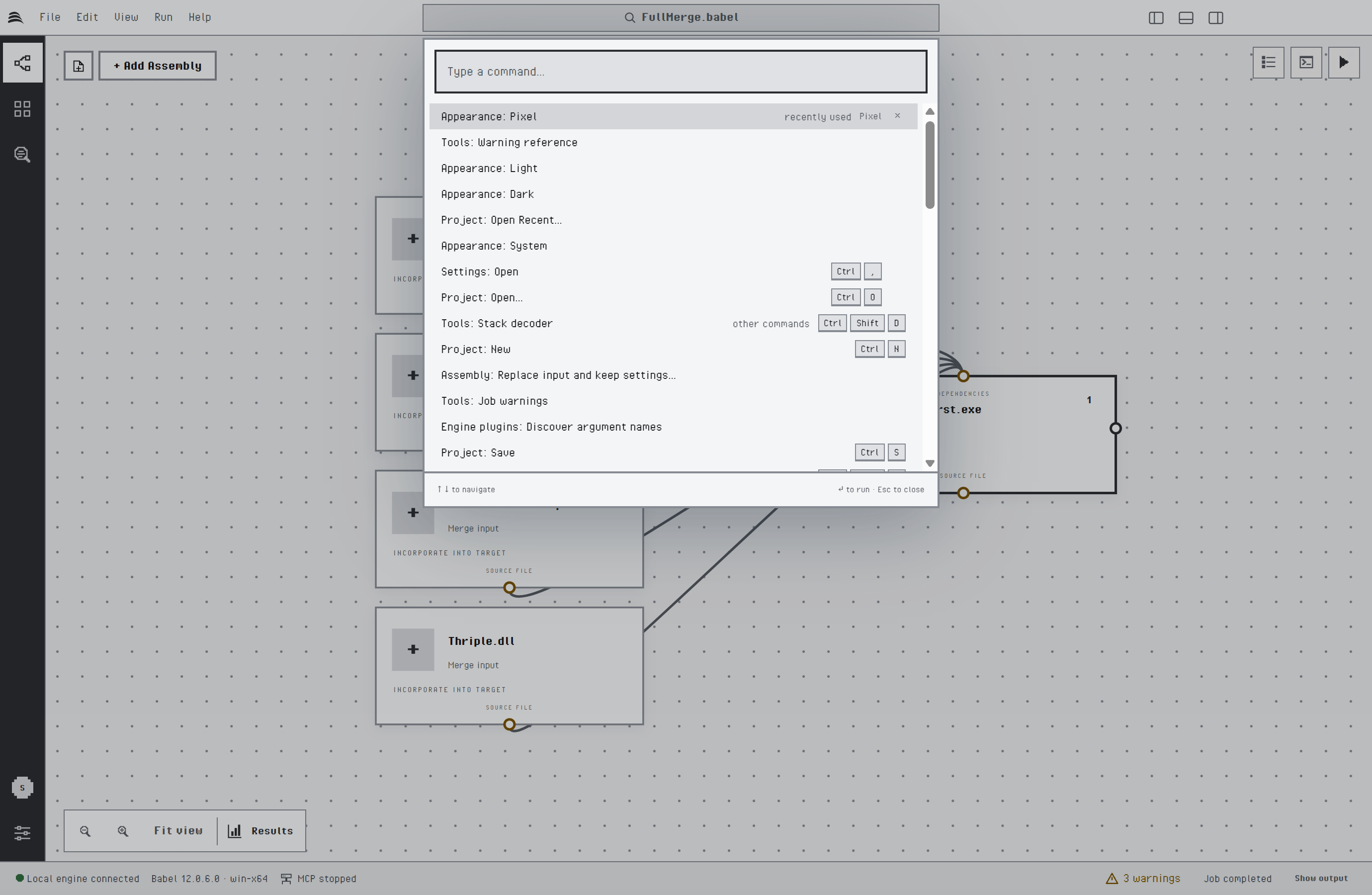
The command palette
Keyboard Shortcuts
| Command | Windows and Linux | macOS |
|---|---|---|
| Command palette | Ctrl+Shift+P | Cmd+Shift+P |
| New project | Ctrl+N | Cmd+N |
| Open project | Ctrl+O | Cmd+O |
| Save project | Ctrl+S | Cmd+S |
| Save project as | Ctrl+Shift+S | Cmd+Shift+S |
| Add assembly | Ctrl+Shift+A | Cmd+Shift+A |
| Run obfuscation | Ctrl+Enter | Cmd+Enter |
| Run obfuscated app | Ctrl+F5 | Cmd+F5 |
| Auto layout graph | Ctrl+Shift+L | Cmd+Shift+L |
| Project sidebar | Ctrl+Shift+E | Cmd+Shift+E |
| Extensions view | Ctrl+Shift+X | Cmd+Shift+X |
| Stack decoder | Ctrl+Shift+D | Cmd+Shift+D |
| Settings | Ctrl+, | Cmd+, |
Settings
The Settings dialog sorts settings into categories and has a search box at the top:
- Appearance: interface language, theme, density, text size and the style of the Licensing activity globe. See Themes and Languages.
- Application: version and automatic updates. See Updates.
- License: the engine license source, described in Product Activation.
- Extensions: the address of an extension catalog.
- MCP: the automation server. See MCP Server.
- Obfuscation: whether independent flows of a project run in parallel, and how many at once. See Running Flows in Parallel.
- Selected assembly: shortcuts to the properties and XML rules of the selected assembly.
- Licensing connections and IP geolocation: the services managed from Babel Desktop and the IP lookup of the activity globe. See Licensing.
- Categories added by each Licensing connection and by installed extensions.
Work Recovery
Babel Desktop takes recovery snapshots of project changes you have applied but not saved. If the application or the engine stops unexpectedly, a banner on the next start offers to restore that work. Session passwords, such as signing key passwords, are never written to snapshots or project files, so you have to enter them again.