Connecting to a Service
Connections are managed in Settings > Licensing connections. Open Settings with Ctrl+, (Cmd+, on macOS) and choose Licensing connections. Until you add the first connection, the page is empty and the activity bar has no Licensing icon.
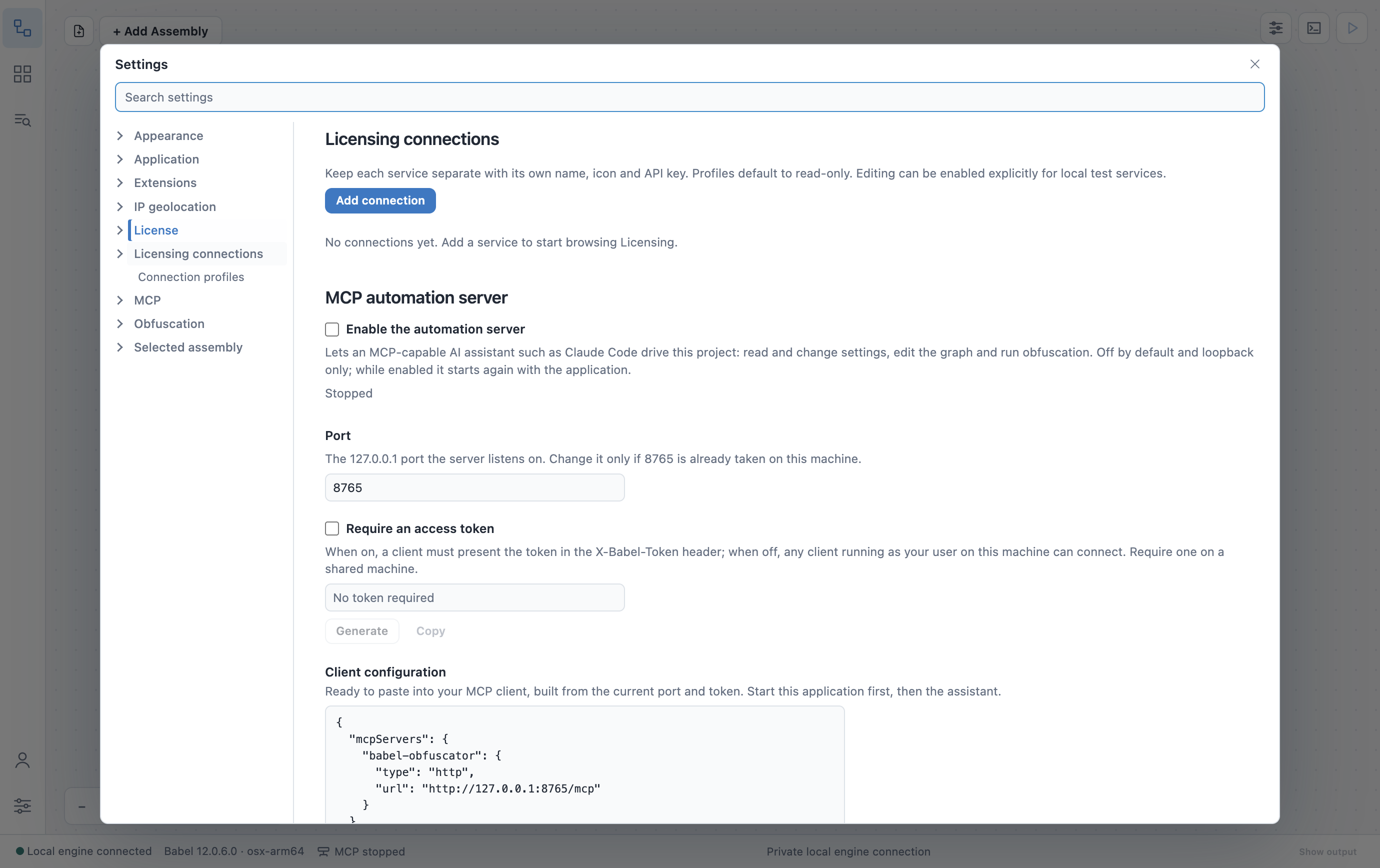
Licensing connections before the first connection
Creating an API Key
Babel Desktop authenticates to the service with an API key. Each key belongs to a user of the service. The key has that user’s roles, and its own permissions (Read, Write, Delete, Create) limit what it can do. See Roles and Permissions.
To create the first key:
- With a Data Center license, create the key in the web application.
- With a Server license, sign in to the service with the Management API and create the key with
POST /v1/api-keys, as described in the Management API reference.
After you connect with an Administrator key, you can create more keys in the API keys view.
Connection Profiles
Each service you connect to has a connection profile with its own name, icon and API key. You can have several, for example one for a local test service and one for production, and each gets its own icon in the activity bar.
Add a connection
In Settings > Licensing connections, click Add connection.
Describe the service
Fill in the profile:
- Display name: the name shown in the activity bar and on every page of the profile.
- Environment: Local test, Staging or Production.
- Toolbar icon: the icon of the profile in the activity bar (Database, Flask, Cloud, Shield or Layers).
- Service endpoint: the address of the service, for example
https://licensing.example.com. - Access mode: Read-only browsing or Local management · Create, edit and delete.
Enter the API key
Set Credentials to Use API key and paste the key in API key. With Add the API key later the profile is saved without a key, and you enter it when you edit the profile.
Save
Click Save connection. Babel Desktop checks the key with the service and shows its roles and permissions on the profile card.
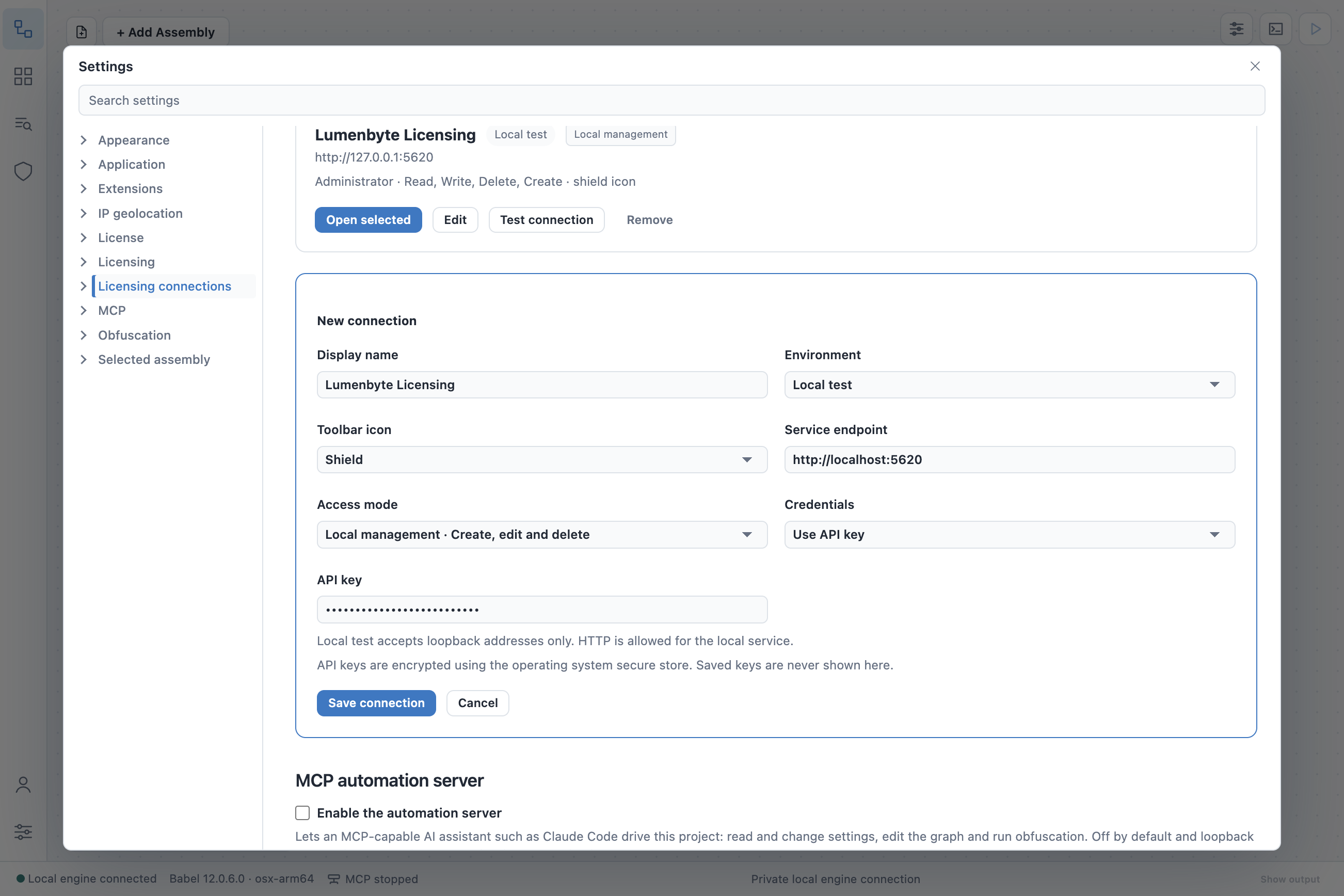
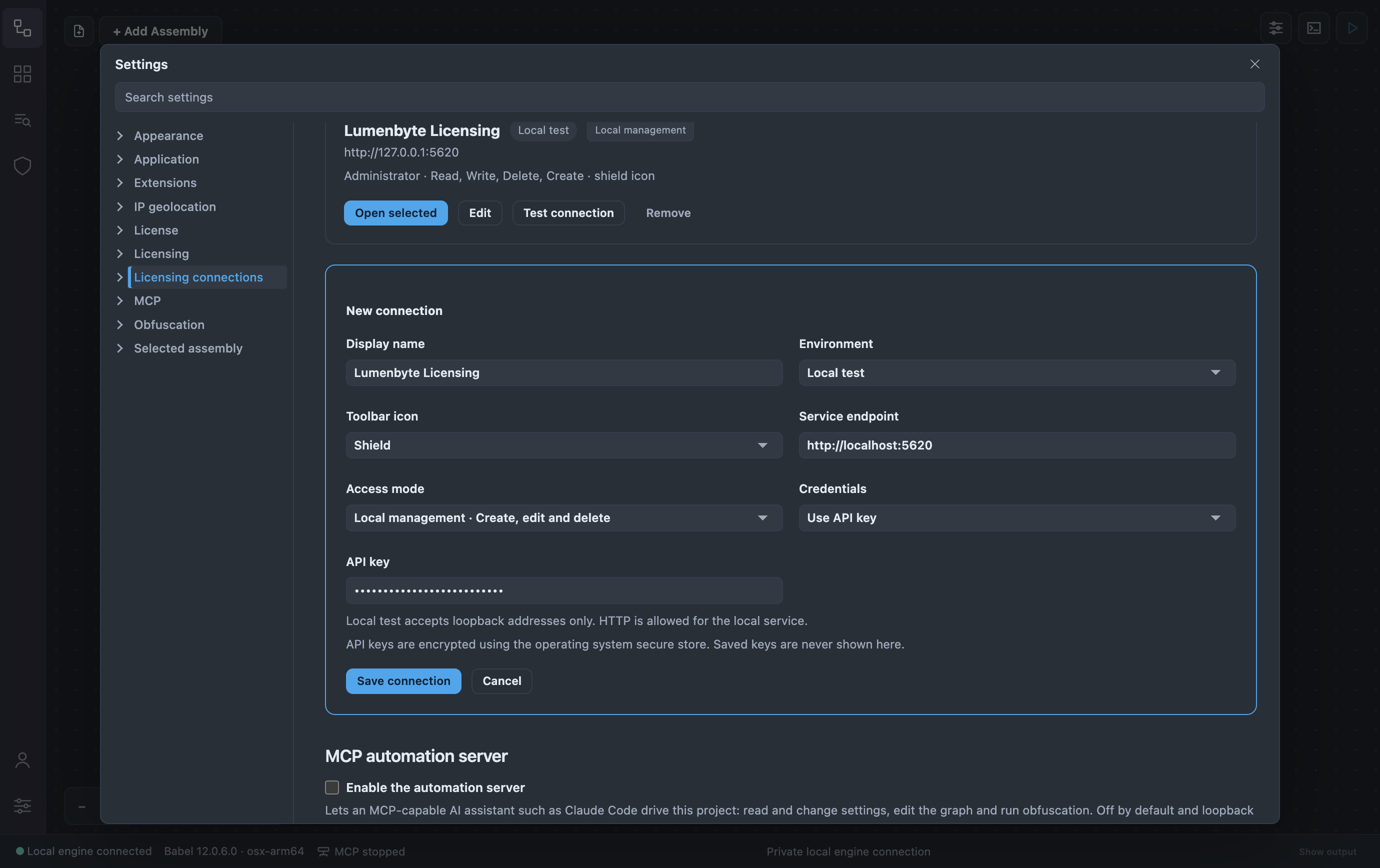
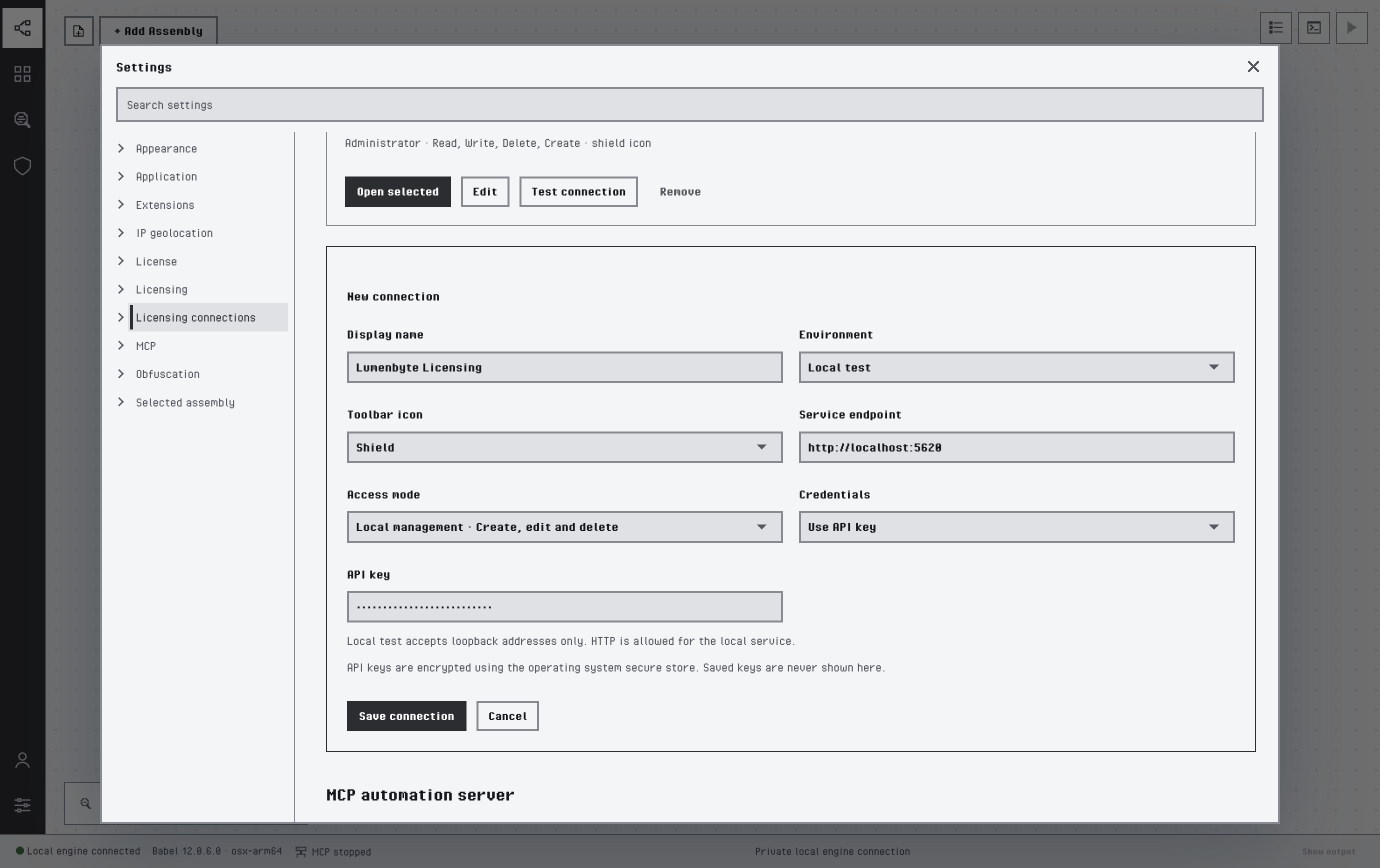
A new connection profile
The environment determines what a profile can do:
| Environment | Endpoint | Access |
|---|---|---|
| Local test | localhost or 127.0.0.1 only, over HTTPS or HTTP | Read-only browsing, or local management with create, edit and delete |
| Staging, Production | Any host, HTTPS only | Read-only browsing |
You can create, edit and delete records only through a Local test profile set to Local management, which means the service must run on the same machine as Babel Desktop. Profiles of remote services are read-only: to change their data, run Babel Desktop on the service machine with a local profile, or use the web application or the Management API.
The profile card shows the environment, the access mode, the endpoint and, once the key is accepted, its roles and permissions. Select and open (Open selected on the profile already selected) opens the profile, Edit changes it, Test connection checks authenticated access and Remove deletes the profile and its stored API key; records in the licensing database are not affected.
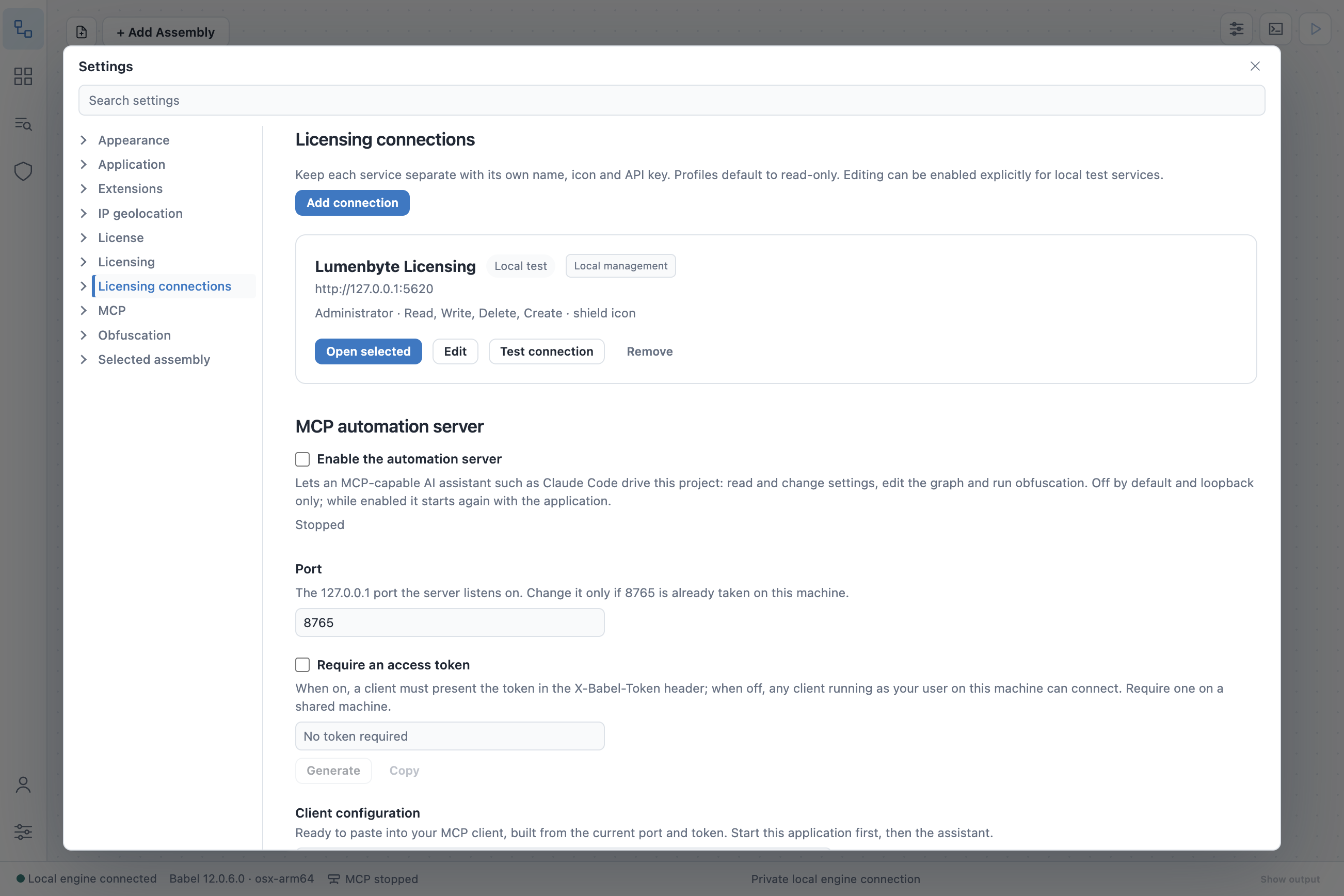
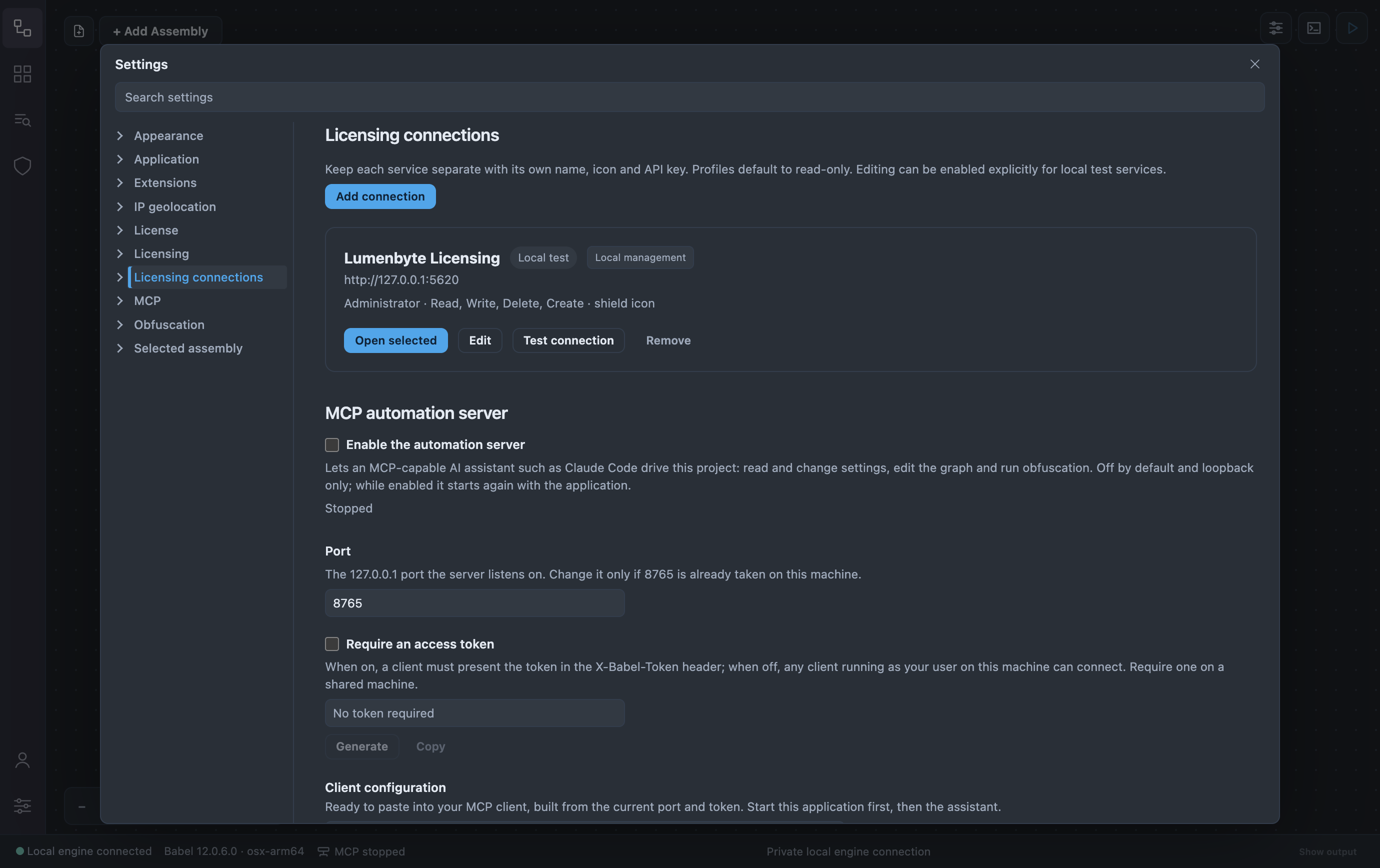
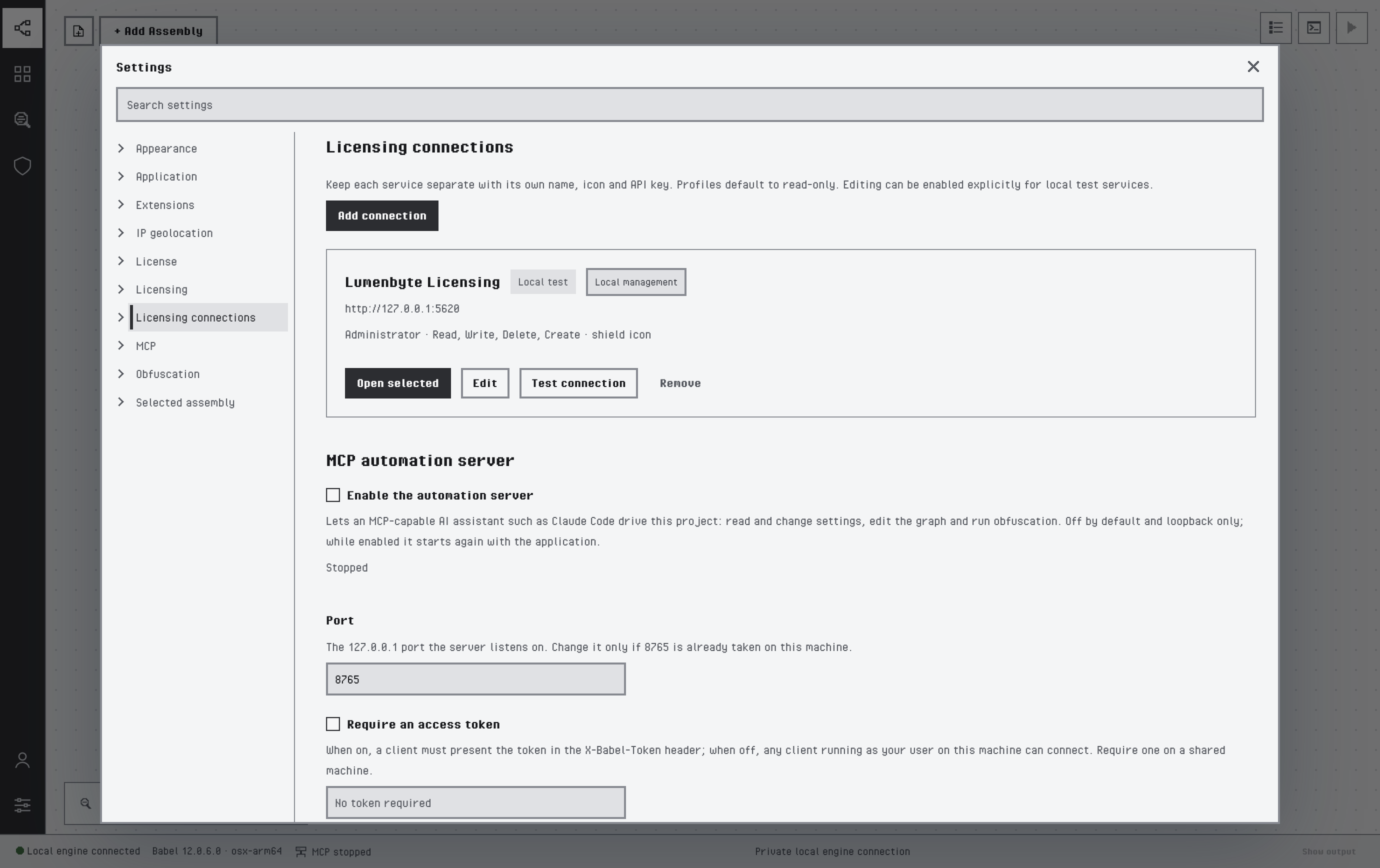
A connection profile with an accepted key
A saved profile adds its icon to the activity bar. The tooltip of the icon shows the name, the environment and the access mode. Click the icon to open the profile on its Overview dashboard. The profile also adds a settings category of its own, described in Settings and Automation.
API keys are encrypted in the operating system’s secure storage and cannot be viewed again once saved. Changing the endpoint of a remote profile clears its saved key.
Self-Signed Certificates
Babel Desktop accepts only certificates the operating system trusts and does not follow redirects. When a service presents a certificate that is not trusted, such as a self-signed certificate, Babel Desktop shows a Certificate not trusted warning with the subject, issuer, validity and SHA-256 fingerprint of the certificate. Compare the fingerprint with the certificate installed on the service, then click Trust this certificate. Babel Desktop trusts that one certificate for that service only and retries the connection. You can later forget a trusted certificate; the connection then fails until you trust it again.