Orders Data Center
The Orders page in Babel Licensing Service provides a comprehensive view of all purchase orders in the system. This interface allows administrators to track, manage, and process orders efficiently.

Orders
Key Features
Order Listing and Navigation
- View a paginated list of all orders with 10 orders displayed per page by default
- Customize items per page (5, 10, or 20 entries)
Search and Filter
- Use the search field in the top right to find specific orders
- Apply column-specific filters to narrow down results based on criteria like order number, payment type, or date ranges
- Reset filters using the refresh button
Column Information
- Order Number: Unique identifier for each order (format: WP #xxxx)
- Processed By: The system or user that processed the order (WordPress in this case)
- Total: The monetary value of the order in Euros
- Created At: Date and time when the order was created
- Payment Type: The payment processing method (stripe_cc, ppcp-gateway)
- Payment Number: Transaction reference ID from the payment processor
- Payment Date: Date and time when the payment was processed
Order Management Actions
- Edit (pencil icon): Modify order details
- Delete (trash can icon): Remove an order from the system
Adding New Orders
Use the “ADD” button in the top right to create a new order manually in the system.
Pagination Controls
- Navigate through pages using numbered pagination (1, 2, 3, 4, 5, …)
- Jump to the first or last page
- Select specific page numbers
Tips for Effective Order Management
- Use the search functionality to quickly locate specific orders
- Apply column filters to identify orders by date ranges or payment methods
- Regularly review recent orders to ensure proper processing
- Use the edit function to update order information when necessary
- Monitor payment types and totals to track your revenue streams
This comprehensive order management system helps administrators maintain accurate records of all transactions within the Babel Licensing Service.
Customer and products
Open ADD or the edit icon of an existing order. Use Customer to search and select a customer; clearing the field removes the association when saved.
In Products, search by product name or code and select one or more products. Click Save to persist the order and its associations, or Cancel to leave the form.
Existing product quantities and unit prices remain unchanged when those products remain selected; a newly associated product starts with quantity 1.
This selector does not edit quantities, unit prices or automatically calculate the order total. Enter the total, currency and payment information separately.
For an unpaid order, leave Payment Date and payment references empty. Completed or paid orders and orders with dependent records may be protected from deletion by the service.
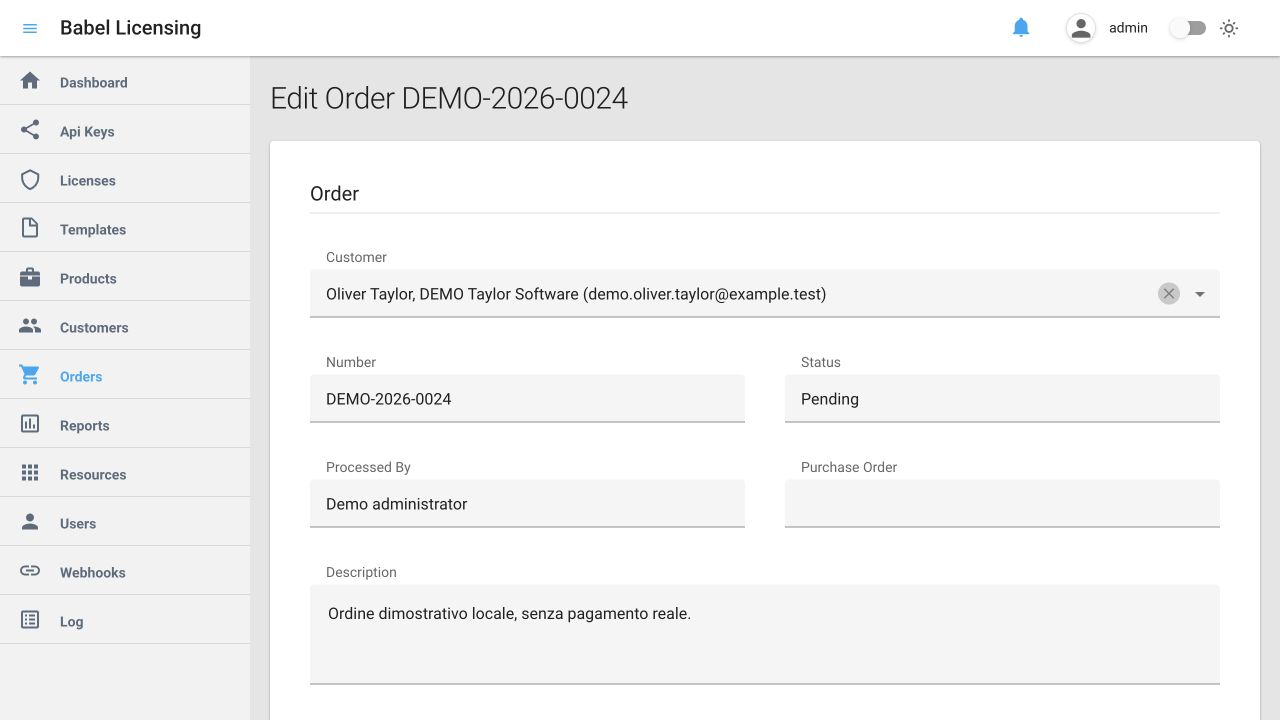
Order customer — fictional demonstration data
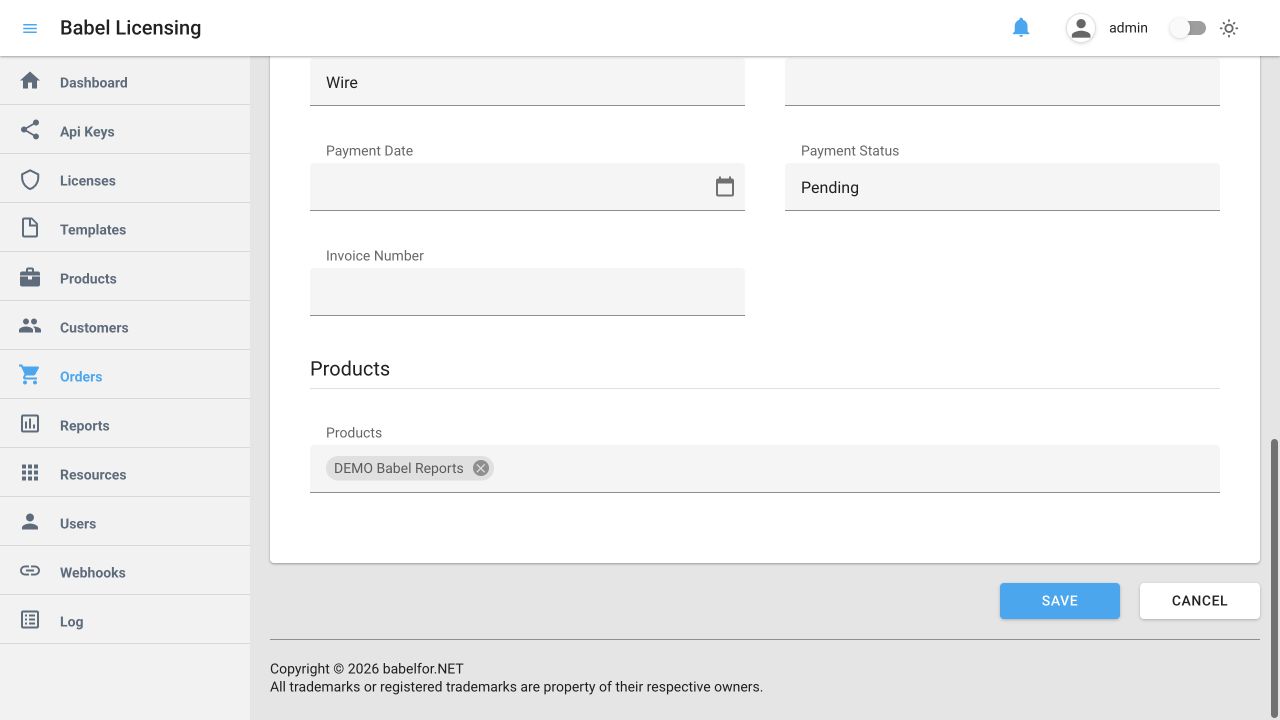
Order products and Save/Cancel — fictional demonstration data