Resources Data Center
The Resources page in the Babel Licensing Web Application provides a central repository for managing various digital assets used throughout the licensing service. This page allows you to organize, access, and maintain important files such as email templates, signature keys, and other resources that support your licensing operations.
This page uses the updated shared record controls: compact rows, progressive loading, condition filters and searchable selectors. The screenshots below use fictional local data.
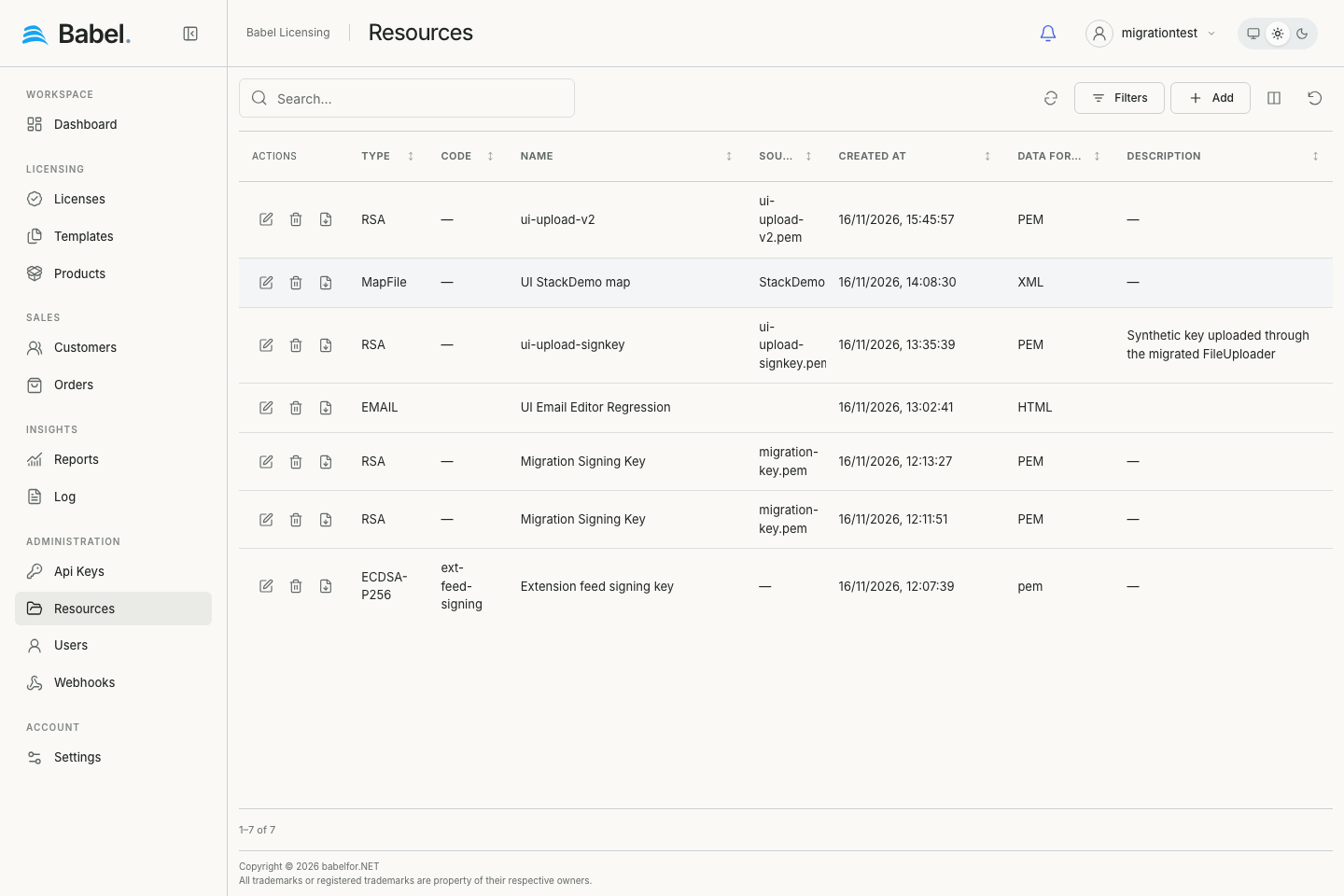
Updated web interface with fictional demonstration data. Screenshots use English labels.
Overview
The Resources page displays a comprehensive list of all assets in a tabular format, allowing for easy navigation and management. Each resource is categorized and includes detailed information about its purpose, format, and creation date.
Page Actions
This page uses the updated shared record controls: compact rows, progressive loading, condition filters and searchable selectors. The screenshots below use fictional local data.
Resource Information
The main grid displays detailed information about each resource with the following columns:
- Type: Categorizes the resource (e.g., email, RSA)
- Name: The title or identifier of the resource
- Source: Origin or file name of the resource (e.g., Babel.snk)
- Created At: Date and time when the resource was added to the system
- Data Format: The file format of the resource (e.g., html, PEM)
- Description: A brief explanation of the resource’s purpose
Resource Types
The Resources page manages several types of assets:
Signature Keys (type: RSA)
Digital signature keys used to sign and validate licenses, including:
- Portable signature keys
- System-specific keys (e.g., Babel.snk)
These RSA 1024 Signature Keys are critical for license security and validation.
Email Templates (type: email)
HTML-formatted email templates used for various customer communications, including:
- Software maintenance reminders
- Trial license notifications
- New license delivery
- Product updates
Each email template is designed for a specific communication scenario and can be customized to match your branding requirements.
Resource Management
For each resource, the following actions are available:
- Edit (pencil icon): Modify the resource content or metadata
- Delete (trash icon): Remove the resource from the system
- Download (down arrow icon): Save a local copy of the resource
Adding a New Resource
Follow these steps to add a resource such as an email template or a signature key:
Open the add form
Click the “ADD” button in the top-right corner.
Select the resource type
Select the resource type from the dropdown.
Upload or create the content
Upload or create the resource content.
Fill in the metadata
Fill in the required metadata (Name, Description).
Save the resource
Save the resource.
Editing Resources
You can change the content of a resource or its metadata at any time:
Locate the resource
Locate the resource in the grid.
Open the editor
Click the edit (pencil) icon.
Modify the content or metadata
Modify the content or metadata as needed.
Save your changes
Save your changes.
Using Resources in the System
Resources stored in this repository are available throughout the Babel Licensing Service:
- Email templates are used for automated customer communications
- Signature keys are used for license generation and validation
- Other resources support various system functions
Best Practices
Resources include signature keys and the emails sent to your customers, so keep them current and safe:
- Regularly review and update email templates to ensure they contain current information
- Maintain secure backups of signature keys
- Use descriptive names and complete descriptions to ensure resources are easily identifiable
- Consider creating standardized naming conventions for different resource types
Choose a file with the upload button or drag it into the visible drop area. The control shows the selected filename and validates accepted types and size; selecting a file does not save the record. Use Save to persist it.