Run Order
Targets that depend on each other must run in the right order. Babel Desktop groups them in flows, numbers their steps and can pass the rename map of one target to the next.
Connecting Two Targets
The left and right anchors of a target connect it to another target. Drag from the right anchor of the first target to the left anchor of the second, or click the two anchors one after the other. Babel Desktop then asks what the connection is for.
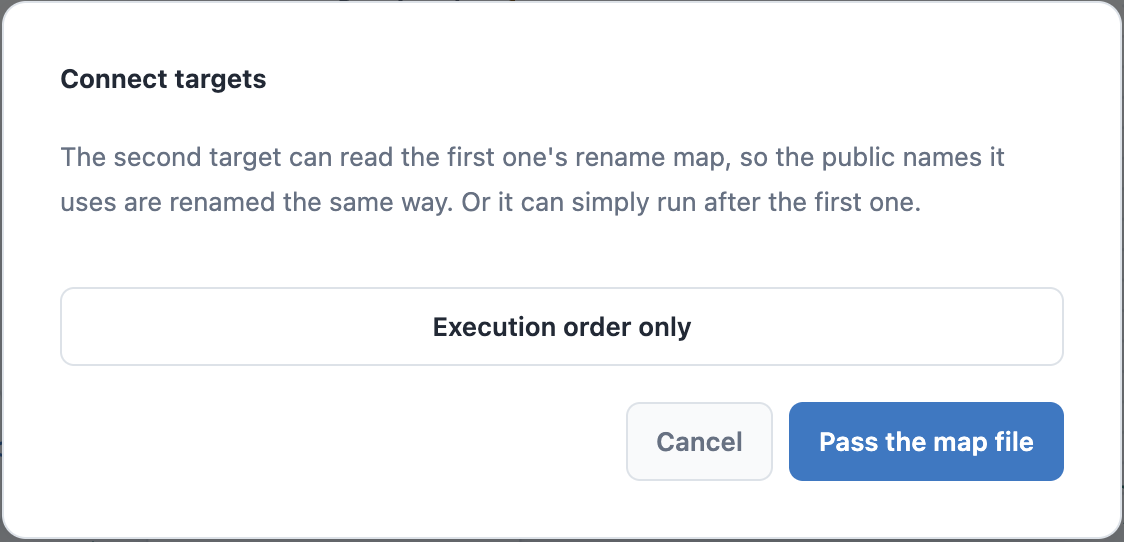
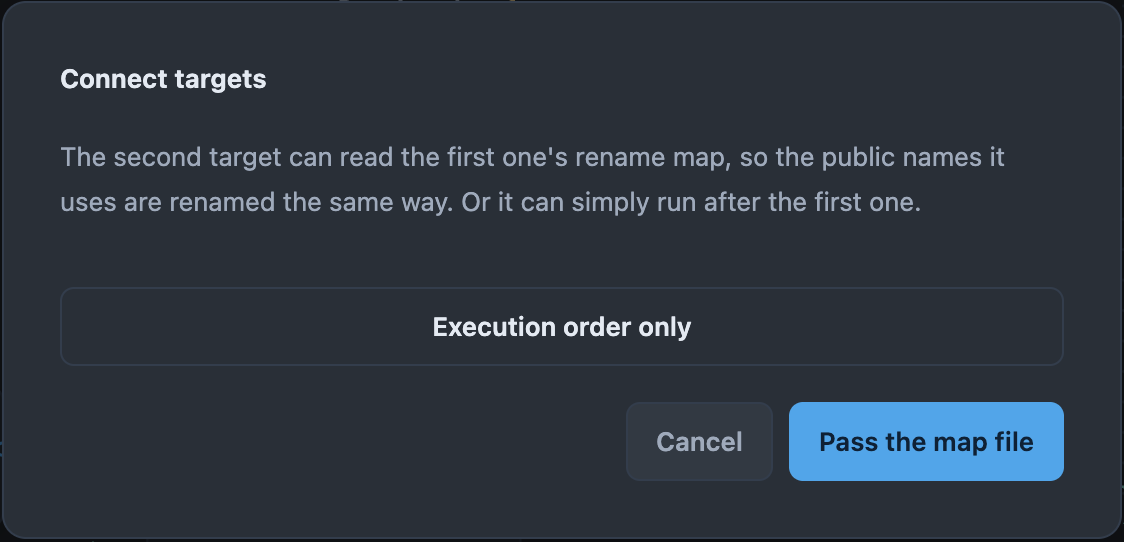
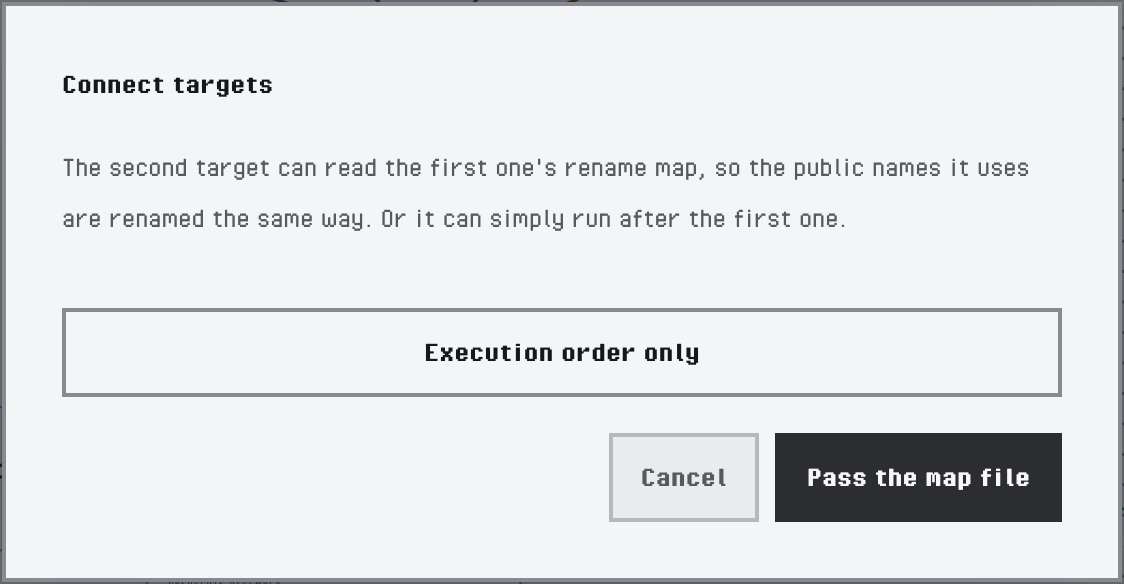
Choosing between execution order and a map link
| Choice | Effect |
|---|---|
| Execution order only | A flow edge, labelled FLOW →: target A runs before target B. Nothing passes from A to B. |
| Pass the map file | A map link, drawn as a dashed line with a MAP label: A writes its XML rename map and B reads it, so B uses the new names of the public symbols of A. A runs before B. See Cross Assembly Renaming. |
Use a map link when B calls the public API of A and both are obfuscated with public symbols renamed. Use a flow edge when B only has to run after A and reads nothing from it.
Map Links
A map link turns on Generate Map Out File for the first target and adds its map to the Map In Files of the second. If the first target sets neither an output path nor a map path, its map goes to a fixed place next to its input, for example BabelOut/Library2.dll.map.xml, so the second target always finds it.
Map links are not stored separately: Babel Desktop reads them from those two settings, so a project written by hand or with Babel UI shows its map links as well. The same links appear in three places:
- On the canvas, as the dashed MAP line, and in the card of the second target, under Reads the map of.
- In the Map files group of the properties panel of the second target, under Maps from other targets. See Map Files.
- In the grid, in the Maps tab of the second target, where the entry reads From and the name of the first target. See Target Details.
A target that is merged into another target writes no map of its own, so it cannot be the first target of a map link.
Flows and Steps
A flow is a group of targets tied together by flow edges, map links or merge, embed and reference dependencies. Targets that are not tied to each other form separate flows. Each target shows its step, the position at which it runs in its flow, at the top right of its node. Its card shows both, for example Flow 1 · step 2.
Within a flow, targets run in the order of the steps, and in project order where nothing decides it. Flows run one after another in project order, or at the same time when Run independent flows in parallel is on. Flow edges are saved in the project as standard MSBuild target dependencies, so MSBuild builds the targets in the same order.
The grid can show the same information as columns: Flow · Step and Run after, the targets that must finish first. Group by flow groups the rows by flow. See The Project Grid.
Targets That Wait for Each Other
Babel Desktop rejects self-links and duplicate edges, and it refuses a connection that would make targets wait for each other. If the targets of a project opened from disk wait for each other’s map files, the project still opens. Babel Desktop shows an error that names the circle, for example Library1.dll → Library2.dll → Library1.dll, and the project does not run until you remove one link.
Removing a Connection
To remove a flow edge or a map link, click it and press Delete or Backspace. Esc cancels a connection in progress or clears the selection. Removing a map link takes the map out of the Map In Files of the second target; you can also click the × of its name under Maps from other targets in the properties panel.