Extensions
Babel Desktop is extended with declarative packages that add themes, commands and application views.
An extension is a JSON manifest that declares what the extension adds. It can be packed together with a description, pictures and translations. Extensions can add:
- Themes, which recolor the whole application, including the canvas, the charts and the Licensing globe.
- Commands in the command palette that run a built-in action, such as opening the XML rules of the selected target.
- Application views (lists, detail pages, forms and dashboards) bound to a REST service. The built-in Licensing views of Babel Desktop are described the same way.
An extension cannot run arbitrary code or inject styles or markup, and it has no direct access to the file system, the network or your projects. A view extension can reach only the service it declares, and only through Babel Desktop over HTTPS (plain HTTP is accepted only for a local test service on localhost). If an extension includes validation scripts, they run in isolation with no network or file-system access. Babel Obfuscator engine plugins are unrelated to extensions: they are .NET assemblies that the engine loads, configured per target.
The Extensions View
Click the Extensions icon in the activity bar (Ctrl+Shift+X, Cmd+Shift+X on macOS). The view groups packages in sections:
- Installed: the installed extensions; disabled ones are marked Disabled.
- Gallery: the extensions published in the Babel extensions gallery that are not installed yet.
- Unavailable: installed packages that the current license does not enable, with the reason.
A fresh installation has nothing installed, and the Gallery section lists the theme packages you can add.
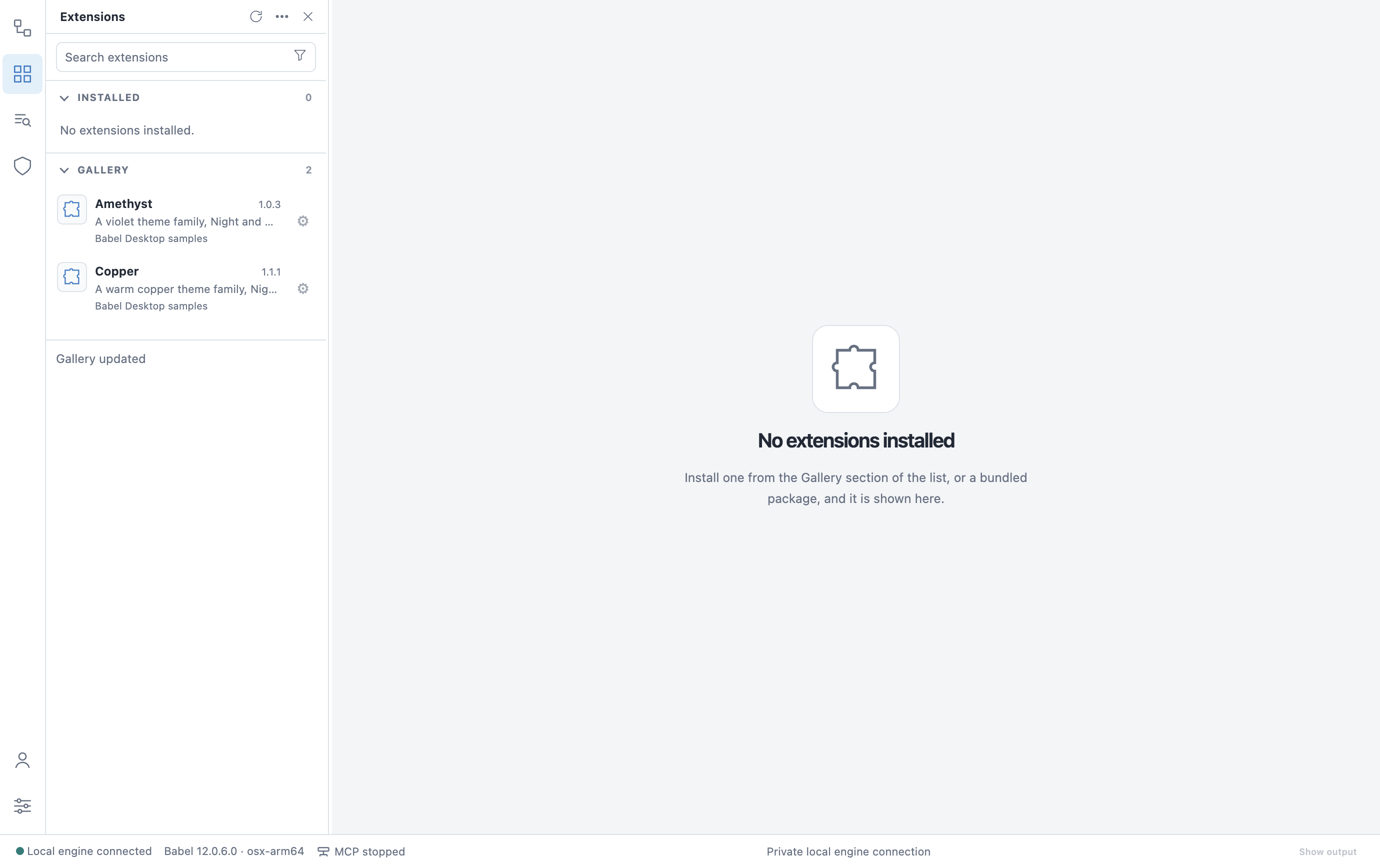
The Extensions view on a fresh installation
The Gallery
Babel Desktop reads the gallery from the Babel servers with your license key, so the list matches what your license can install. To install an extension, select it and click Install: Babel Desktop downloads the package, checks it against the gallery entry and shows its permissions before installing. The last list is kept for when you are offline; installing needs a connection.
Some gallery extensions are limited to certain editions or to licenses under maintenance:
- An extension your edition does not include is tagged with the editions it requires, for example Requires Server or Data Center, and its page has a View plans button.
- When the maintenance of your license has ended, you can install the last version published before that date. Newer versions are tagged Update needs maintenance, with a Renew maintenance button.
- A package that needs a newer application is tagged Needs a newer Babel Desktop and cannot be installed until you update.
If the gallery does not recognise your license key, or the license is expired or revoked, a note under the list says so and the licensed extensions are left out.
Select an extension to open its page. The header shows the name, author, version and state, plus whichever of these buttons apply to that state: Install, Enable or Disable, Uninstall and Settings. The page has three tabs:
- Details: the description of the extension and the permissions it requests.
- Features: what the manifest adds, such as themes, commands and views.
- Changelog: the changes in each version.
The Installation column lists the identifier, version, API version, license, requirements and the SHA-256 hash of the manifest.
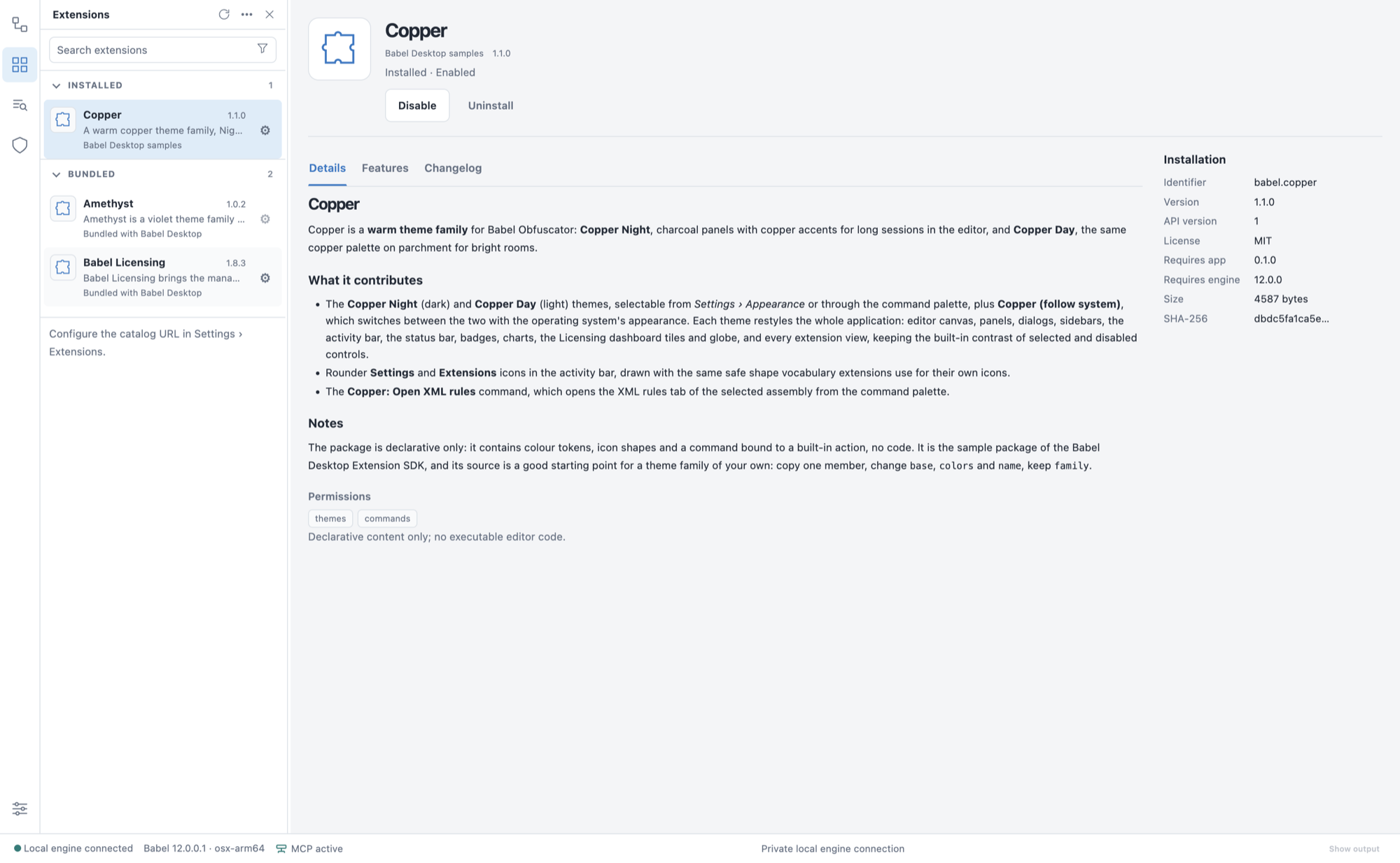
The Copper theme extension
The gear menu on each row has the same actions. Disabling an extension removes what it added. If the extension connects to a service, disabling it also signs out and deletes the stored credentials.
Development Versions
An extension from the gallery can have a development version: a newer one that has had less testing than the stable version. You see it only if your license may install the stable version, and only when it runs on your version of Babel Desktop.
The page of an installed extension shows Development version … is available. with a Try it button. If that version needs a newer Babel Desktop, the button is disabled and the page says Needs a newer Babel Desktop. Try it asks for the same confirmation as an install. Afterwards the extension carries the Development tag in the list, and its page says You are using a development version.
An extension on the development channel is offered the newest version that your Babel Desktop can run, development or stable, and stays on the development channel. An extension on the stable channel is never updated to a development version. Each extension follows its own channel: trying one does not change the others, or Babel Desktop itself.
Back to stable, followed by the version number, installs the stable version the gallery names. It can be older than the one you have, and this is the only case in which Babel Desktop installs an older version of an extension. It asks for the same confirmation as an install. If the development version you have was promoted to stable in the meantime, Back to stable only removes the Development tag and downloads nothing.
Installing from a File
Open the Extensions view
Click the Extensions icon in the activity bar (Ctrl+Shift+X, Cmd+Shift+X on macOS).
Choose Install from file
Open the More actions menu of the Extensions view and choose Install from file….
Select the package
Select a .babelext package or an extension.json manifest.
Review and install
Before installing, Babel Desktop validates the package and shows its author, license, requested permissions and changelog. Confirm to install it.
Extensions are never updated without your action. When a newer version of an installed extension is available, its row shows Update available and the Extensions icon in the activity bar gets a count badge. Click Update to install it. If the new version asks for new permissions, you see them first. If the update fails, the installed version is left as it was.
Some extensions require a license feature. A package the license does not enable is listed with a Requires license tag and cannot be installed or enabled. Licensing is not an extension: it is built into Babel Desktop and is set up in Settings > Licensing connections.
To create your own extension, start from a theme; extensions can also ship translations.