Getting Started
Before you can take advantage of the WordPress integration, you’ll need to install and configure the Babel Licensing WordPress Plugin.
Installing Babel Licensing in WordPress
Important Reminder Before Making Changes to Your WordPress Site
Before modifying the WordPress configuration or updating plugins, back up both your database and website files, so you can restore your site if something goes wrong during the update.
To install Babel Licensing into your WordPress site by uploading the plugin file:
Log in
Log in to your WordPress admin dashboard.
Go to Add New Plugin
Navigate to Plugins, then press Add New Plugin button.
Open the upload form
Click on the Upload Plugin button at the top of the page.
Choose the plugin file
Choose the babe_licensing.zip file from your computer.
Install
Click on Install Now.
Activate the plugin
After the installation is complete, click on Activate Plugin.
Babel Licensing is now installed and ready for use.
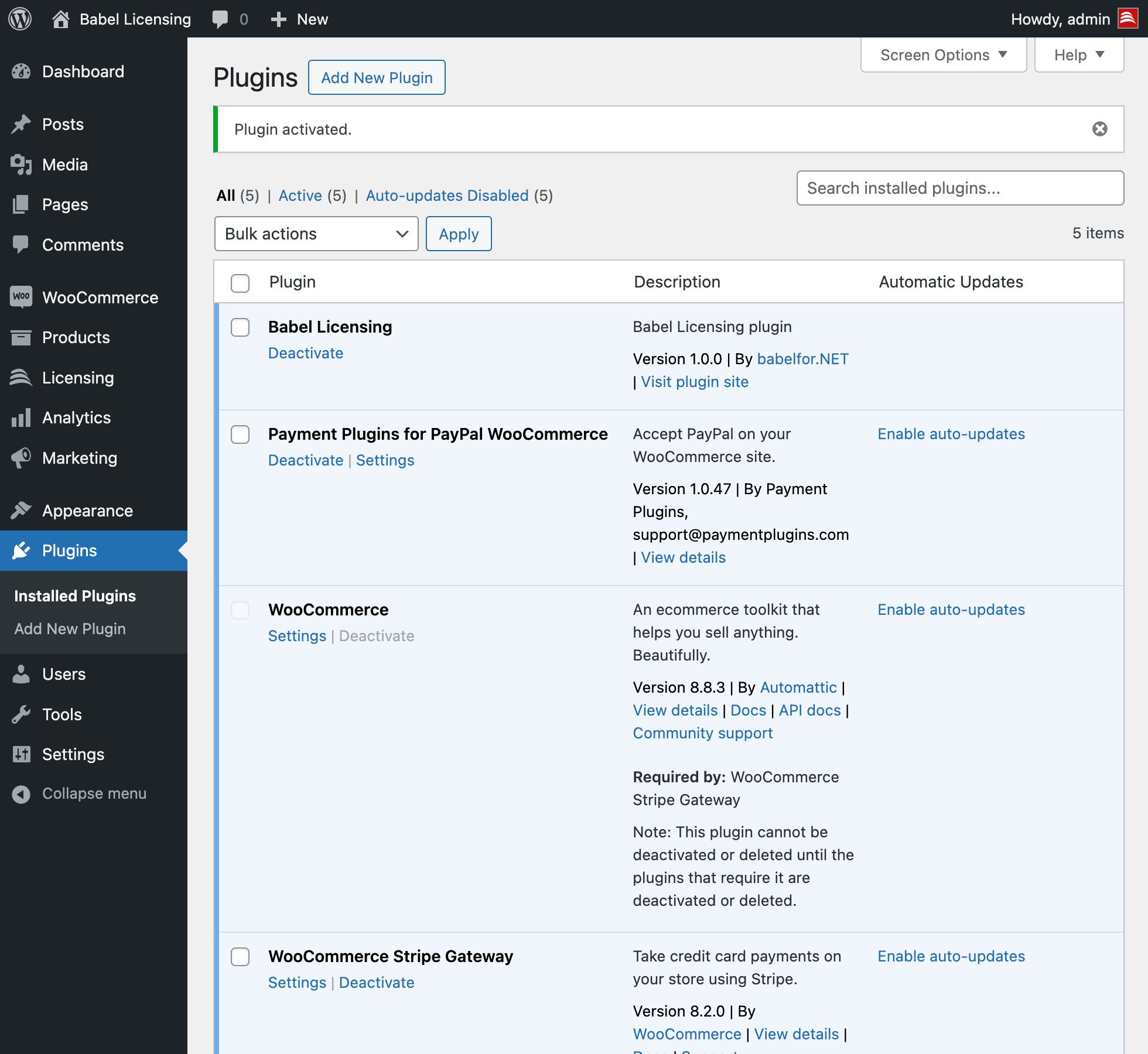
Babel Licensing WordPress Plugin
Updating Babel Licensing Plugin
To update the plugin on your WordPress site:
Download the latest version
Download the latest version of the plugin, babel-licensing.zip, from the official source.
Go to Upload Plugin
Navigate to Plugins > Add New > Upload Plugin.
Choose the plugin file
Choose the babel-licensing.zip file from your computer.
Replace the current version
When asked to confirm the replacement of the current version, click Replace current with uploaded.
Activate the plugin
After the upload is complete, click on Activate Plugin.
Your Babel Licensing plugin is now updated and ready for use.
Uninstall Babel Licensing Plugin
WordPress lets you either deactivate or delete a plugin, and the two actions are quite different:
Deactivating a Plugin
- Temporary Disabling: Deactivating a plugin temporarily disables its functionality but does not remove its settings or data. This is useful if you’re troubleshooting or need to turn off a plugin temporarily without losing its configuration.
- Data Retention: All settings, files, and data related to the plugin remain intact on your server. You can reactivate the plugin at any time to restore its functionality exactly as it was.
Deleting a Plugin
- Permanent Removal: Deleting a plugin completely removes it and its files from your WordPress site. This action is typically irreversible through the WordPress dashboard.
- Data and Settings Removal: Along with the plugin files, deleting a plugin often removes all its settings and data from your website’s database. This cleans your site from the plugin’s footprint but means you cannot recover the plugin settings if you reinstall it.
Note: Always ensure you have backups of your WordPress site before deleting any plugins, especially those critical to your site’s functionality or data management.
Deactivate Babel Licensing Plugin
To deactivate the Babel Licensing plugin without deleting it from your WordPress site:
Go to Installed Plugins
Go to Plugins > Installed Plugins.
Locate the plugin
Locate Babel Licensing in the list.
Deactivate it
Click Deactivate beneath the plugin name.
Delete Babel Licensing Plugin
Before deleting the plugin, back up your WordPress database.
Deleting the plugin will remove all tables and data created by Babel Licensing, which may not be recoverable.
To delete the plugin after backing up: