Settings
The Settings dialog holds the preferences of Babel Desktop itself: appearance, updates, the engine license, extensions, the MCP automation server and how projects run. The options of each assembly are in the properties panel instead.
Open it with Settings… in the File menu on Windows and Linux or in the application menu on macOS, with Ctrl+, (Cmd+, on macOS), or with Settings in the Manage menu that the icon at the bottom of the activity bar opens.
The categories are listed on the left, each with its entries below it: click one to scroll to it. Type in Search settings to filter the entries by title and description; categories with no matching entry are hidden. Changes are saved as you make them, there is no OK button.
The obfuscation options of a target, such as renaming or string encryption, are not here. They are edited in the properties panel, described in Target Settings.
Appearance
These settings change the language of the interface and how it looks.
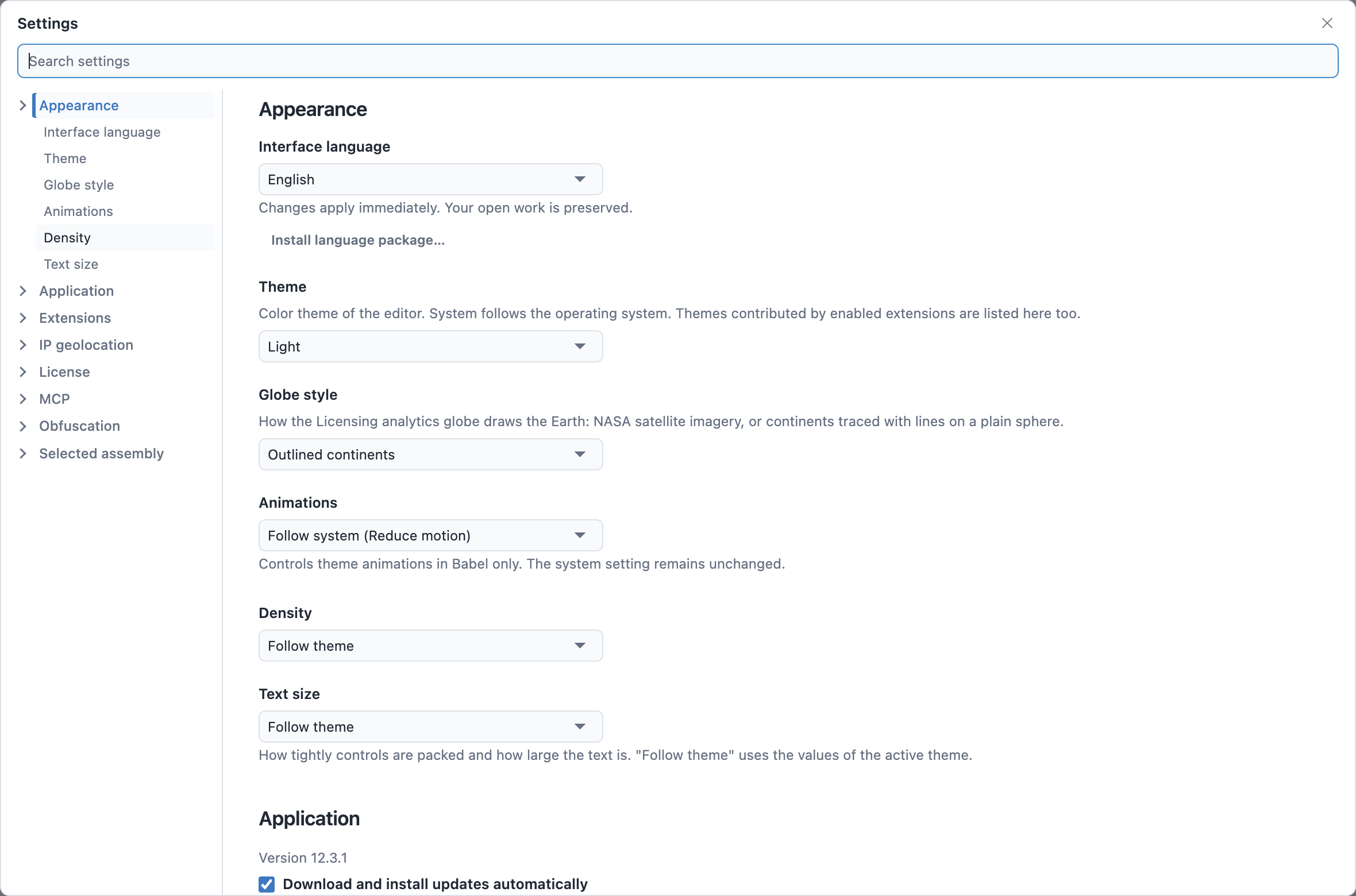
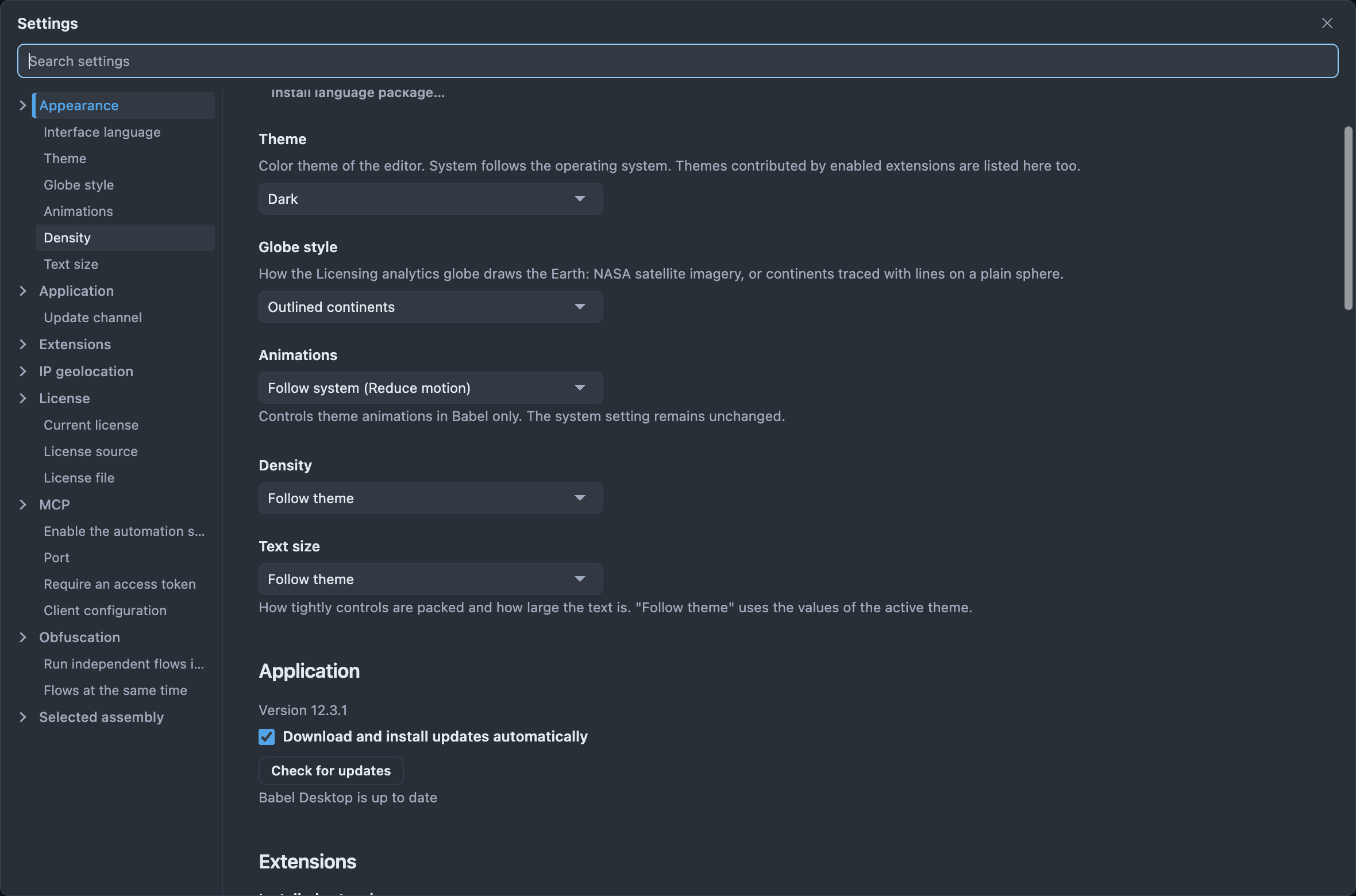
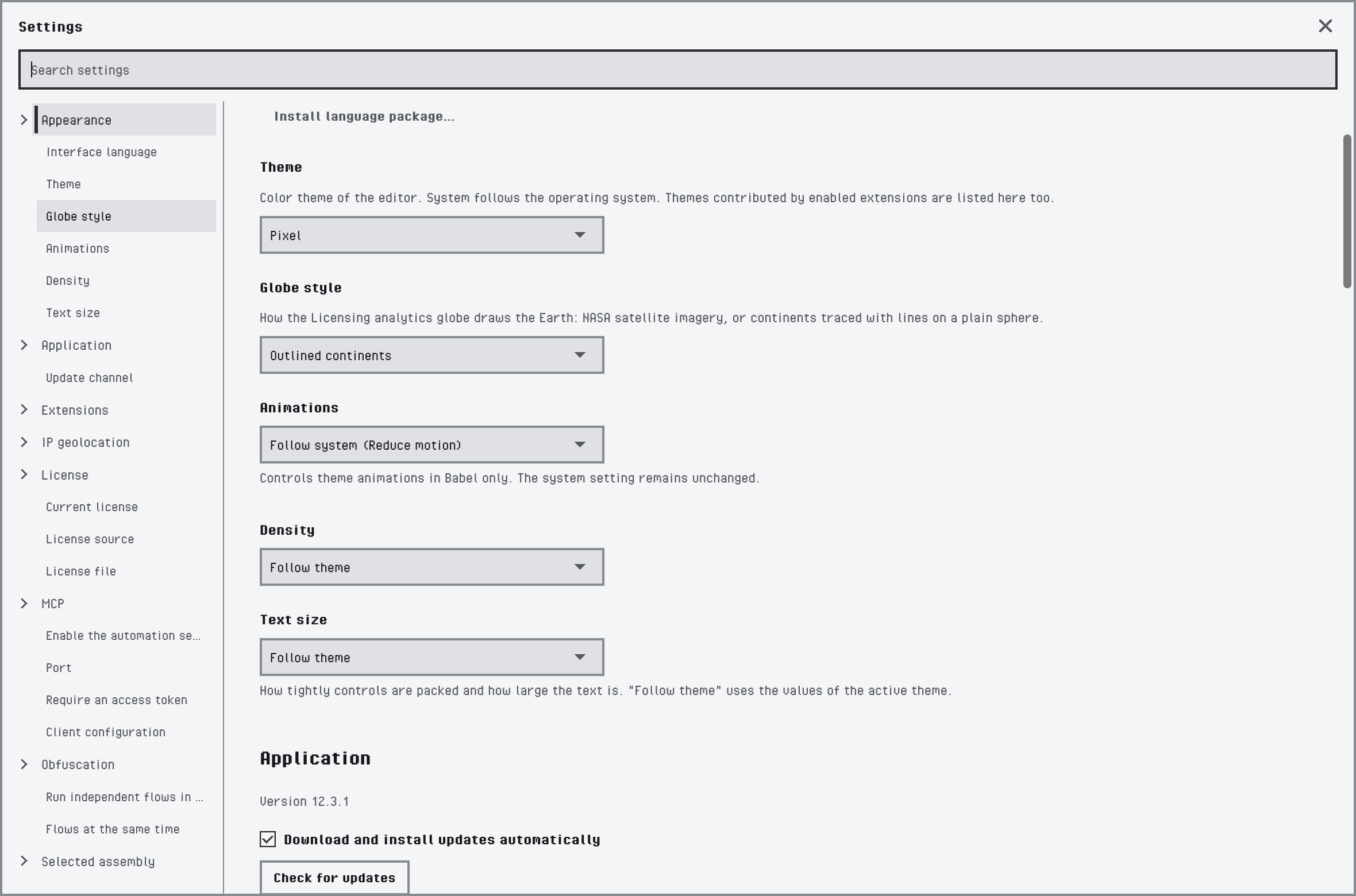
The Appearance category
| Setting | What it does |
|---|---|
| Interface language | The language of menus, dialogs and messages. The change applies at once and keeps your open work. |
| Install language package… | Adds a language from a language package file. See Languages. |
| Theme | System follows the light or dark appearance of the operating system; Light and Dark fix one. The themes of enabled extensions are listed here too. See Themes. |
| Globe style | How the globe of the Licensing analytics draws the Earth: Satellite map uses satellite imagery, Outlined continents draws the coastlines on a plain sphere. |
| Animations | Follow system (Reduce motion) animates themes unless the operating system asks for reduced motion. The other two choices turn the animations on or off in Babel Desktop only; the system setting does not change. |
| Density | How tightly buttons, fields and lists are packed: Compact, Normal or Comfortable. Follow theme uses the value of the active theme. |
| Text size | Small, Normal or Large. Follow theme uses the value of the active theme. |
Application
The version of Babel Desktop and its updates.
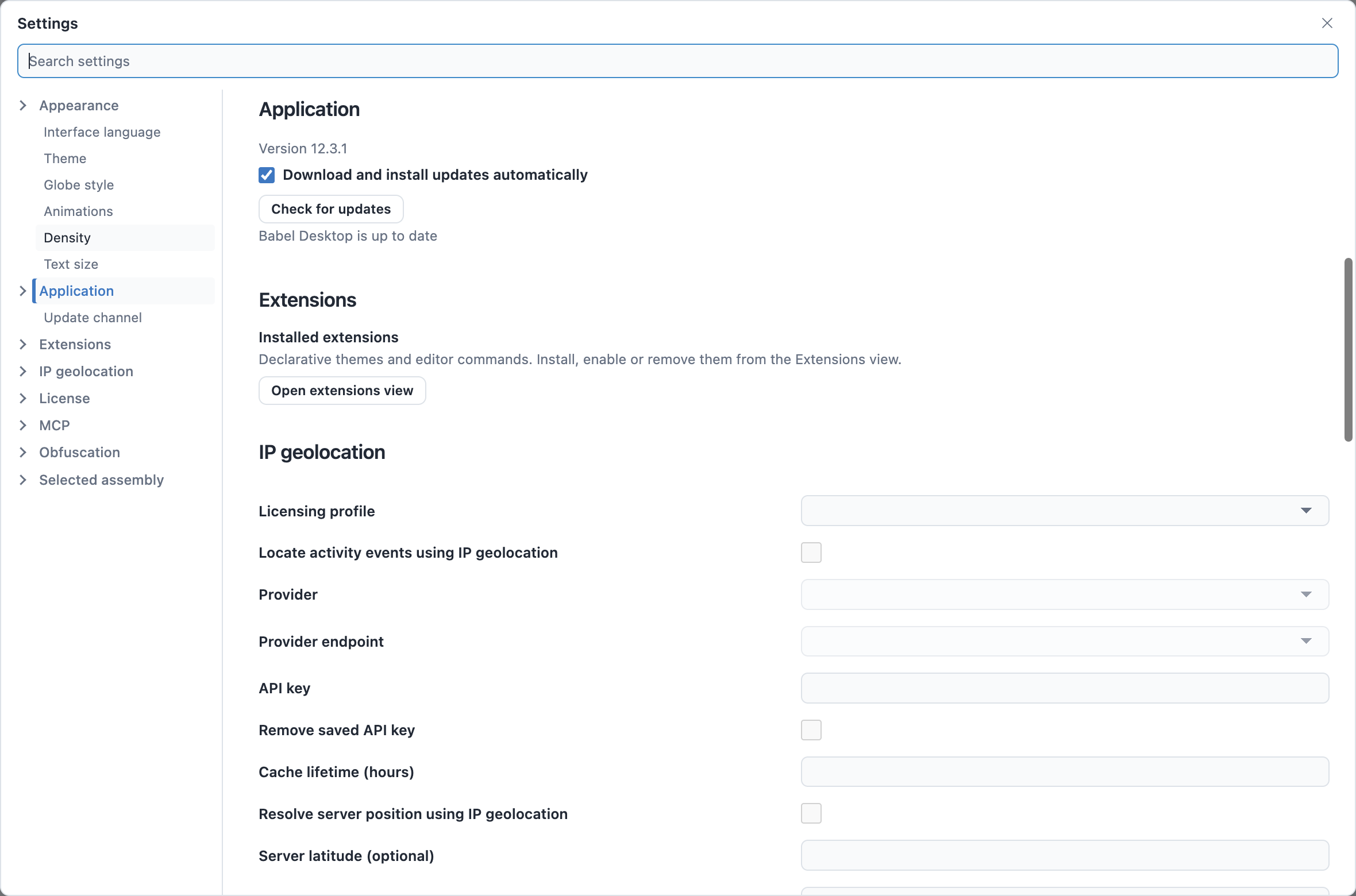
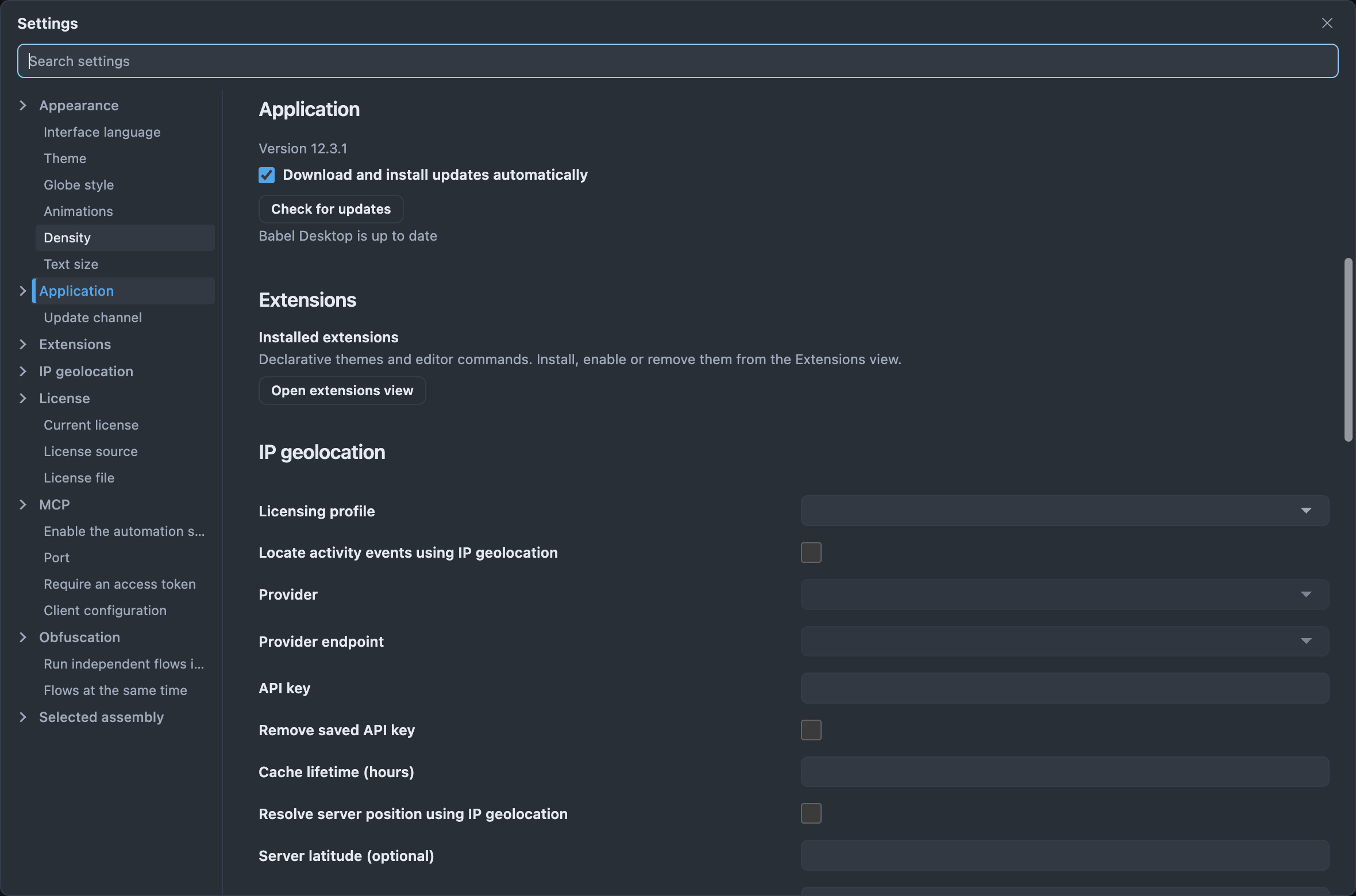
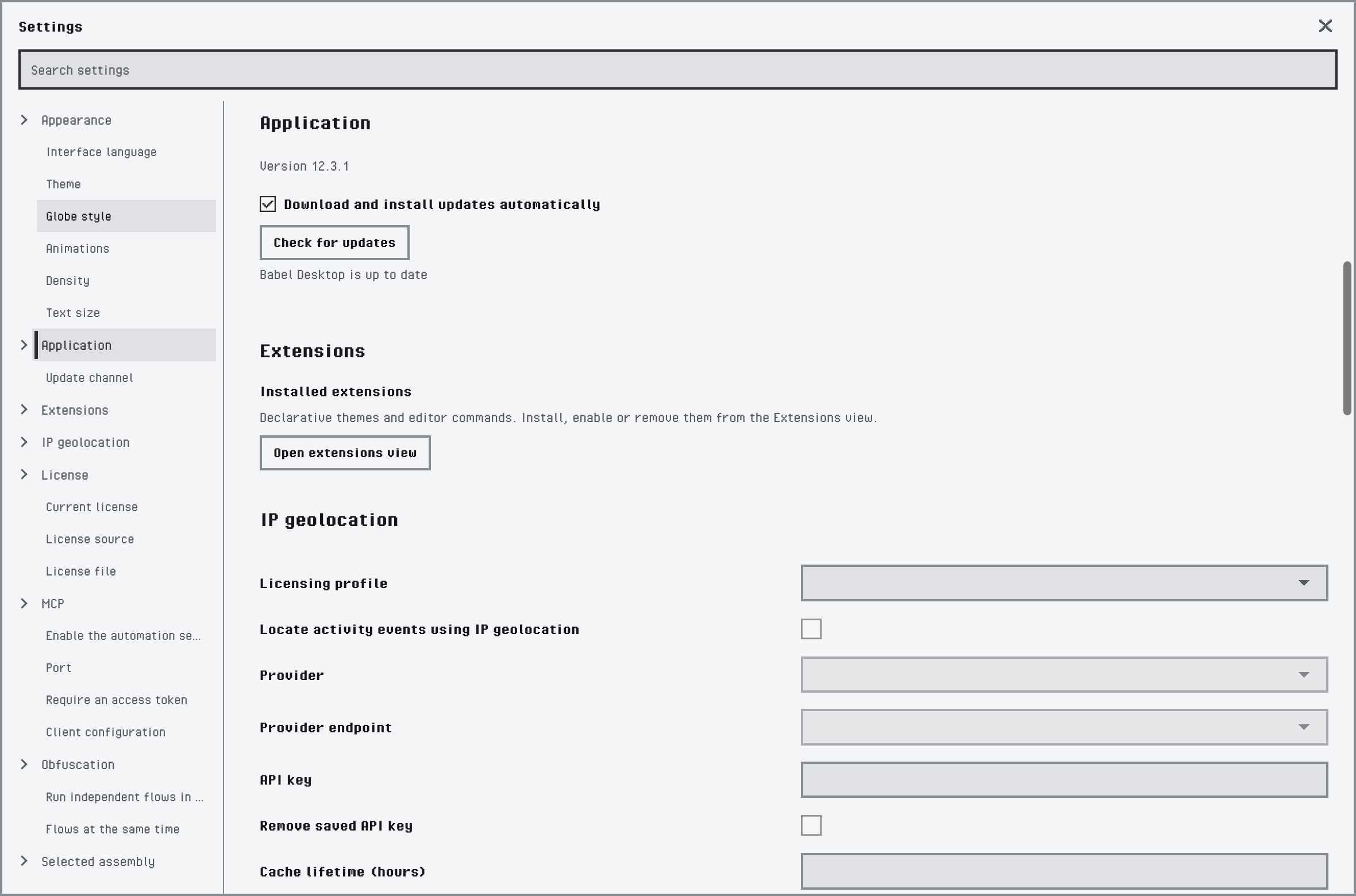
The Application category
| Setting | What it does |
|---|---|
| Version | The version you are running. |
| Download and install updates automatically | Downloads a new version in the background; a banner then offers Restart now to install it. Turn it off to decide yourself when to download. |
| Check for updates | Asks for a new version now. The line below it shows the result. When a version is available and automatic updates are off, Download now starts the download. |
| Try it and Stop receiving development versions | When you use stable versions and a development version is available, a panel offers it with Try it. While you receive development versions, Stop receiving development versions goes back to stable versions. |
| Update channel | Installations made with the Windows MSI choose Stable or Development in this list instead. |
See Updates for how the two channels work.
License
The license of the local engine. Current license shows the edition in use and its details: licensee, license id, product, version, issue date and the end of maintenance.
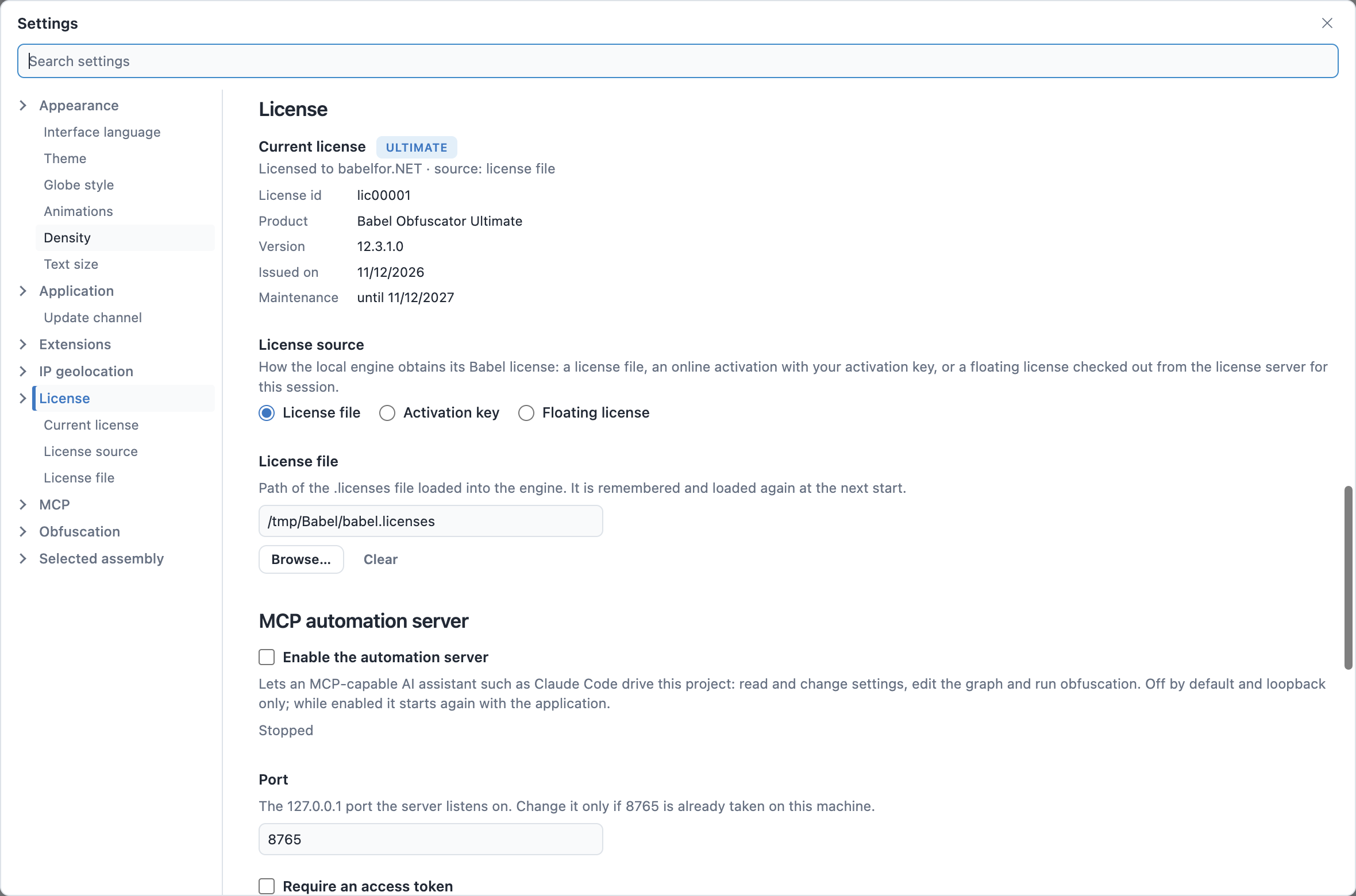
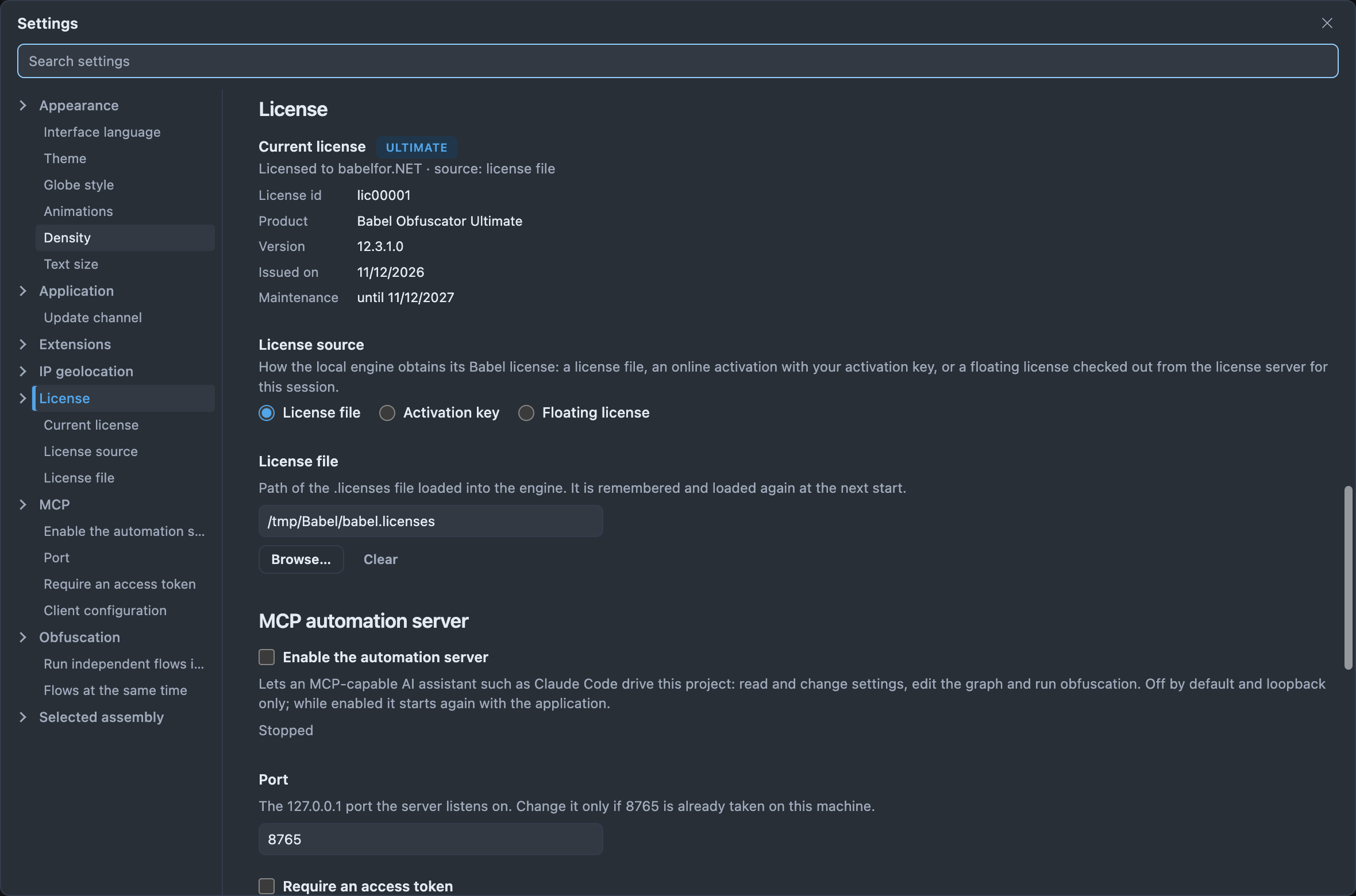
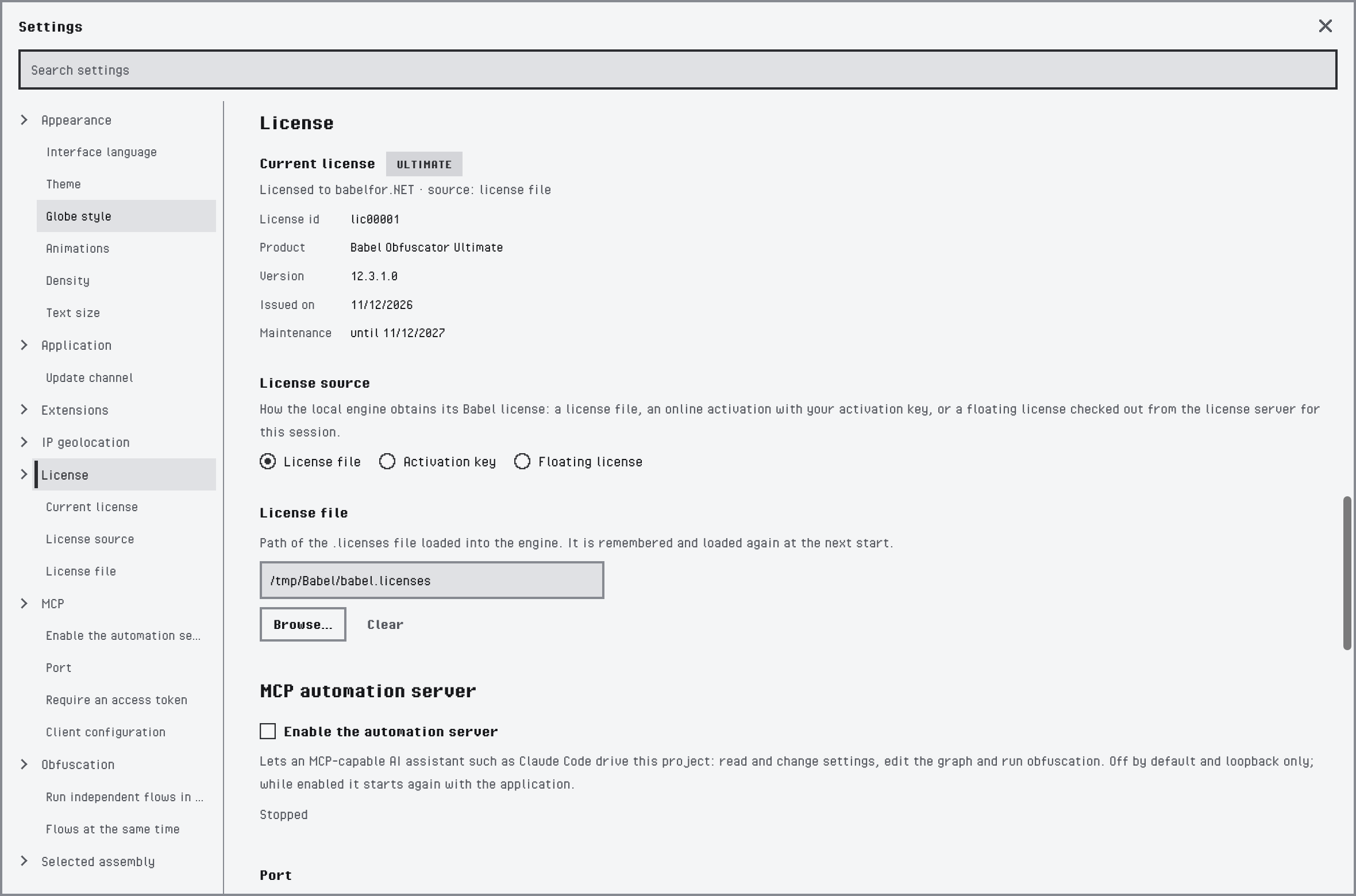
The License category with a license file
License source chooses where the engine gets its license. The entries below it change with the source:
| Source | Settings |
|---|---|
| License file | The path of a .licenses file. Browse… selects it and Clear removes it. The file is loaded again at every start. |
| Activation key | Enter the key and click Activate. The activation is kept on this computer and restored at every start; Deactivate gives it back so you can activate another computer. |
| Floating license | Enter the key in Floating license key and click Request license to check out a license from the license server for this session. Release returns it, and it is also released when Babel Desktop closes. With Request automatically at startup Babel Desktop requests it every time it starts. |
See Product Activation.
Extensions
Extensions are installed and managed in the Extensions view, not in this dialog. This category only opens that view.
| Setting | What it does |
|---|---|
| Installed extensions | Open extensions view opens the Extensions view, where you install, enable and remove extensions. See Extensions. |
MCP Automation Server
The server that lets an AI assistant, such as Claude Code, work on the open project: read and change settings, edit the graph and run obfuscation.
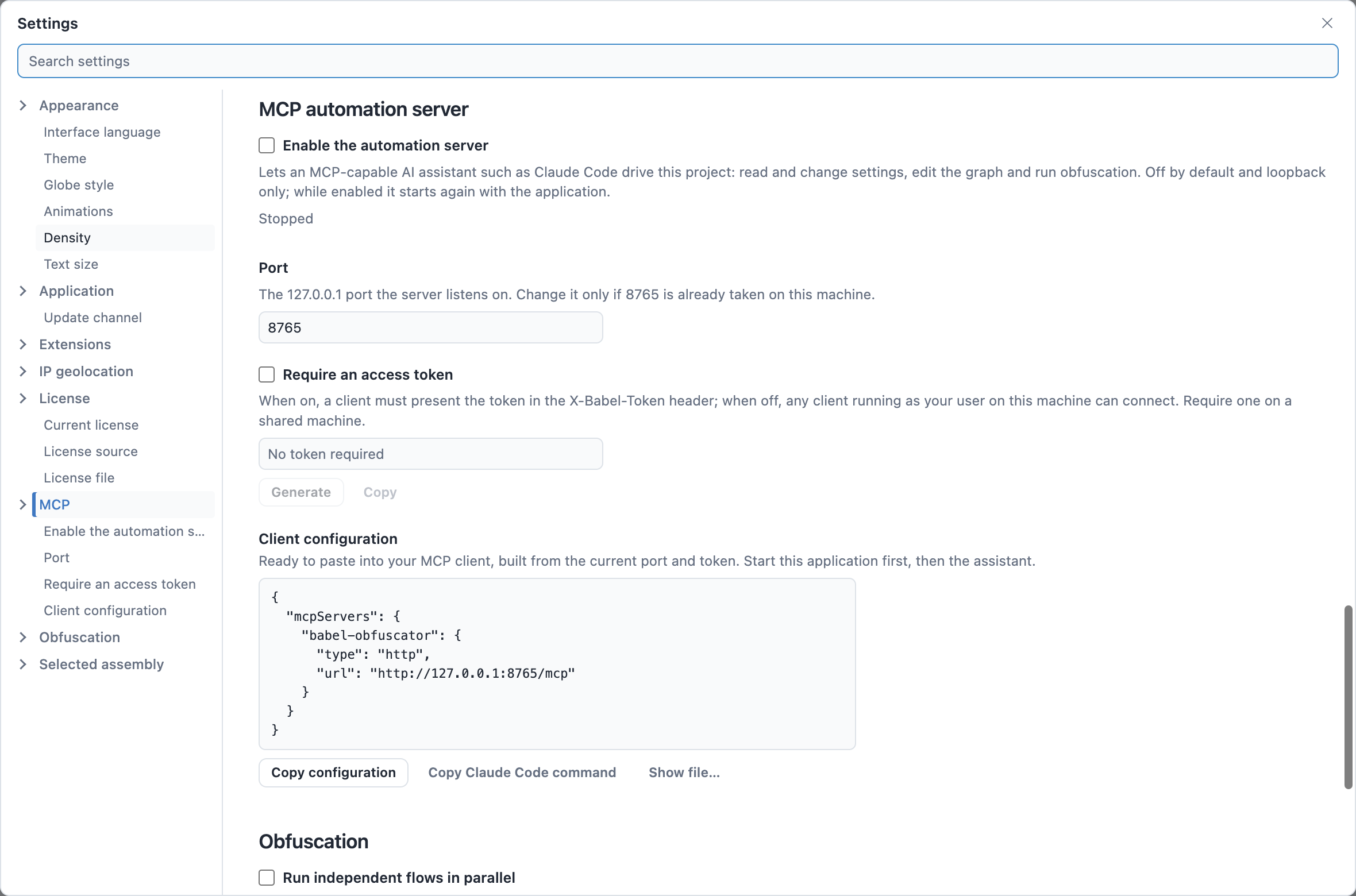
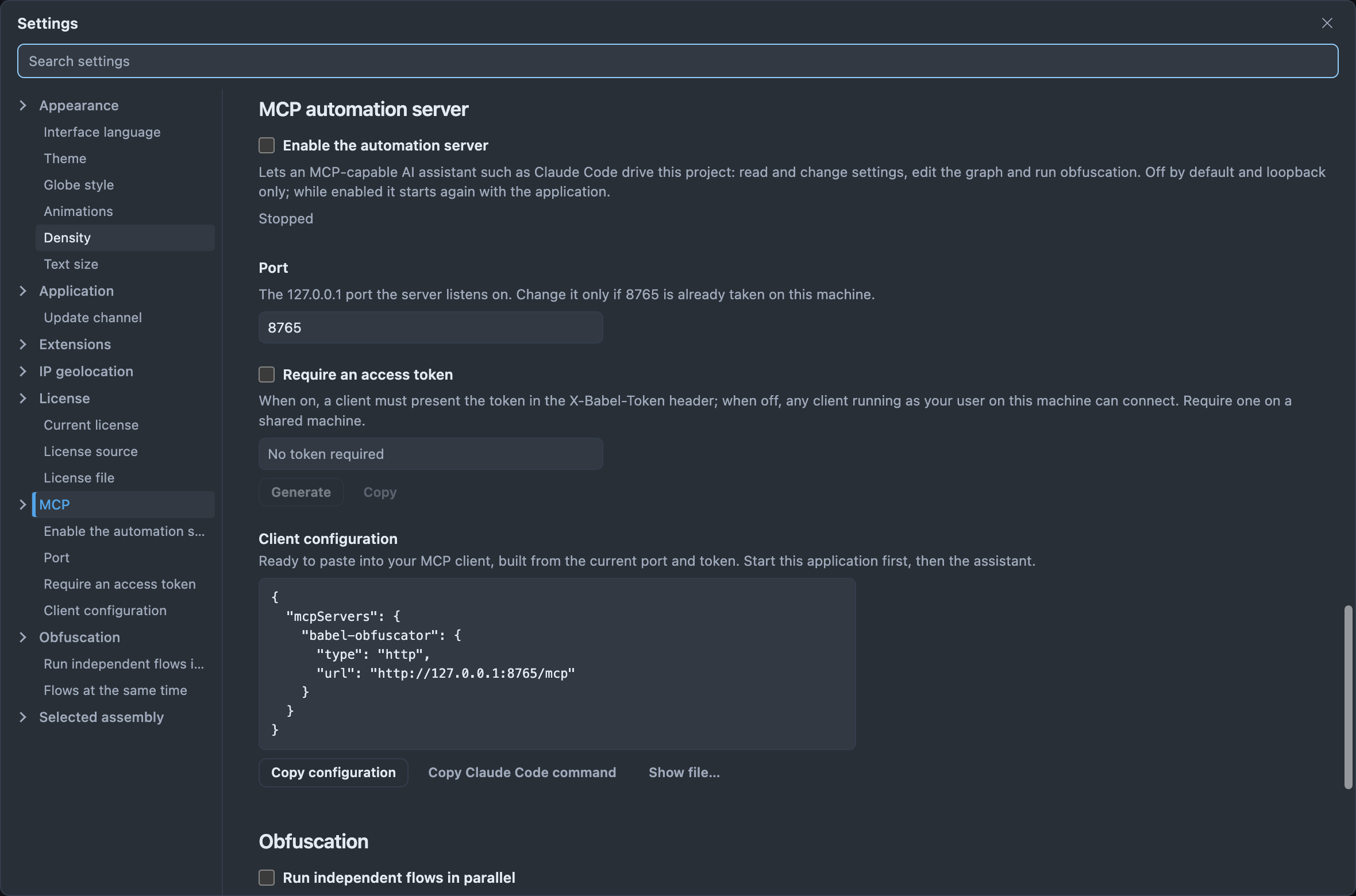
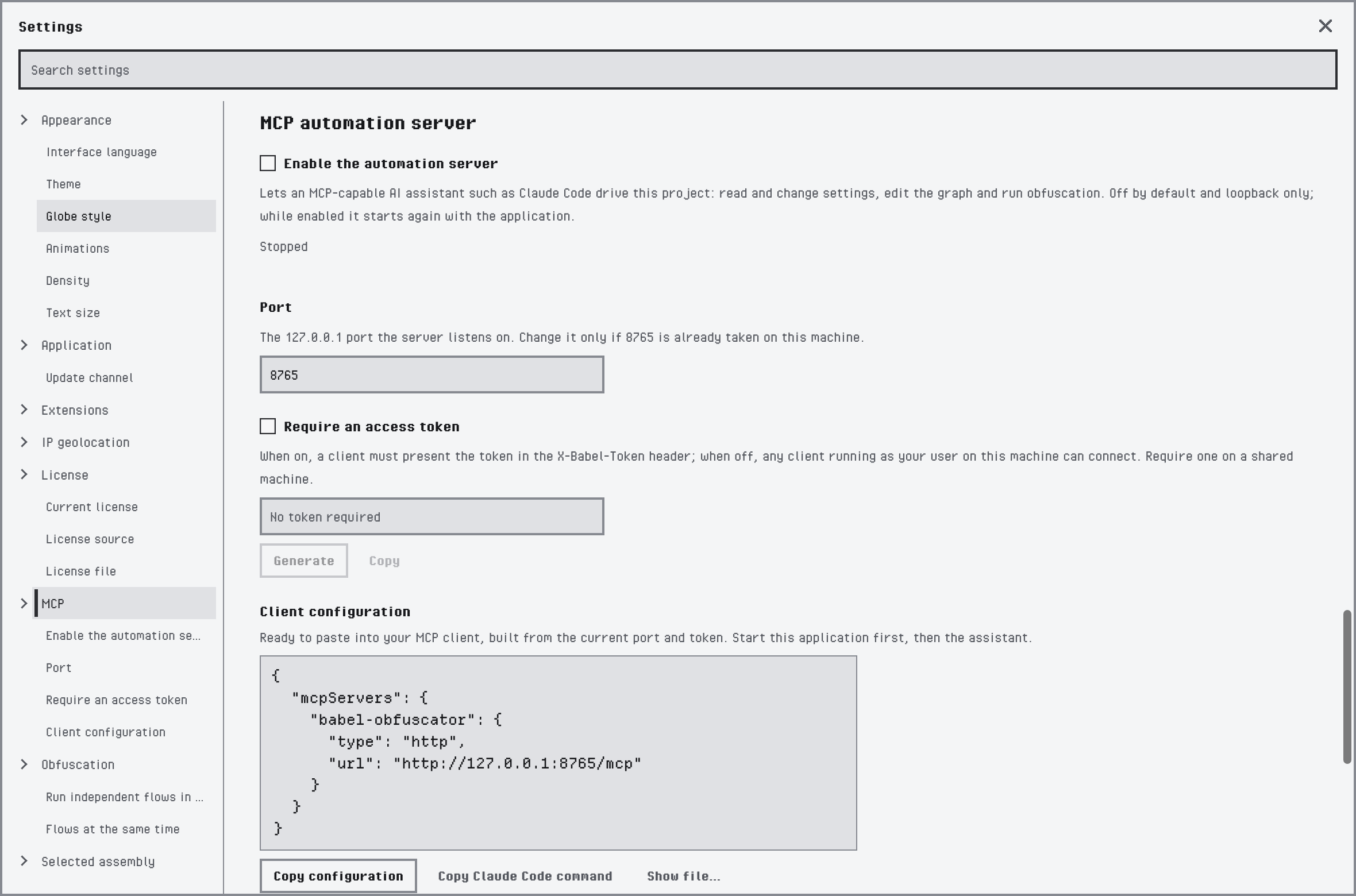
The MCP automation server with its default settings
| Setting | What it does |
|---|---|
| Enable the automation server | Starts the server. It is off by default and accepts connections from this computer only. While it is on, it starts again with the application. The line below shows whether it is running and its address. |
| Port | The local port the server listens on, 8765 by default. Change it only when another program already uses that port. |
| Require an access token | Makes every client send a token. Generate creates a new token and Copy copies it. Without a token, any program running under your user on this computer can connect, so turn it on when other people use the same computer. |
| Client configuration | The configuration to paste into your MCP client, built from the current port and token. Copy configuration copies it, Copy Claude Code command copies the command that adds the server to Claude Code, and Show file… shows the configuration file on disk. Start Babel Desktop before the assistant. |
See MCP Server.
Obfuscation
These settings apply to every project you run on this computer, not to a single target.
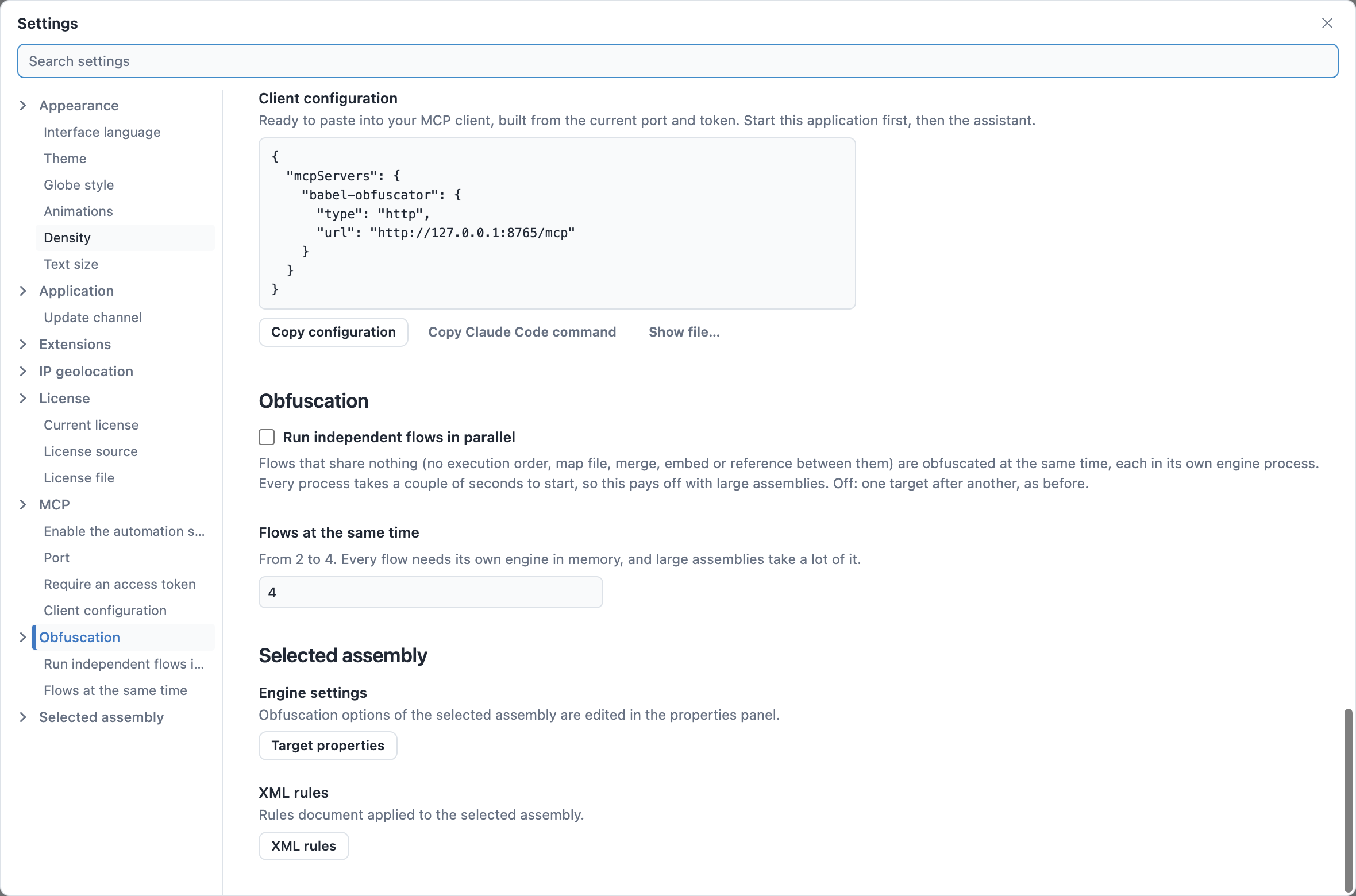
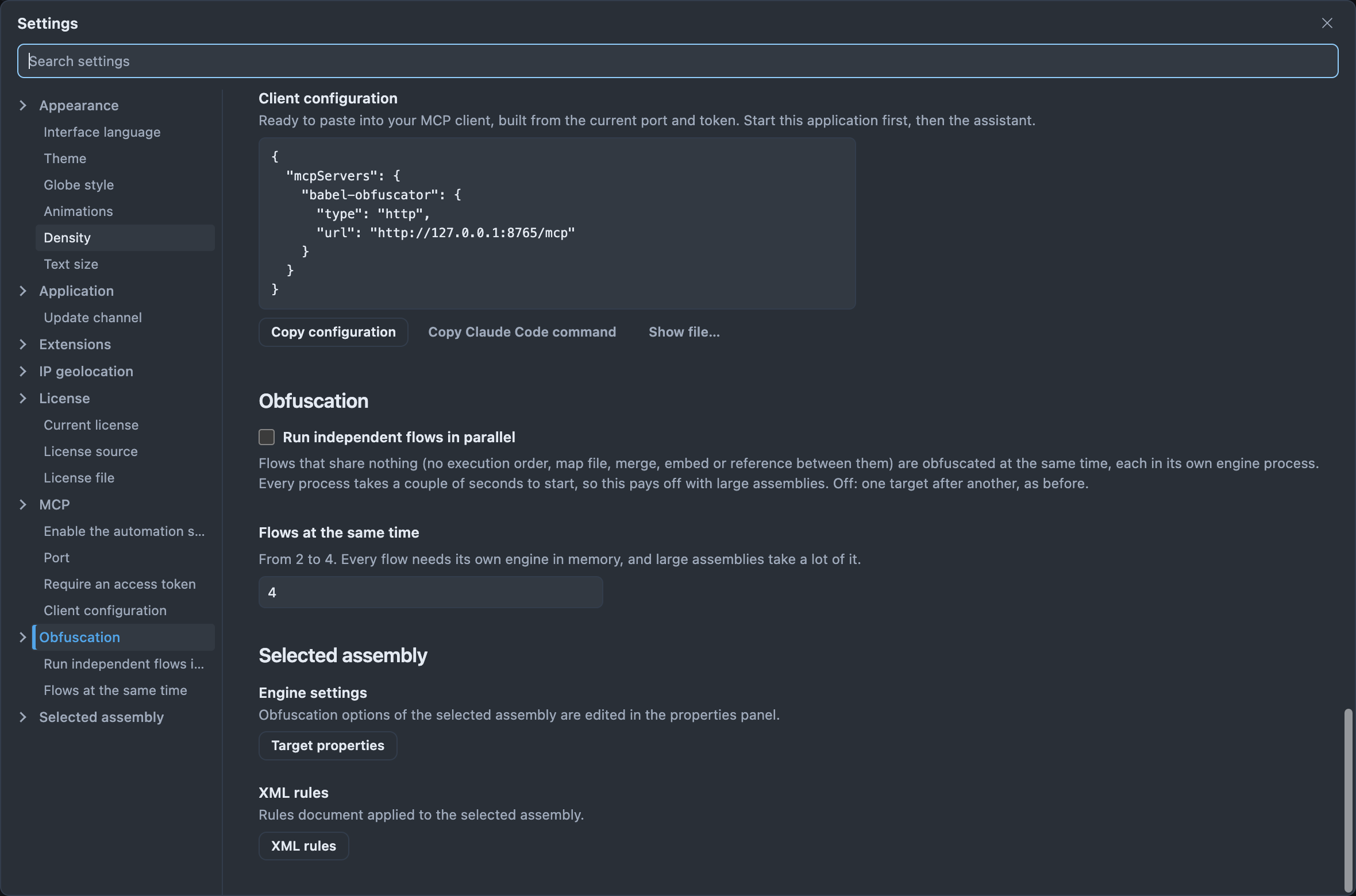
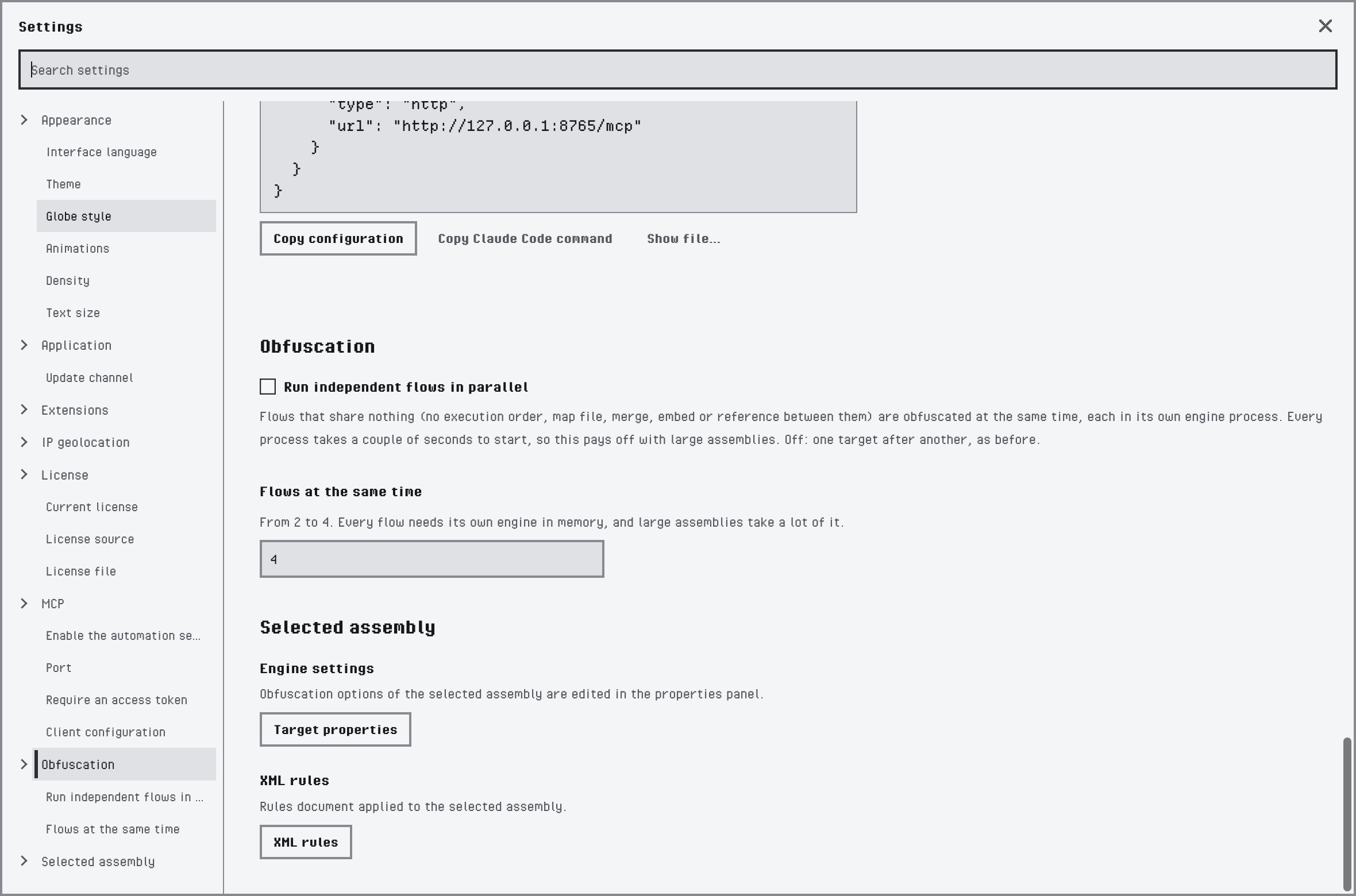
The Obfuscation and Selected assembly categories
| Setting | What it does |
|---|---|
| Run independent flows in parallel | Obfuscates at the same time the flows of a project that share nothing (no execution order, map file, merge, embed or reference between them), each in its own engine process. Off, the targets run one after another. |
| Flows at the same time | How many flows run at once, from 2 to 4. Each flow needs its own engine in memory, and large assemblies take a lot of it. |
See Running Flows in Parallel.
Selected Assembly
The settings of the selected assembly are saved in the project and edited outside this dialog. This category opens their editors.
| Setting | What it does |
|---|---|
| Engine settings | Target properties opens the settings of the selected assembly in the properties panel. See Target Settings. |
| XML rules | XML rules opens the rules editor of the selected assembly. See XML Rules. |
Licensing Connections
This category is there when your license includes Babel Licensing, or while connections you saved earlier are still listed. It holds the connection profiles to your licensing services, each with its own name, icon and API key.
| Setting | What it does |
|---|---|
| Add connection | Opens the form of a new profile: Display name, Environment, Service endpoint, Toolbar icon, Access mode (read-only browsing or management) and the API key. Test connection checks the service and the key, Save connection saves the profile. |
| Edit and Remove | Change a saved profile or delete it together with its saved API key. The records in the licensing database do not change. |
API keys are kept in the secure store of the operating system and are never shown again. See Connecting to Licensing.
IP Geolocation
How the Licensing dashboard places activations and the server on the globe. The settings belong to one licensing profile and can be changed only by a local Licensing administrator.
| Setting | What it does |
|---|---|
| Licensing profile | The connection whose geolocation you configure. |
| Locate activity events using IP geolocation | Sends the public IP addresses of activity events that have no location to the provider, to place them on the globe. Turn it off to keep these lookups off; the server lookup below does not depend on it. |
| Provider and Provider endpoint | The geolocation service and its address. |
| API key and Remove saved API key | The key of the provider, kept in the secure store, and the option to delete the saved one. |
| Cache lifetime (hours) | How long a location found for an address is kept before it is looked up again. |
| Resolve server position using IP geolocation | Places the licensing server on the globe from its public address, with the saved provider. For a service on this computer it locates the public address of this computer. |
| Server latitude (optional) and Server longitude (optional) | The position of the server entered by hand. A server on a private network can only be placed this way. |
Test connection tries the provider and Save stores the settings. See IP Geolocation.
Installed extensions and each Licensing connection can add more categories of their own.