Working with Records
The sidebar of a profile groups the views as Sales, Licensing, Operations and Administration. You can reorder the sidebar items by dragging them, or with Alt+Up and Alt+Down. Views that receive new records, such as Orders, Reports and Log, show a count of the records that arrived since you last opened them.
All lists use the same grid:
- The search box filters as you type. Some lists also accept filters written as
label:value, shown as a hint above the grid, for examplereseller:yesin Customers,revoked:noin Licenses orlevel:errorin Log. - Click a column header to sort.
- The list loads more records as you scroll. The line under the grid shows how many are loaded, for example 50 of 123 loaded.
- Right-click the header row to choose the visible columns, and drag a header to move its column (
Alt+LeftandAlt+Rightfrom the keyboard). Restore defaults in the same menu brings back the original columns. The choice is remembered per profile and view. - In lists with record actions, the first click selects a row and enables the toolbar buttons; a second click or
Enteropens the record.
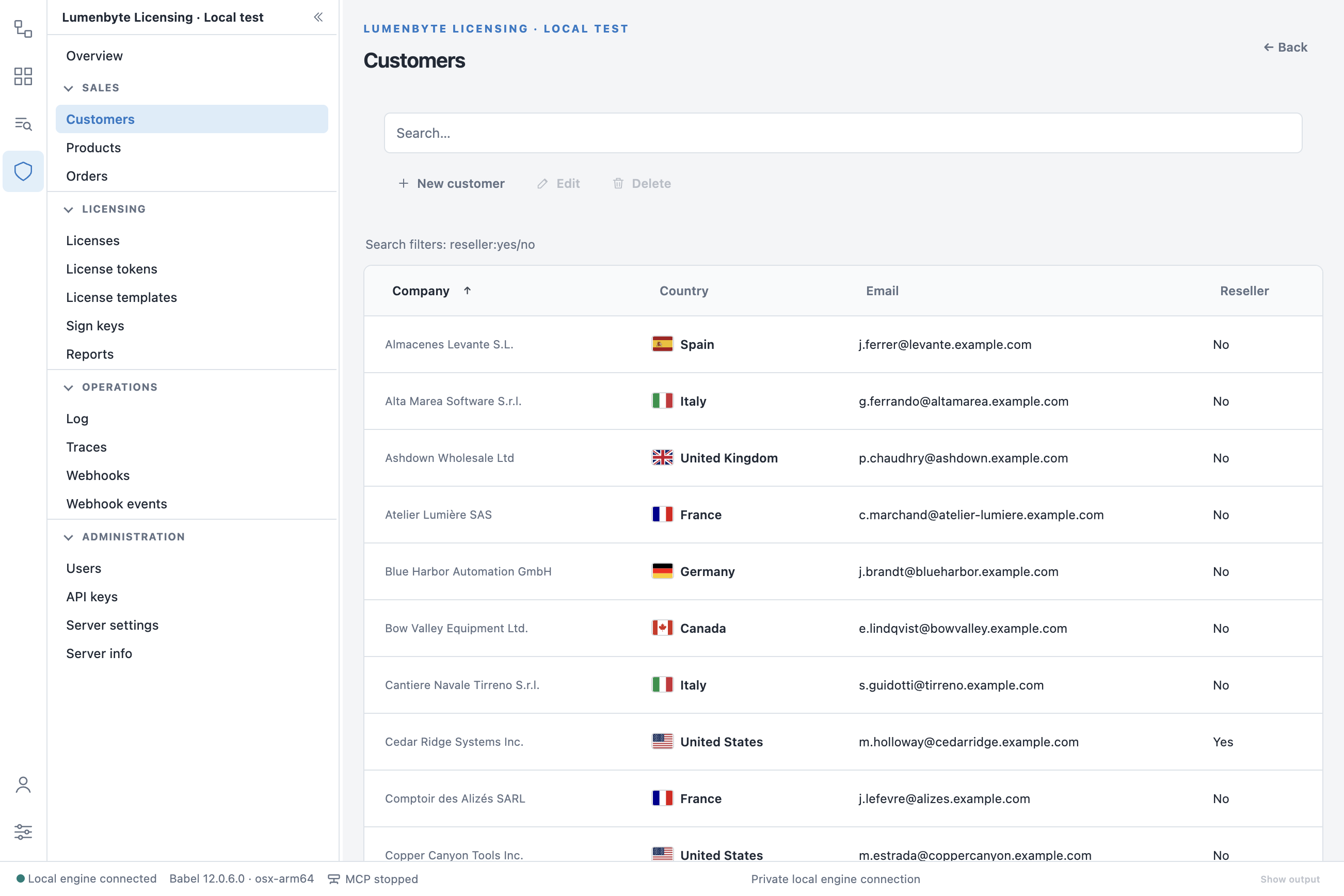
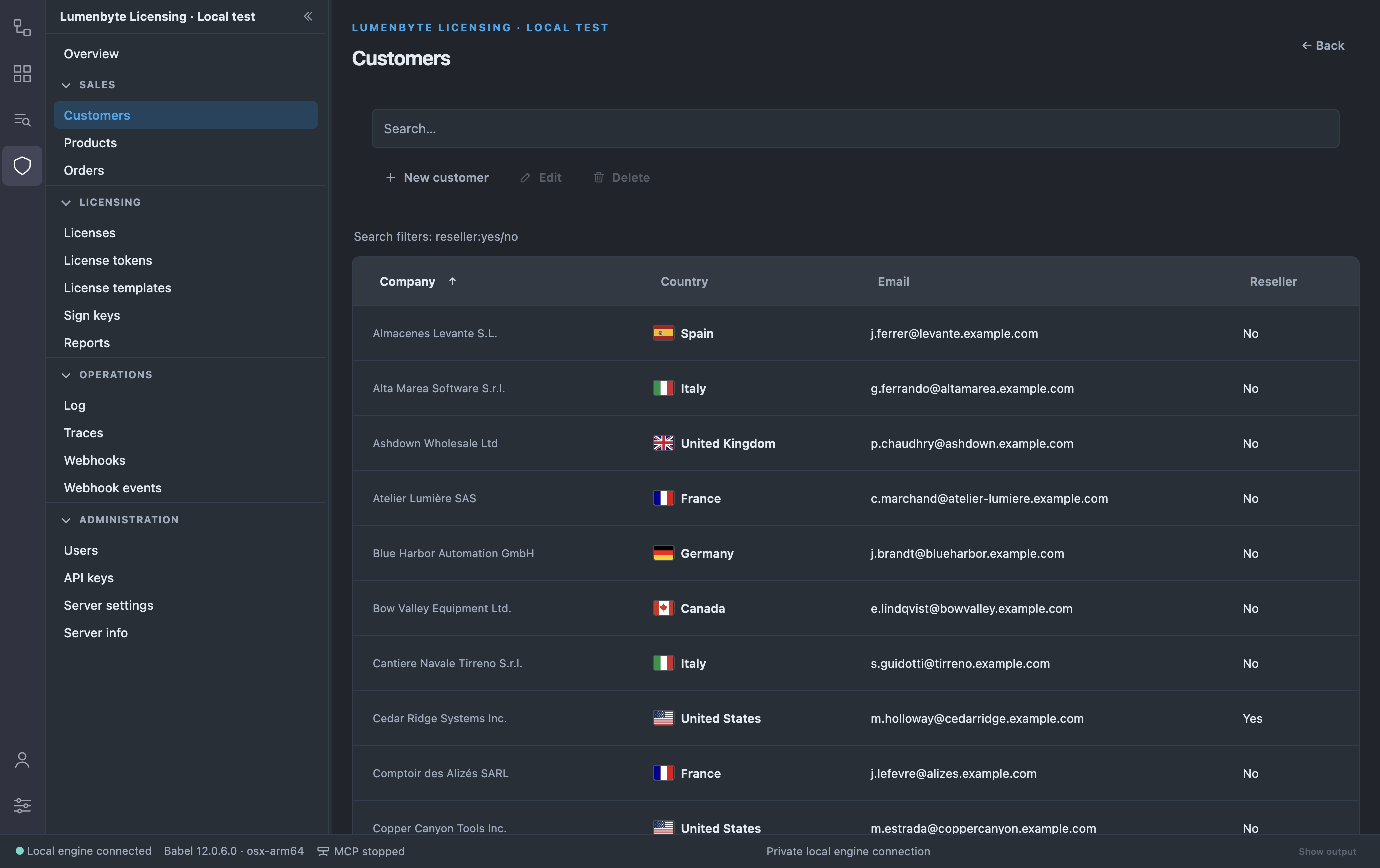
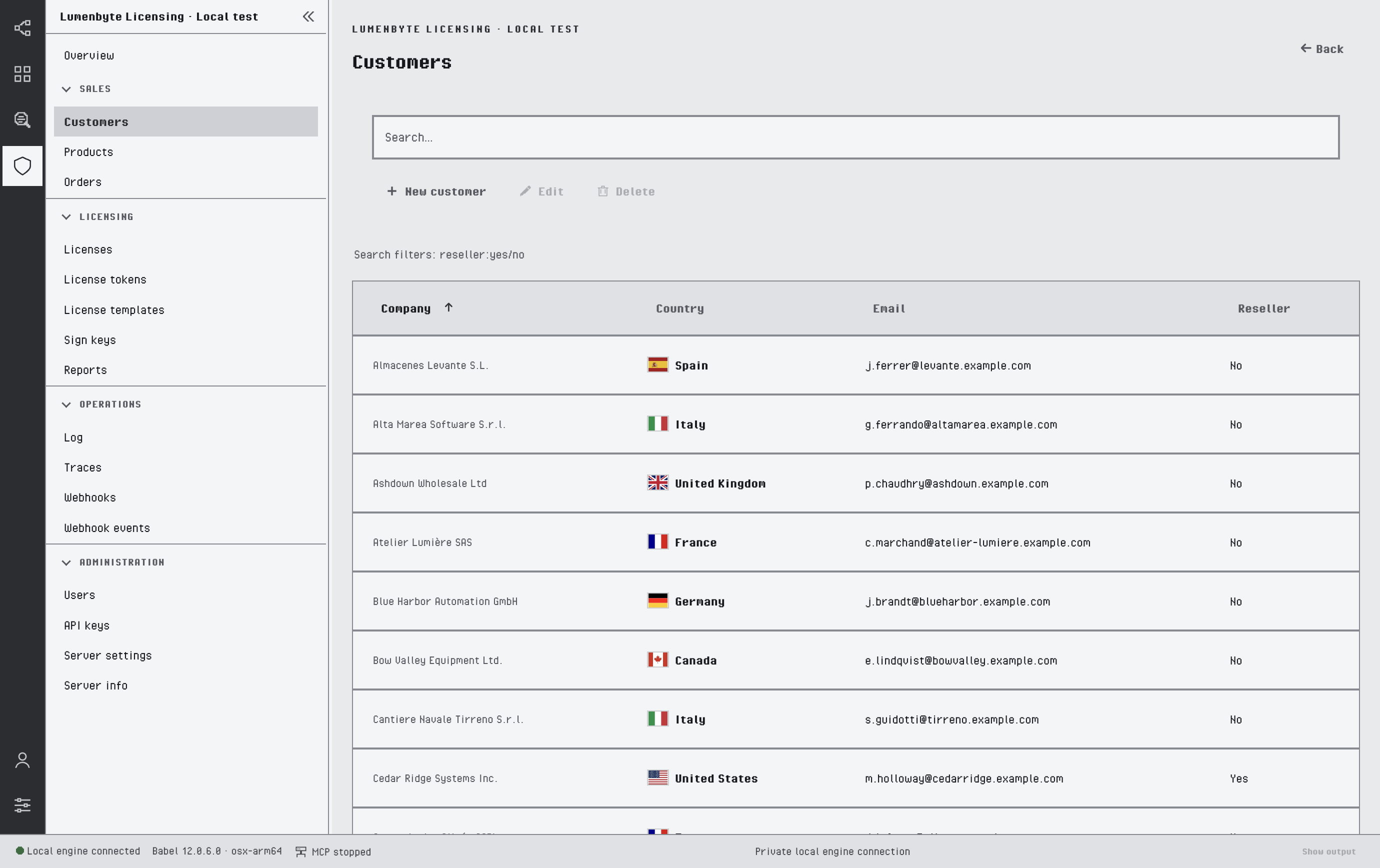
A list with its search box, toolbar and filter hint
Detail pages show the record in cards, with its related records in tabs and links to the records it refers to. Back returns to where you came from. Forms validate the input before saving, and destructive actions ask for confirmation.
On a read-only profile the lists and detail pages work the same way, without the buttons that create, edit or delete.
Last updated on