MCP Server
Babel Desktop can host a local Model Context Protocol (MCP) server, so an AI assistant such as Claude Code can open projects, change settings, run the obfuscation, decode stack traces and work with Babel Licensing.
MCP is an open standard that AI assistants use to call external tools. Any MCP client with Streamable HTTP transport support can connect. The assistant works in the application you have open: projects it edits and runs it starts show up on the canvas, and it sees the changes you make in the window.
Some example requests:
Open
~/Projects/Acme/Acme.babel, enable dynamic proxy and map file generation forAcme.exe, run the obfuscation and tell me about any warnings.
Add
Acme.Core.dllto the project and merge it intoAcme.exe, then show me the renaming statistics of the next run.
Decode the stack trace in
crash.txtwithAcme.exe.map.xmland tell me which of my methods threw.
Show me the licenses expiring in the next 30 days and the customers they belong to.
Switch the interface to the Copper Night theme and take a screenshot of the dashboard.
What does dynamic proxy do? If it makes sense for
Acme.exe, enable it and explain why.
Enabling the Server
The server is off by default and does not listen until you enable it.
Open the MCP settings
Open Settings and choose MCP.
Enable the server
Tick Enable the automation server. The status line changes to Running and shows the server address, http://127.0.0.1:8765/mcp with the default port. As long as the setting stays on, the server starts whenever Babel Desktop starts.
Choose the port
Leave Port at 8765 unless another program on the machine already uses it.
Protect the server with a token
Tick Require an access token and click Generate. Clients must then send the token in the X-Babel-Token header. Without a token, any program running under your user account on the machine can connect, so require one on a shared machine.
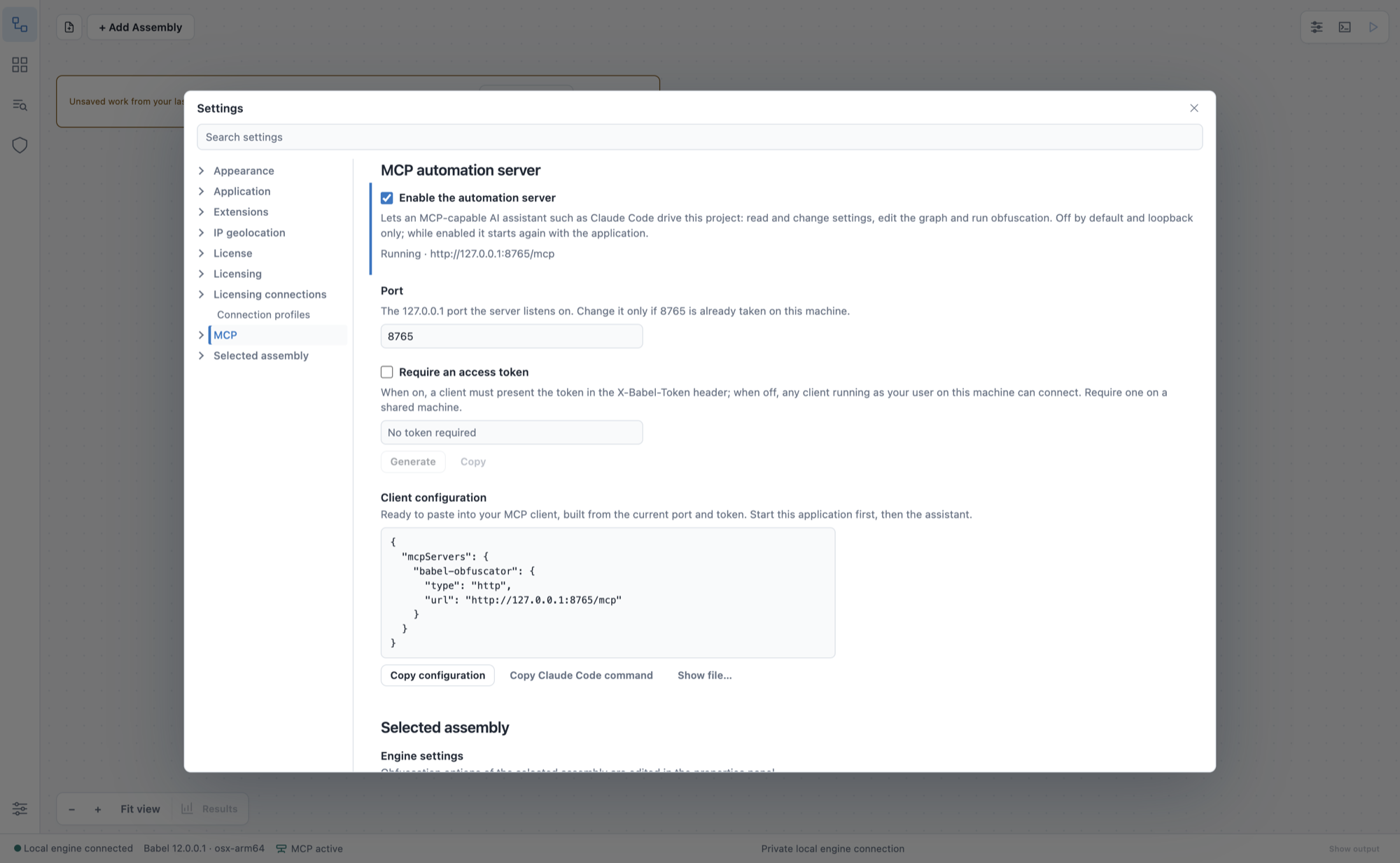
Settings > MCP
Changes apply immediately. Unticking Enable the automation server stops the server; changing the port or the token restarts it and disconnects the connected clients. The command palette also offers MCP: Start local server (project read/write), MCP: Stop local server, MCP: Show status and MCP: Reveal client configuration file.
Connecting a Client
The Client configuration section of the MCP settings generates a configuration for the current port and token. Click Copy configuration and paste it into the MCP configuration of your client:
{
  "mcpServers": {
    "babel-obfuscator": {
      "type": "http",
      "url": "http://127.0.0.1:8765/mcp",
      "headers": {
        "X-Babel-Token": "paste-the-token-from-settings-mcp"
      }
    }
  }
}
Without a required token, the headers block is omitted. Show file… reveals the configuration file that Babel Desktop writes for the running server.
For Claude Code, click Copy Claude Code command and run the copied command in a terminal:
claude mcp add --transport http babel-obfuscator http://127.0.0.1:8765/mcp \
  --header "X-Babel-Token: paste-the-token-from-settings-mcp"
Start Babel Desktop first, then the assistant. To check the connection, ask the assistant to take a screenshot of the Babel Desktop window.
Treat the token like a password and keep it out of reports, tickets and source control. Anyone who has it can operate Babel Desktop on the local machine with your permissions.
What the Assistant Can Do
The server makes the application’s features available as MCP tools, grouped as follows:
| Area | Tools |
|---|---|
| Application | app_get_state, app_info, app_settings, app_set_theme, app_set_globe_style, language_list, language_set, language_install, mcp_configure, app_restart, desktop_screenshot |
| Updates | app_update_status, app_update_check, app_update_install |
| Engine license | license_info, license_load, license_clear, license_activate, license_deactivate, license_floating, license_release, license_configure |
| Projects and targets | project_info, project_graph, graph_layout, project_open, project_save, assembly_list, assembly_add, assembly_select, assembly_remove |
| Settings and rules | settings_list, settings_get, settings_set, project_rules, project_set_xml_rules, rules_validate, rules_read, rules_save |
| Runs and results | obfuscate_start, obfuscate_cancel, obfuscate_status, results_list, results_read, results_table |
| Tools | stack_decode, trace_read, trace_save, warning_reference, plugin_arguments |
| Extensions | extensions_list, extension_install, extension_state, extension_readme, extension_settings, extension_settings_save and the other extension_* tools |
| Licensing | licensing_profiles, licensing_profile_save, licensing_profile_test, licensing_profile_select, licensing_layout, licensing_read, licensing_dashboard, licensing_globe_details, licensing_report, licensing_geolocation, licensing_prepare, licensing_confirm |
| Confirmed changes | desktop_prepare, desktop_confirm |
| Documentation | docs_search, docs_read, docs_list |
Setting names are the Babel Obfuscator option names shown in the properties panel, so the assistant can use the Babel task reference to choose values. You do not need to name tools. Describe the result you want and the assistant chooses them.
Confirmed Changes
Operations that could lose work or overwrite files take two steps. The assistant first prepares the operation and gets back a proposal describing what will happen, for example which output files a run will replace or which record a delete will remove. It has to show you the proposal and get your approval before it confirms the operation. A proposal expires after two minutes and can be used only once. It is refused if the project, the files or the record have changed since it was made.
Two-step confirmation covers:
- creating a new project, replacing an input, removing a target, editing the graph and dependencies, and starting a run (
obfuscate_startreturns a proposal); - the setup commands: merging into the main assembly, public obfuscation and the protection level of a target;
- installing and uninstalling extensions and removing a Licensing connection profile;
- creating, editing, revoking and deleting Licensing records (
licensing_prepareandlicensing_confirm).
Changing settings or XML rules requires the current project revision, which stops an assistant from overwriting changes it has not seen.
Obfuscation Runs
A run the assistant starts is no different from one you start in the window. It writes output to the same locations, reports progress in the Activity panel and can be cancelled from either side. The assistant polls obfuscate_status until the run completes, then reads the statistics with results_read and results_table. While a run is active, the project cannot be changed.
Licensing
The Licensing tools act on the Licensing connection profiles, with the roles and permissions of the profile’s API key. Records can be created, edited and deleted only through a Local test profile with the local management access mode; remote and read-only profiles refuse every change. Responses leave out secrets such as license keys, API keys, tokens and IP addresses. The dashboard tools return only aggregate data.
What Stays in the Window
The assistant cannot do the following; they are left to you in the window:
- entering credentials: signing in with an API key and generating the MCP token;
- answering password prompts during a run, and decoding stack traces with password-protected map files;
- starting and stopping the MCP server itself.
Babel Documentation Tools
The server also gives the assistant the documentation you are reading now. When you ask how something works or how to do it, the assistant searches the documentation, reads the relevant section and answers with links to the pages it used, before it changes any setting. The server tells connected clients to work this way, so you do not need to name the tools.
| Tool | What it does |
|---|---|
docs_search | Searches the Babel Obfuscator, Babel Licensing, Babel Desktop and API Reference documentation. It takes a query of up to 500 characters, an optional section (obfuscator, licensing, desktop or api) and an optional limit from 1 to 20 (8 by default). Each result has the page title, the section heading, the page path, a link to the heading and a short excerpt |
docs_read | Returns a page as Markdown, by the path that docs_search or docs_list returned. With a heading, it returns only that section. Pages longer than 200 KiB are cut, with a note to ask for a single section. For an unknown path, it names the closest paths |
docs_list | Lists the pages with path, title and description, for all sections or for one |
The documentation tools only read, and they connect only to https://docs.babelfor.net. The search runs on your machine: your question is not sent to the documentation site. The tools download the search index and the pages they read, which are the same public files described in Using the Documentation with AI.
Some example requests:
How do I exclude a type from renaming with XML rules? Change the rules of this project accordingly.
Search the licensing documentation for how my application should release a floating license when it closes.
Read the Stack Decoder page and explain which map file I need for a release build.
Offline Use and Updates
Babel Desktop keeps the downloaded index and pages in a docs-cache folder in your user profile.
- The index is checked for changes at most once every 24 hours. A page is downloaded again only when it has changed on the site.
- To get the latest version sooner, ask the assistant to refresh the documentation. The tools accept
refresh: truefor this. - Without a network connection, the tools answer from the cached copy and mark the result as stale, with the date of the copy.
- After a failed connection or an error from the site, the tools use the cache for 10 minutes before they try the site again.
The tools need to reach the site once to build the cache. Until then, offline, they return: Babel documentation is not available offline yet: connect to the internet once, or open https://docs.babelfor.net .
Security
- The server is off by default and listens only after you enable it.
- It binds to
127.0.0.1, so other machines cannot reach it. - With Require an access token on, any request without the correct
X-Babel-Tokenheader is rejected. - Request sizes, sessions, connections and timeouts are limited, and the host and origin of each request are validated.
- No tool runs arbitrary commands, SQL or URLs.
- The documentation tools connect only to
https://docs.babelfor.net, without following redirects, and only read.
The assistant has the same access to your projects and files that you have in Babel Desktop. It can change project settings, run obfuscations and, after confirmation, replace output files. If you let an assistant explore freely, give it a copy of the project, and turn the server off when you are not using it.
Troubleshooting
| Symptom | Cause | Fix |
|---|---|---|
| The client cannot connect | Babel Desktop is not running, or the server is not enabled | Start Babel Desktop and check the status line in Settings > MCP |
| Every call is rejected as unauthorized | The token is missing or out of date | Copy the configuration again after generating a token |
| The server does not start | The port is already in use | Choose another port in Settings > MCP |
| A confirmation is refused | The proposal expired or the project changed | Ask the assistant to prepare the operation again |
| Licensing changes are refused | The profile is remote or read-only, or the API key lacks the role or permission | Use a Local test profile with local management and a key with the required permissions |
The Babel Licensing Service has its own MCP server, which works remotely with the service API; see AI Integration for a comparison.