Target Settings
Every target has its own Babel Obfuscator settings. The properties panel edits them one target at a time; the setup commands and the protection levels change many of them in one step.
The Properties Panel
Select a target and click the Properties button at the top right of the toolbar, press Enter on a selected node, or choose Properties in the menu of a node or a row. The panel docks on the right and is titled Target properties with the name of the target. It has two tabs: Settings and XML rules.
The Settings tab lists every Babel Obfuscator option of the selected target, grouped as Map files, Renaming, Control flow, Code encryption, Optimization, Signing & protection, Files & dependencies, Output & diagnostics and Advanced. Each group shows how many options it holds and can be collapsed. Type in Find a setting to filter the list.
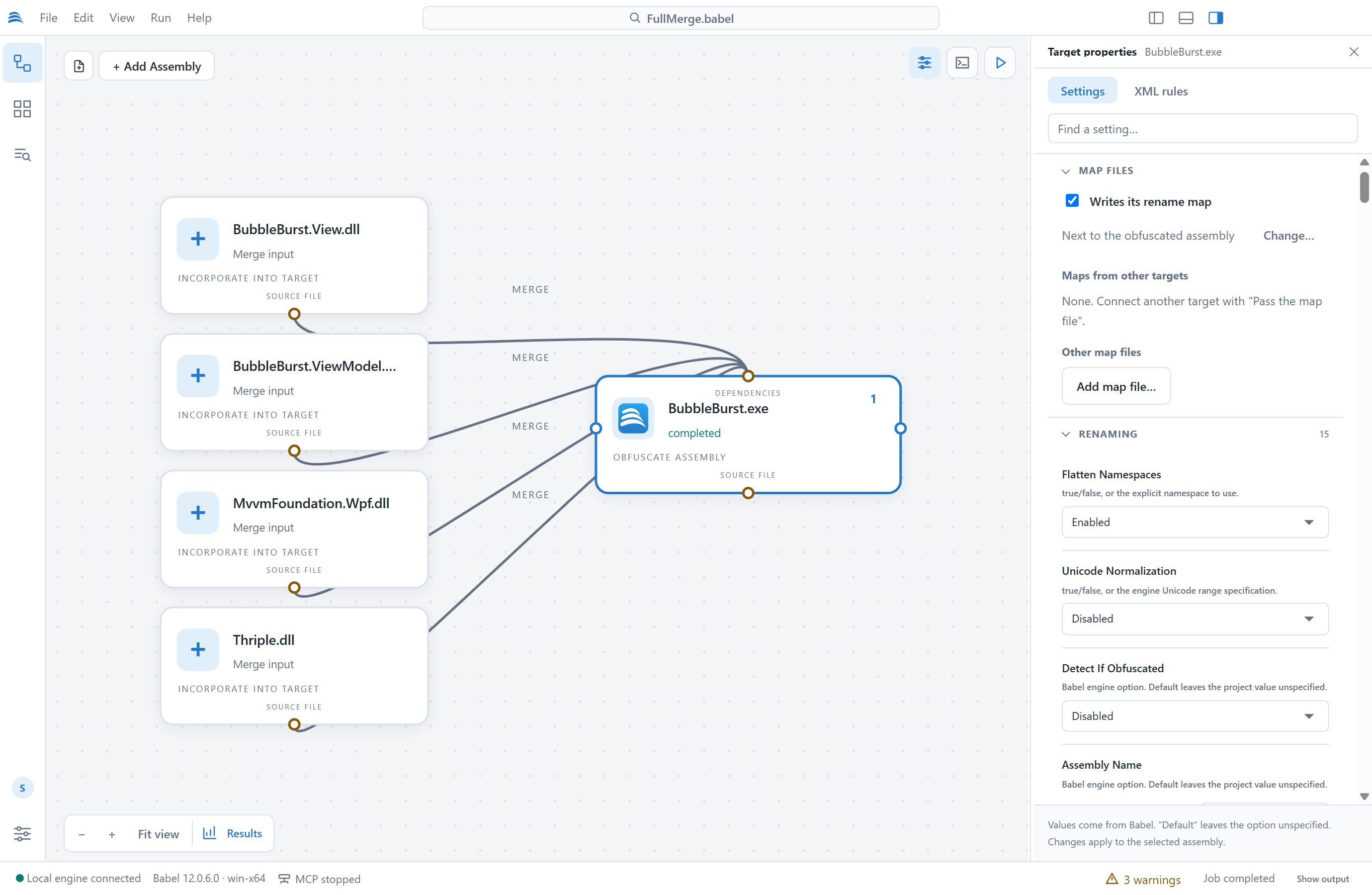
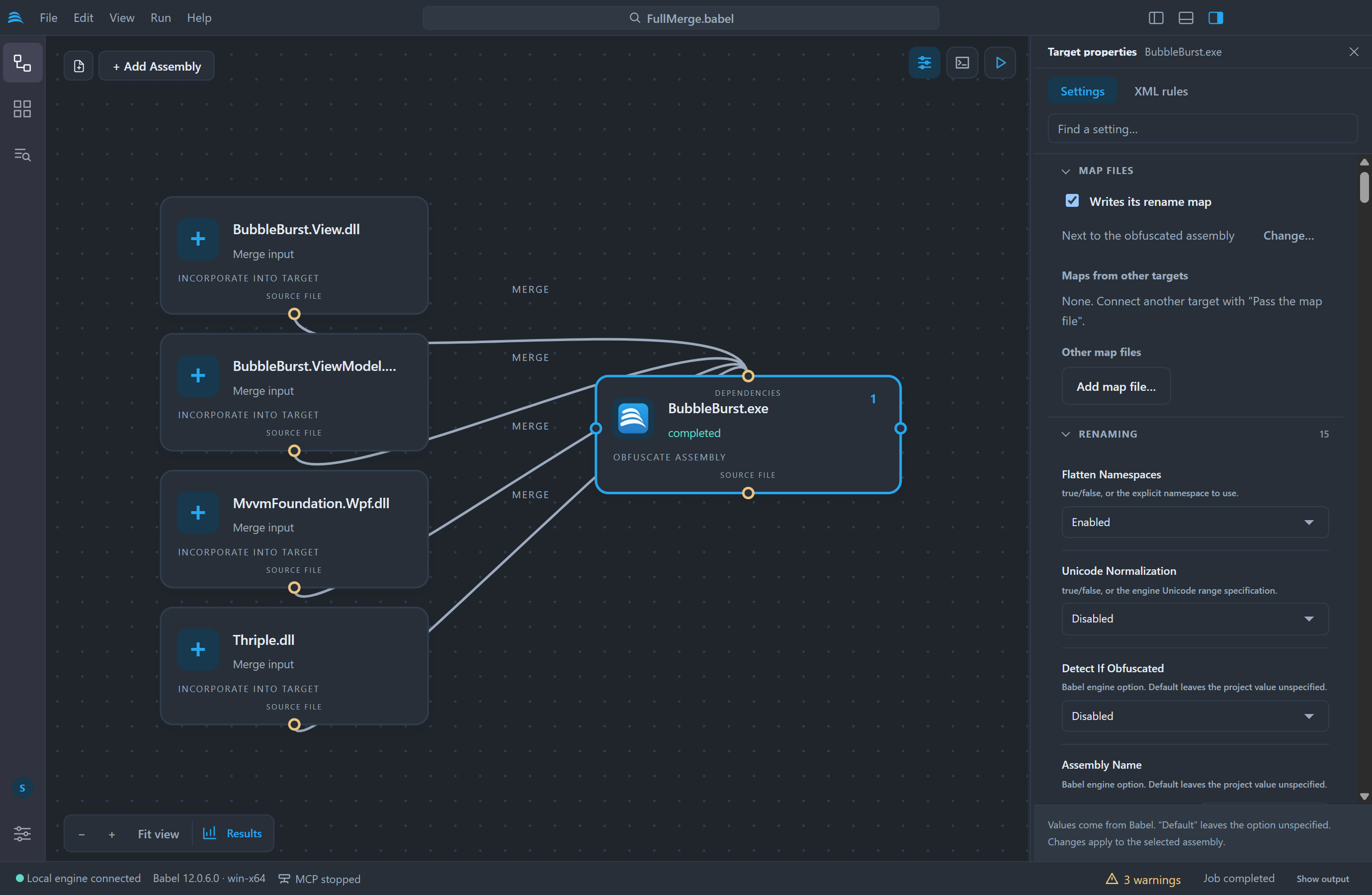
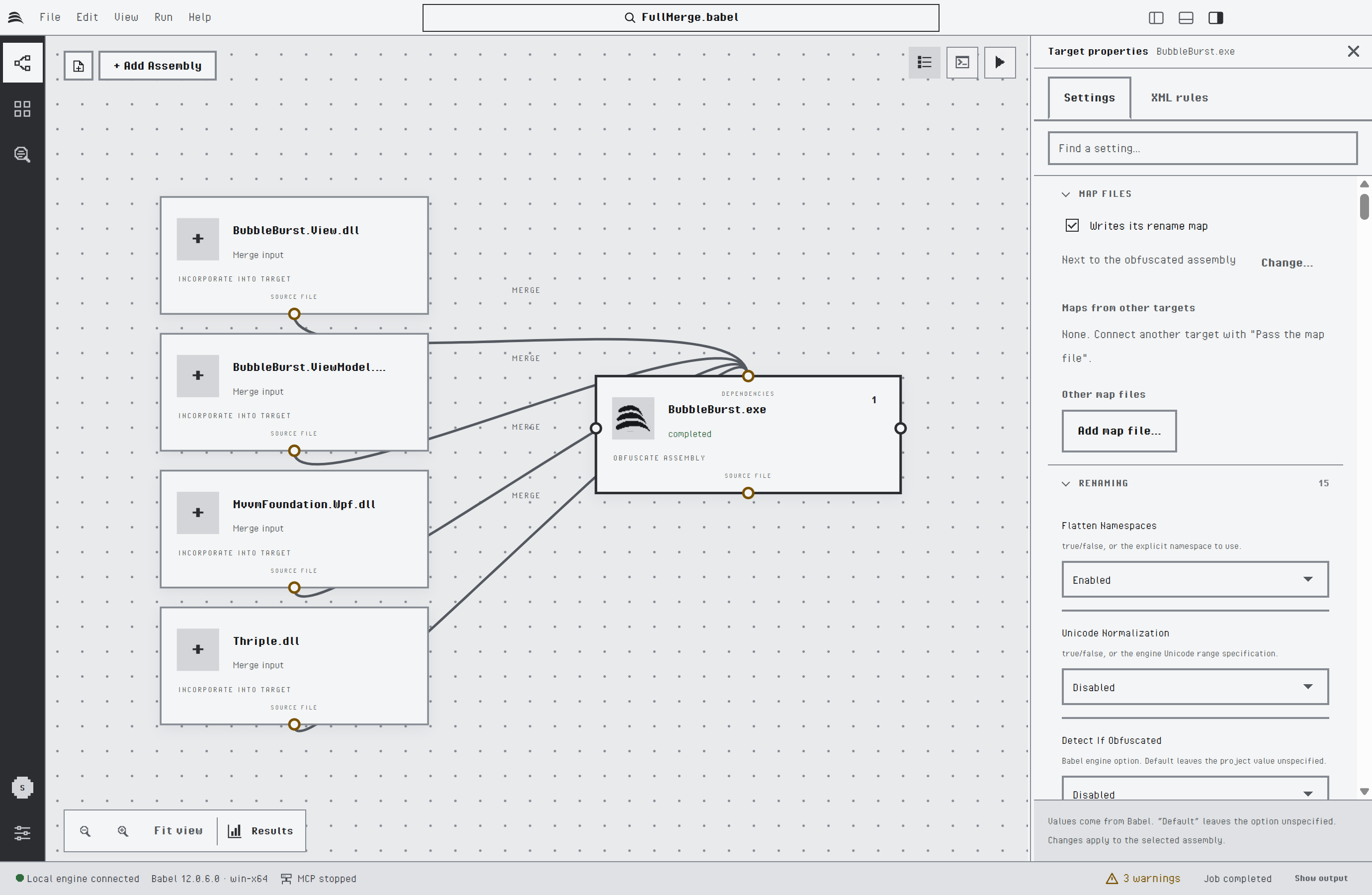
The properties panel of the selected target
The settings use the option names of the MSBuild task, so the Babel task reference and the pages of each protection describe what they do. Each option gets a control that fits its type: check boxes for switches, lists for algorithms, file and folder pickers for paths, and editors for filters and property maps. A list set to Default leaves the option out of the project, so the engine uses its own default. Changes apply to the selected target only; to change several targets at once, use the grid.
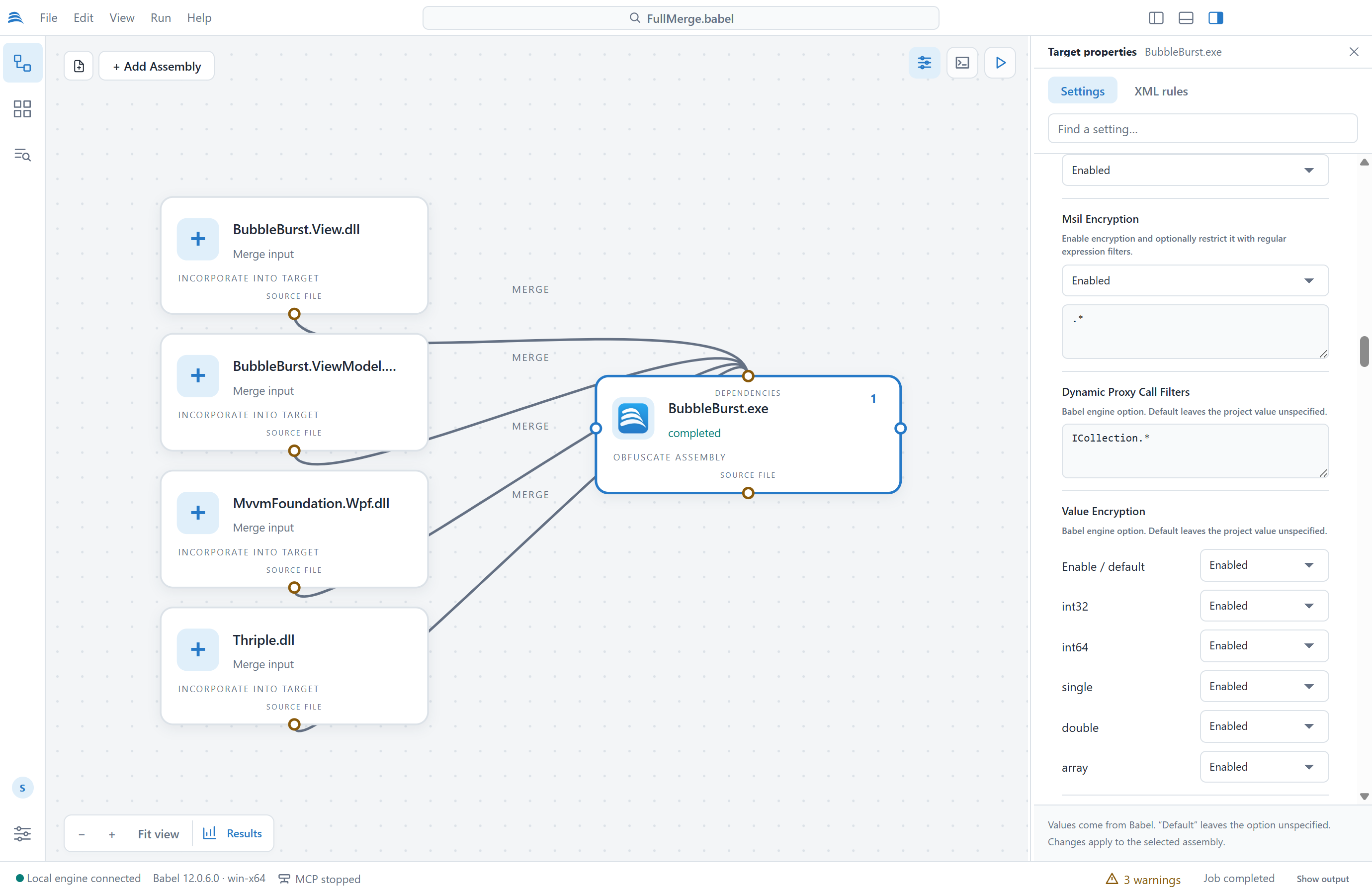
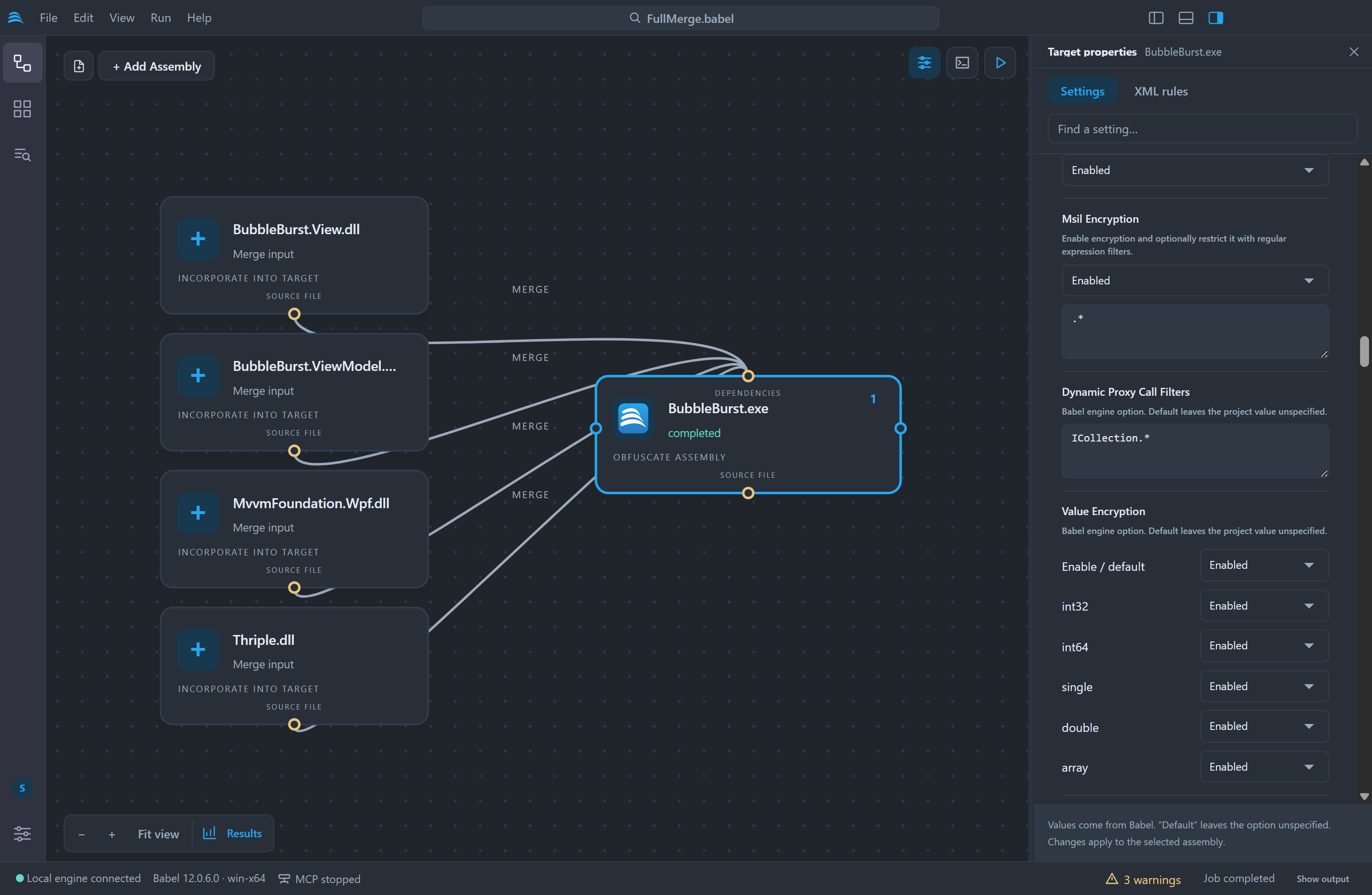
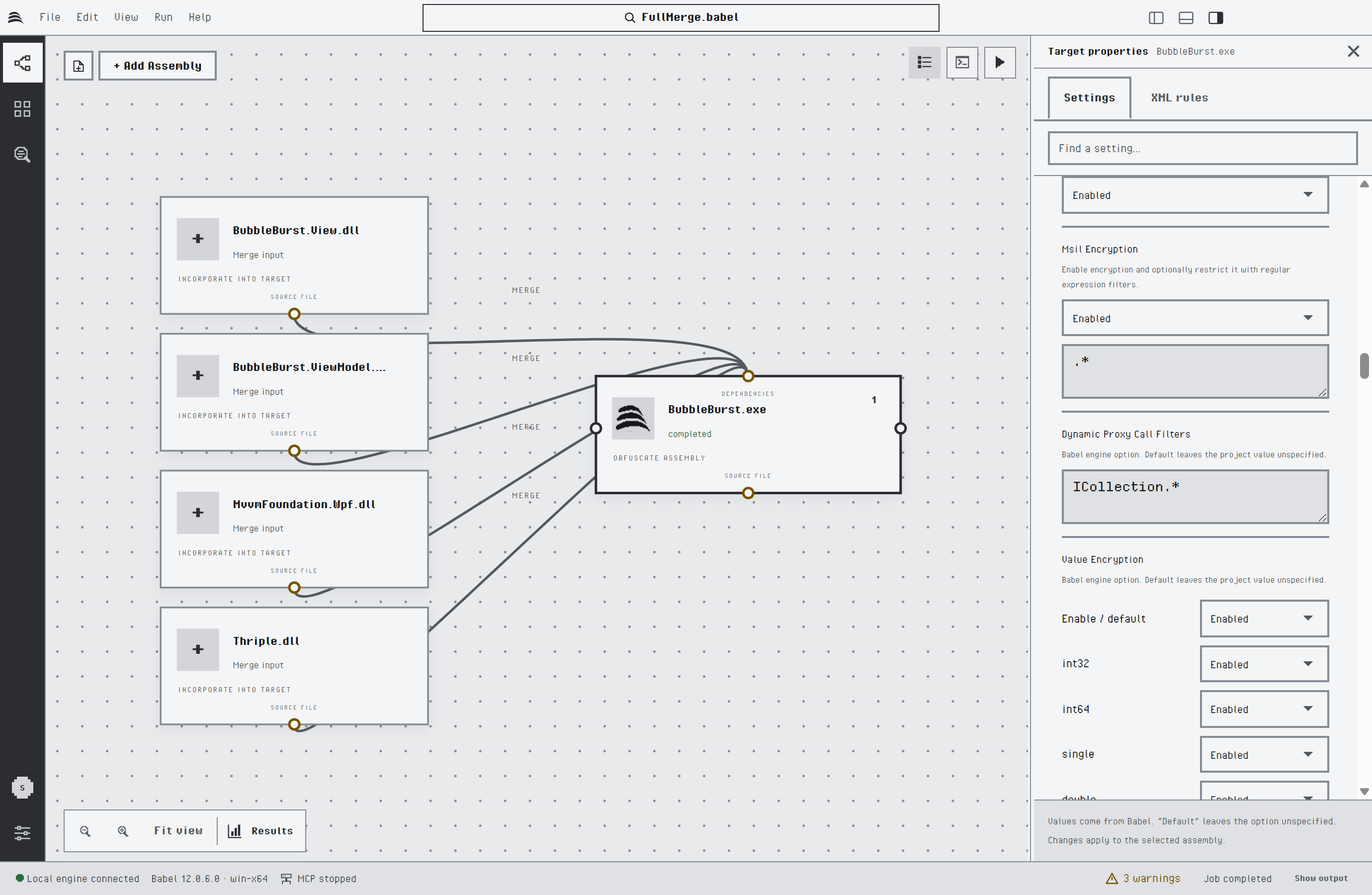
Code encryption settings: string, MSIL and value encryption
Composite options such as Control Flow Obfuscation show one control per property. The next picture shows the control flow switches. The last one, chain, turns on the Ultimate chained state algorithm.
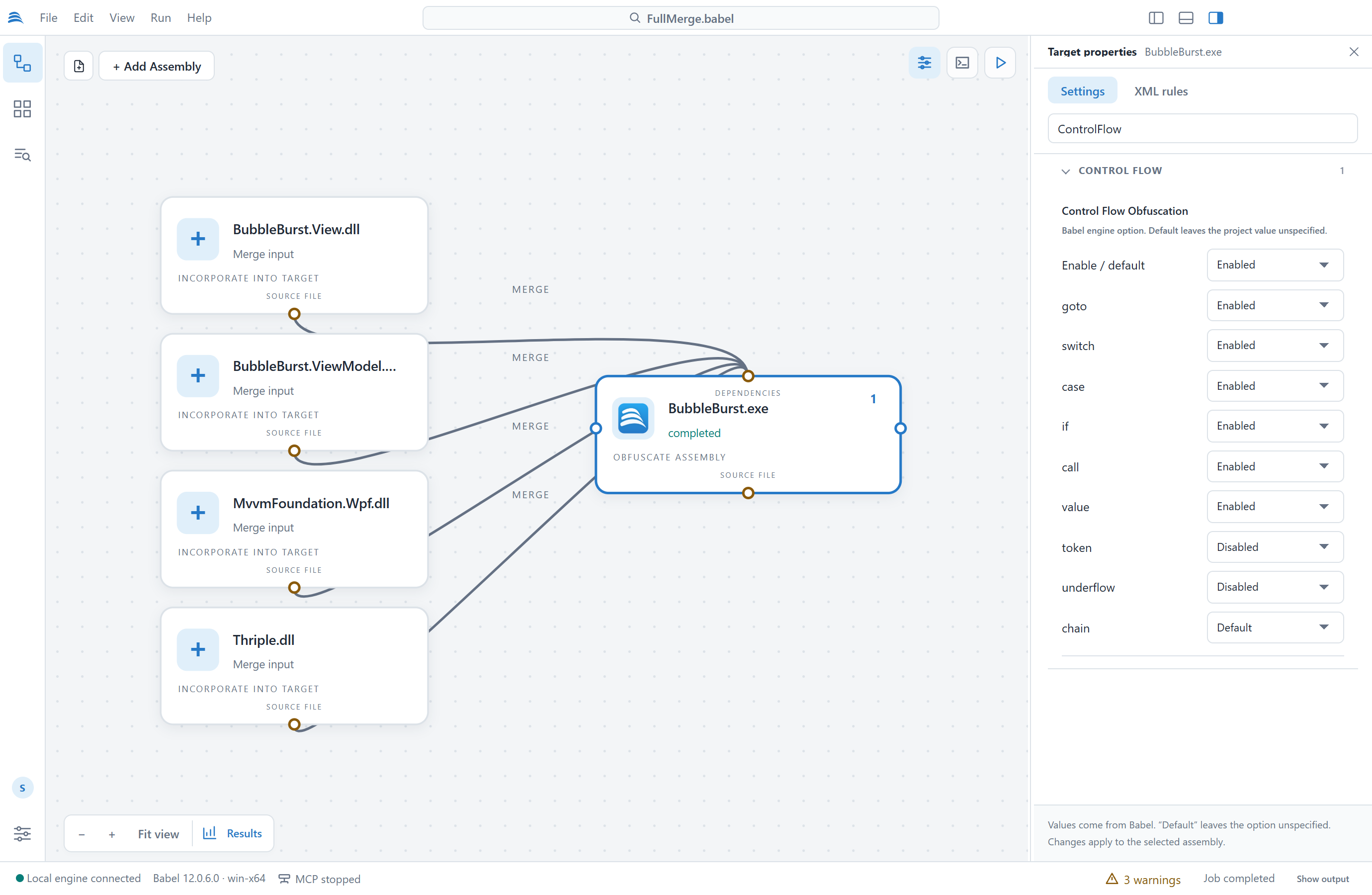
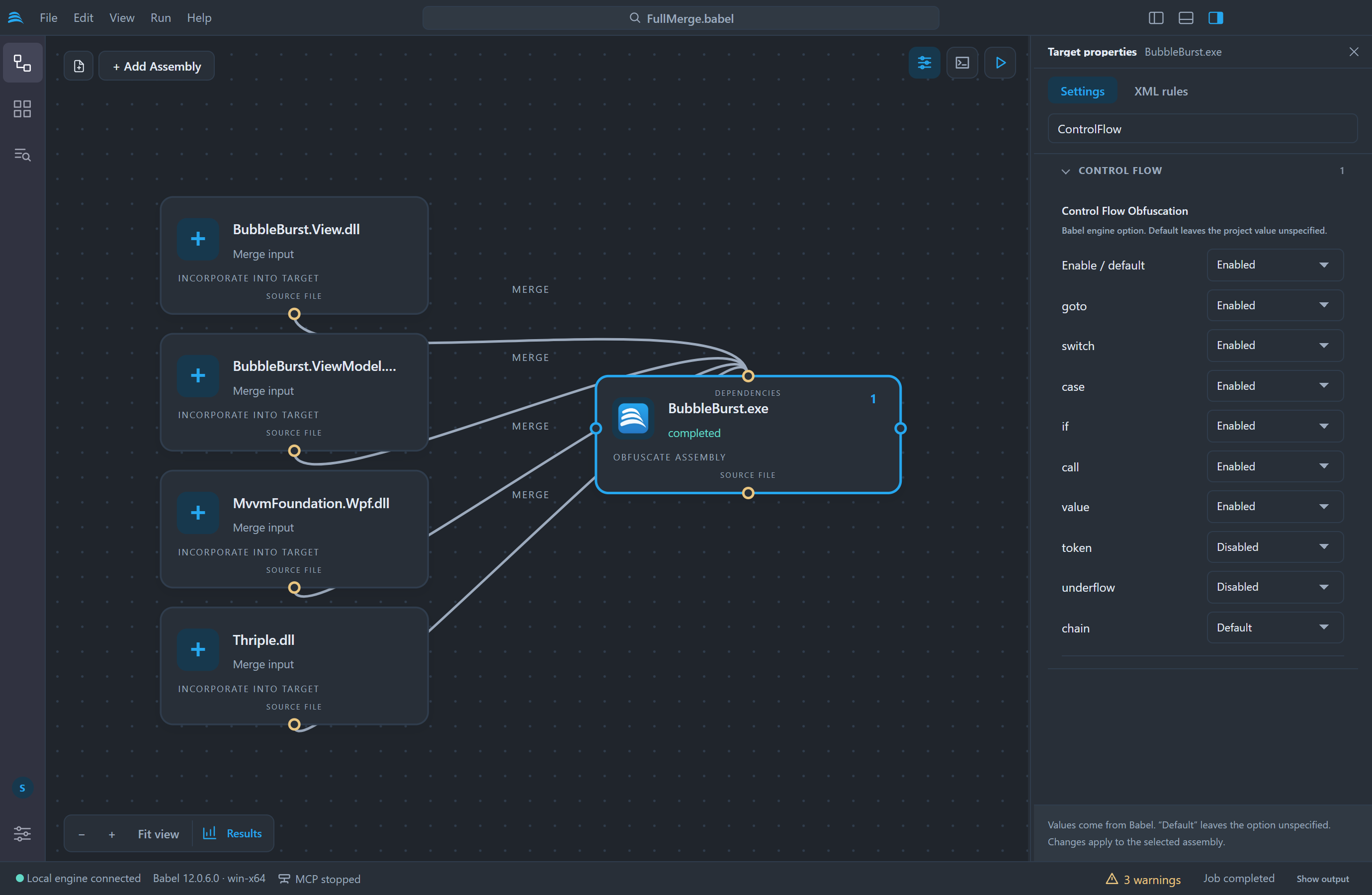
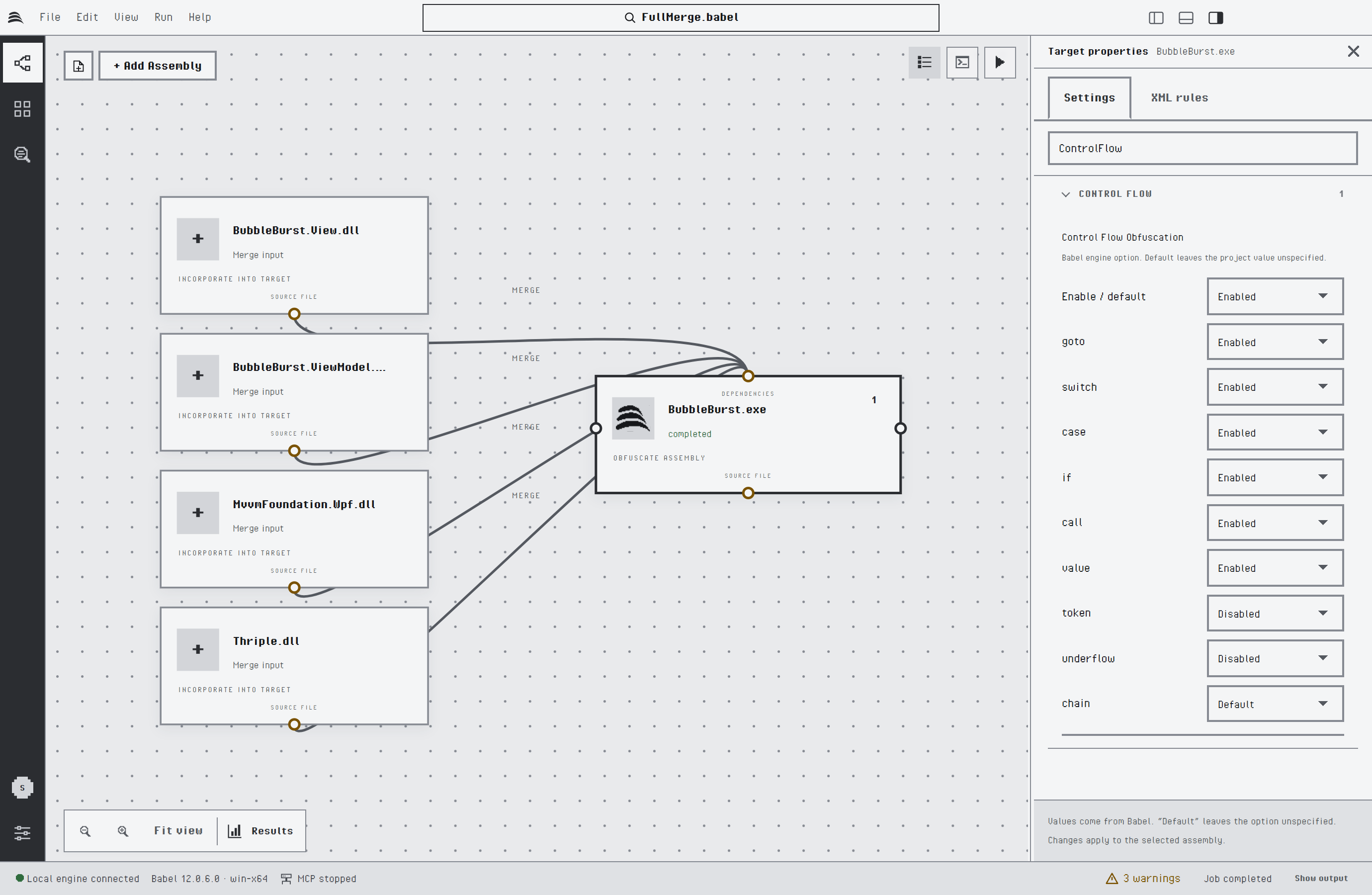
Control Flow Obfuscation properties
Passwords, such as a signing key or map file password, are kept for the current session only. They are never written to the project file, so you enter them again after a restart. When the engine needs a password during a run, Babel Desktop asks for it.
Map Files
The Map files group at the top of the Settings tab collects the map settings of the selected target:
- Writes its rename map turns the map file of the target on or off. The line below it shows where the map is written: Next to the obfuscated assembly by default, or the file name you chose with Change….
- Maps from other targets lists the map links that end on this target. Click a target name to select it, or its × to remove the link.
- Other map files lists the maps this target reads that no target of the project writes, such as the map of a library obfuscated in an earlier build. Add map file… adds one and Remove takes it away.
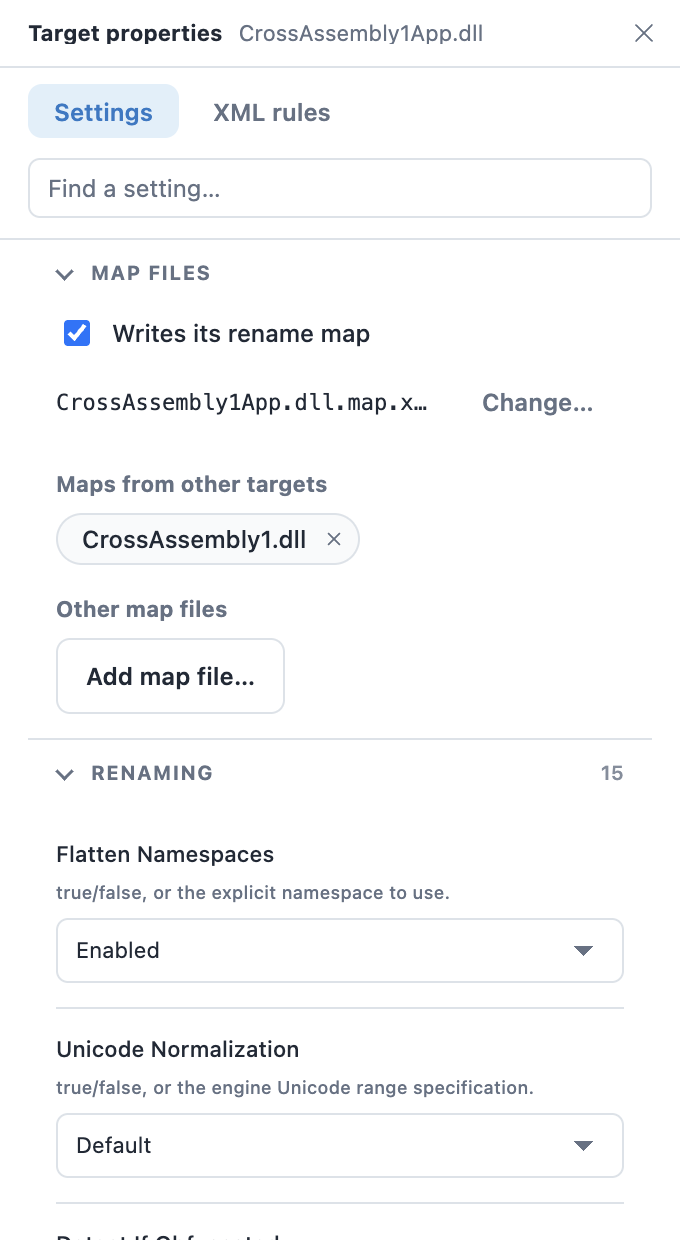
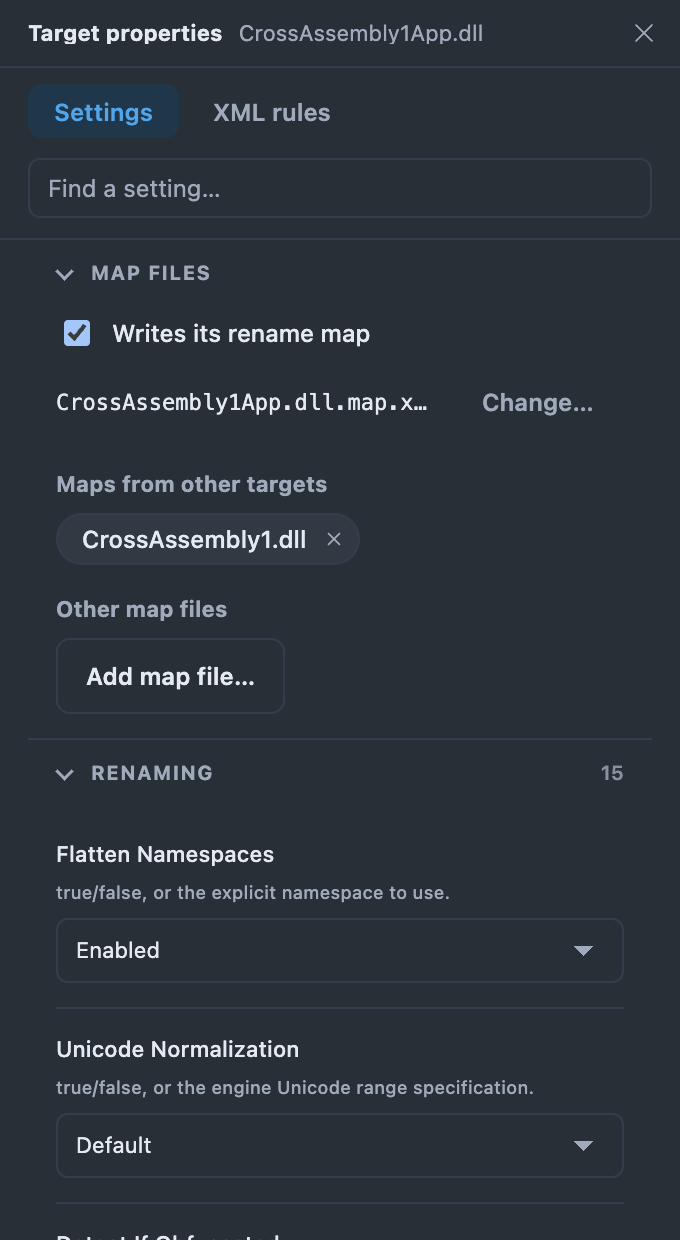
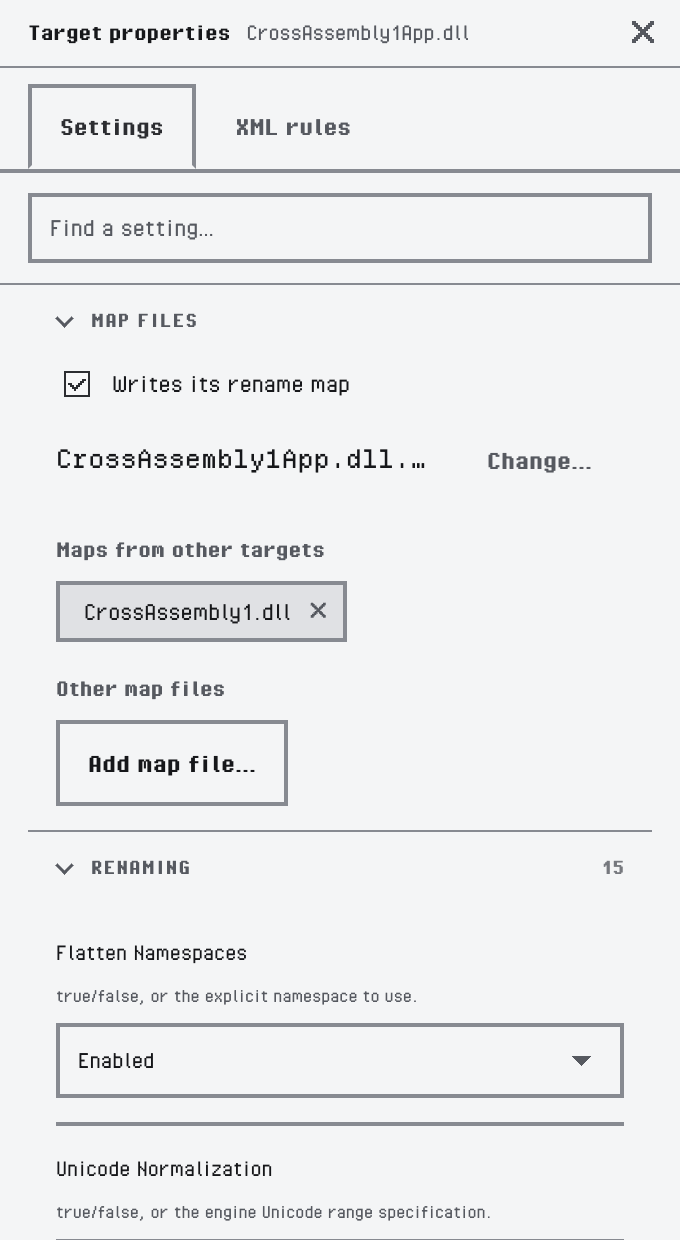
The Map files group of a target that reads the map of a library
XML Rules
The XML rules tab edits the inline XML obfuscation rules of the selected target. The editor highlights the XML and Validate checks it against the Babel rules schema, reporting the line and column of each error. Open XML loads a rules file into the editor, Save XML file writes the editor content to a file and Apply to assembly stores the rules in the target. Inline rules are saved in the project file.
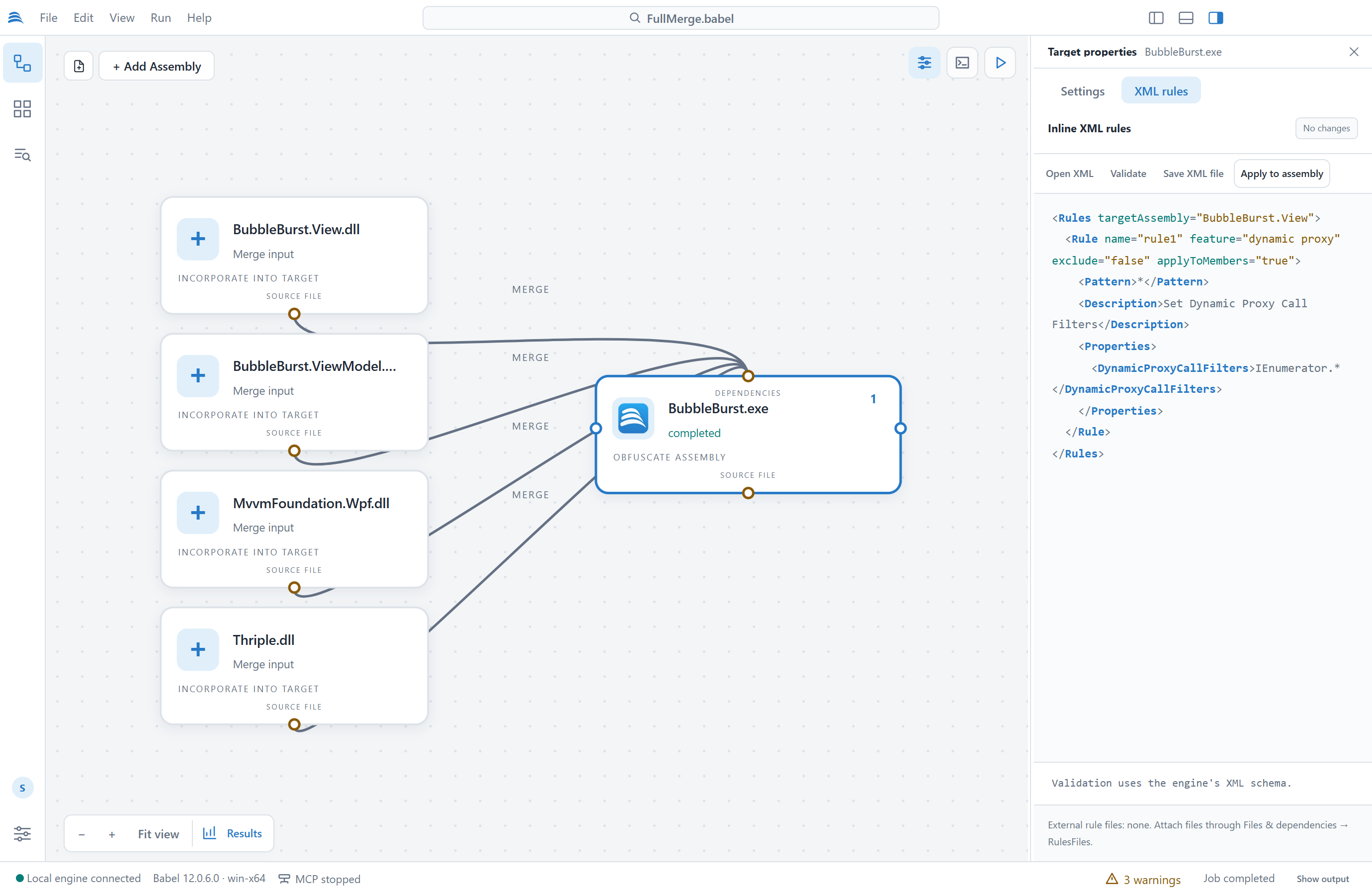
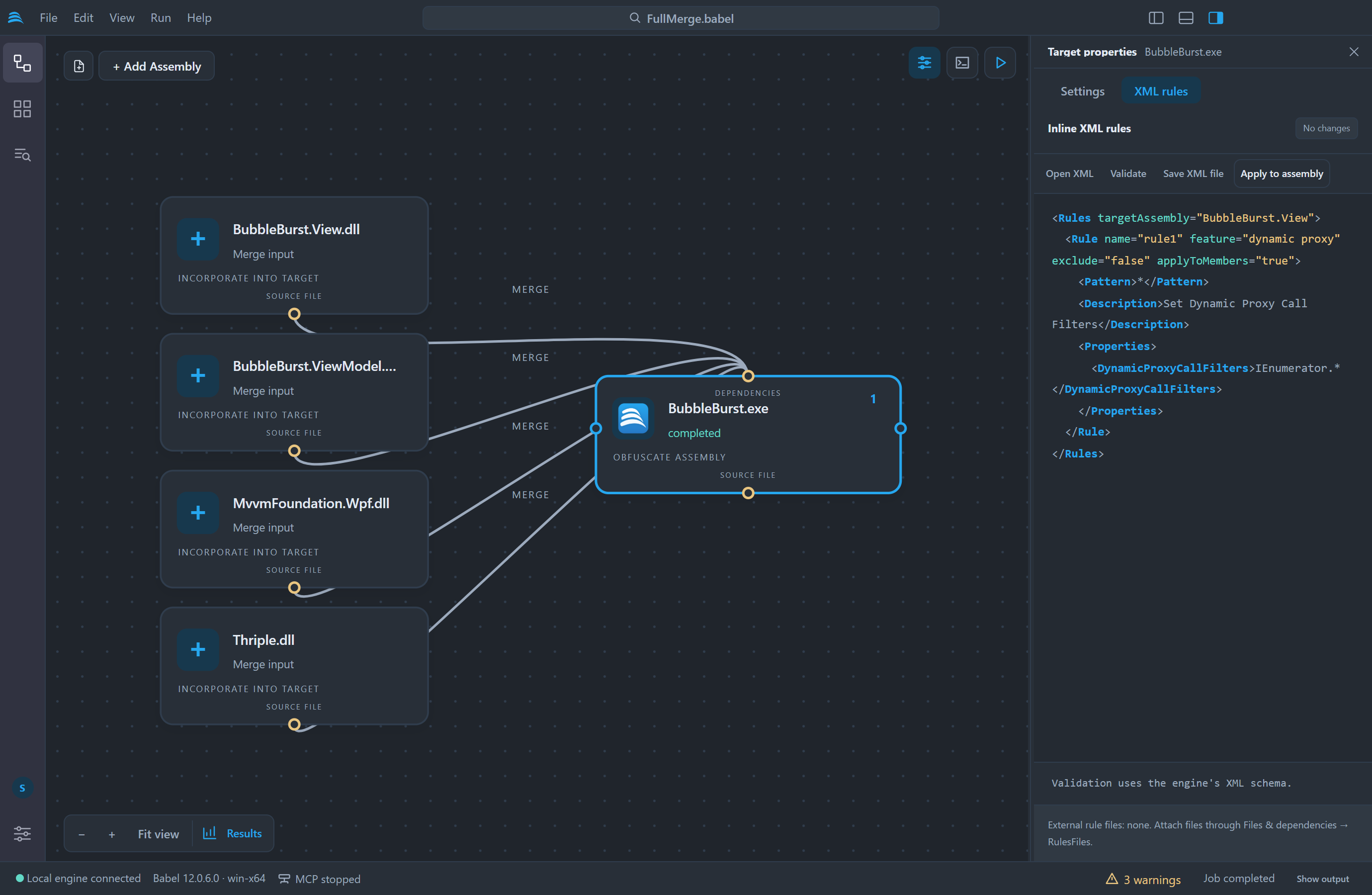
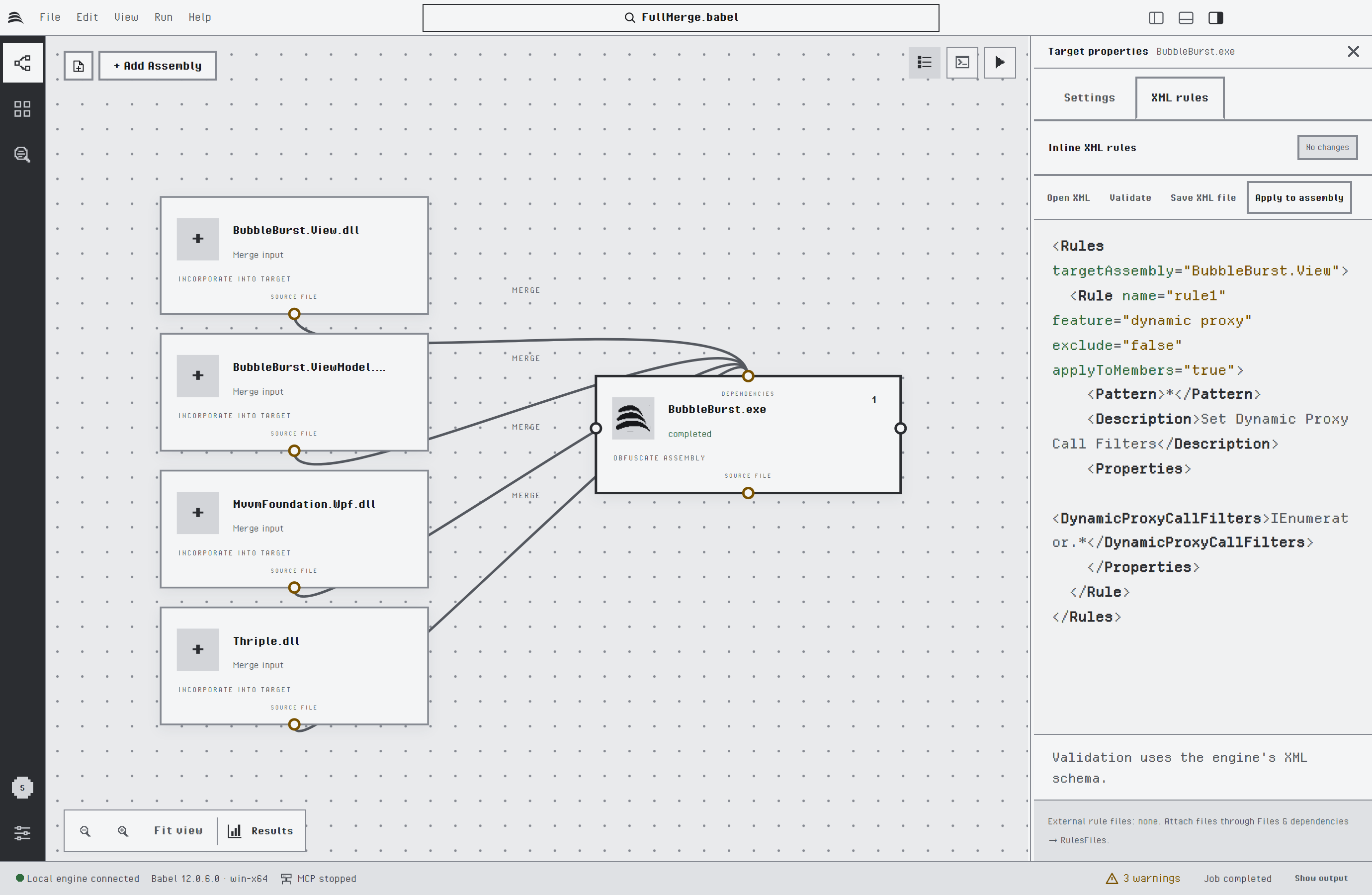
Inline XML rules of a target
Rules you have not applied yet keep the panel on the same target: apply them, or discard them with Settings: Discard unapplied edits and reload in the command palette, before you select another target or run the project. Rules files kept outside the project are listed in the Rules tab of the grid details.
Engine Plugins
Babel Obfuscator plugins are set per target with Engine plugins: Configure DLL paths in the command palette, or in the Plugins tab of the grid details. Engine plugins: Discover argument names reads the argument names a plugin declares, so you can fill in its arguments. Plugins are .NET code that runs inside the engine, so use only plugins you trust.
Setup Commands
The two setup commands configure a whole project in one step, and Obfuscation: Set level… applies a protection level to the selected target. Add the assemblies first, then run the command that fits the application. All three are in the command palette; the two setup commands are also in the toolbar of the grid as Setup public obfuscation and Setup merge.
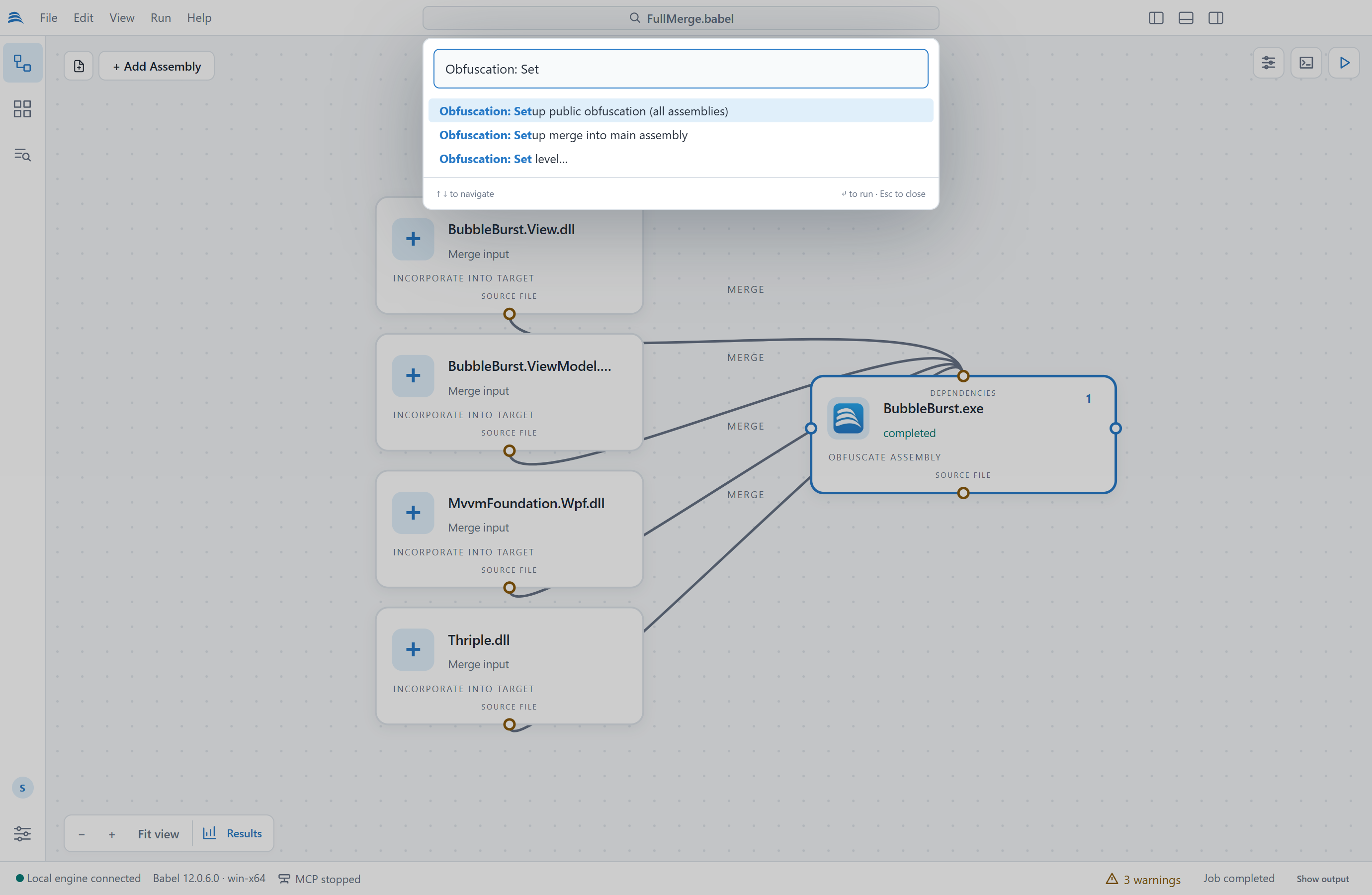
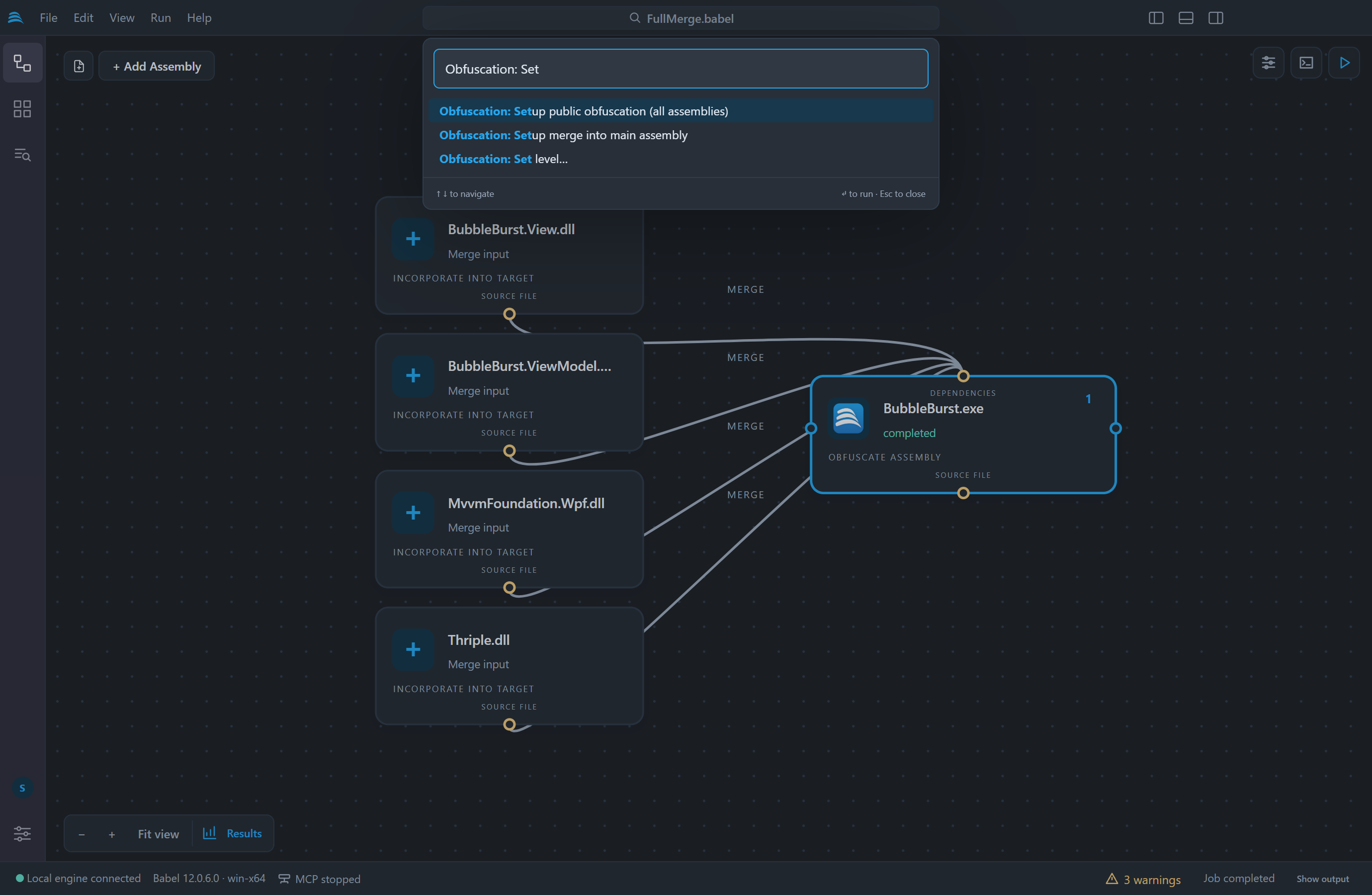
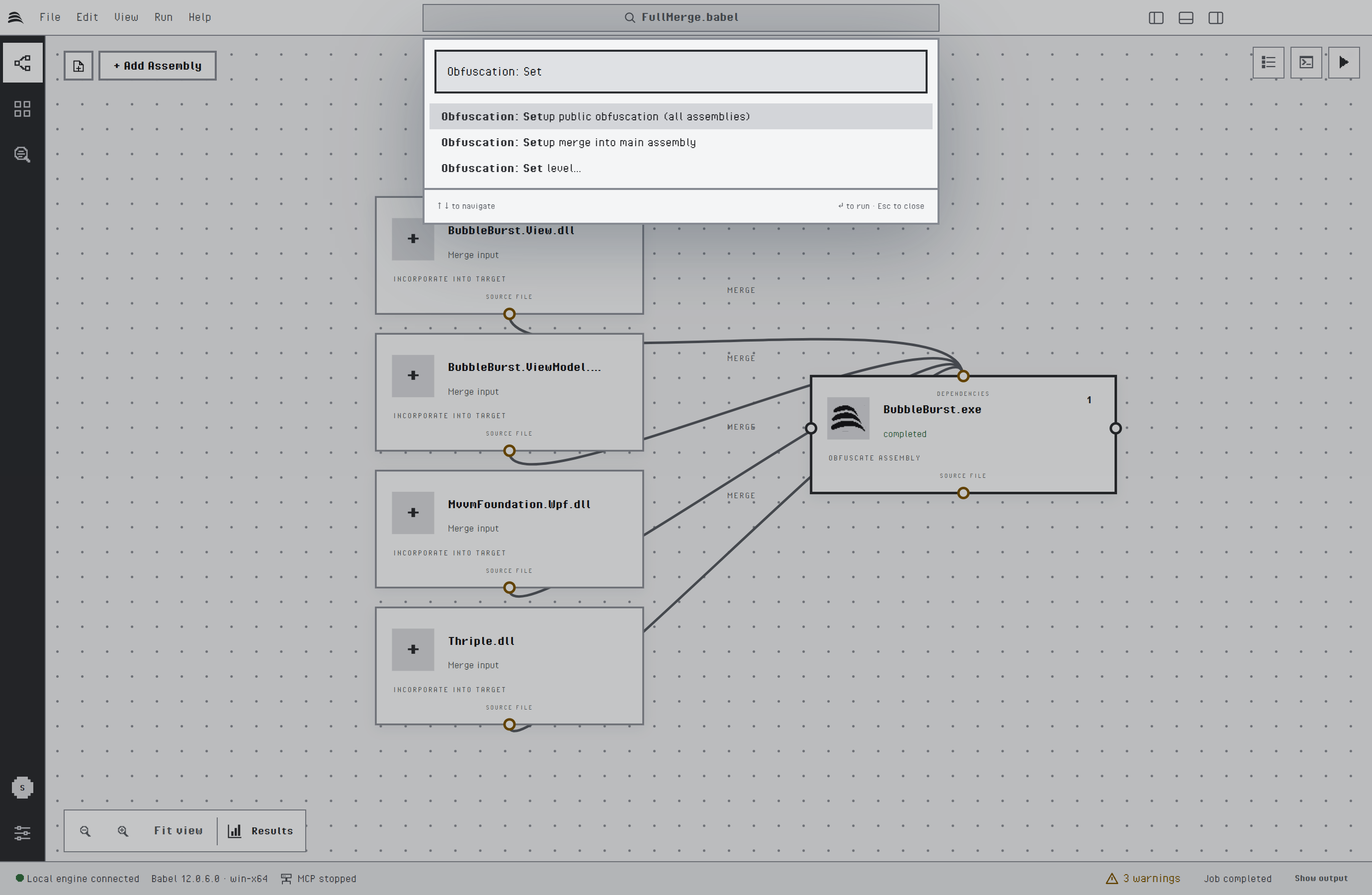
The setup commands in the command palette
| Command | Effect |
|---|---|
| Obfuscation: Setup merge into main assembly | Merges every other target into the main assembly, so the project produces a single output file. The main assembly is the only .exe of the project, or the first target when there is none or more than one. An assembly the engine cannot merge is left as it is. |
| Obfuscation: Setup public obfuscation (all assemblies) | Prepares a set of assemblies that are shipped together to have their public symbols renamed. Each target gets an XML rule named obfuscate public and writes its rename map, and a target that has another target among its merge, embed or reference dependencies reads its map through a map link. |
| Obfuscation: Set level… | Applies one of three protection levels to the selected target. |
The two setup commands skip package targets (.apk, .appx and .xap). None of the three runs while a job is in progress or an edit is waiting to be applied. They change the open project and do not save it, so you can review the result on the canvas, in the grid and in the properties panel first.
Protection Levels
Obfuscation: Set level… in the command palette applies a level to the selected target; Set obfuscation level in the row menu of the grid applies it to every selected row. The levels set these options and leave the others as they are:
| Level | Protection |
|---|---|
| Light | Renaming of types, methods, fields, properties and events. Control flow, the encryption features and the anti-analysis protections are turned off. |
| Balanced | Renaming, control flow obfuscation with the goto algorithm, string encryption and ILDASM suppression. |
| Maximum | Renaming, control flow obfuscation with goto, switch, case, if and chained state, stream string encryption, value encryption, MSIL encryption, tampering detection, debugging protection and ILDASM suppression. When the license does not include the stream algorithm, the default string encryption is used. |
Applying a lower level after a higher one turns the extra protections off again. A level is a starting point: you can change any single option afterwards.
Maximum turns MSIL encryption on without a filter, so it encrypts only the methods you select with an XML rule or the Obfuscation attribute. To encrypt by namespace or type, add a filter to Msil Encryption in the Code encryption group. See Code Encryption.
A level does not touch renaming of public symbols, map files, merging or signing. Those depend on how the assemblies are shipped, which is what the setup commands are for.