Babel MCP Server
The Babel user interface can expose itself to an AI assistant. When the MCP automation server is enabled, an assistant such as Claude Code connects to the running Babel UI and drives it the way you would: it opens views, loads projects, changes obfuscation settings, starts a build, decodes a stack trace — and takes screenshots of the window so it can see the result of what it did.
This turns the UI into something an assistant can operate on your behalf:
- Set up a project — “create a project, add these assemblies, write a rule that keeps the public API, merge the two helper libraries and embed the signed one, then obfuscate.”
- Reproduce a customer issue — “load this project, enable dynamic proxy on the failing assembly, obfuscate it, and show me the warnings.”
- Decode and explain a crash — “decode this stack trace with these map files and tell me which of my methods actually threw.”
- Manage licensing (Server and Data Center) — “create a customer, issue them a license for this product, generate and sign it, and save the file.”
- Restyle the interface — “make me a dark theme with a teal accent and switch to it.”
- Capture screenshots — for a bug report, a support ticket, or your own documentation.
MCP (Model Context Protocol ) is the open standard AI assistants use to talk to external tools, so any MCP-capable client can connect — not just one vendor’s.
The automation server is available with the Ultimate license. Builds that do not carry it show no Automation page at all.
Enabling the server
The server is off by default. Nothing listens until you turn it on.
- Open the Babel user interface.
- Go to Tools → Options, then Environment → Automation.
- Tick Enable the automation server.
- Leave the port at
8765unless it is already taken on your machine. - To protect the server with a token, tick Require an access token — one is generated for you. Leave it unticked to run without a token, in which case any client on your machine can connect. See Security.
- Optionally set a screenshot folder. Left empty, screenshots go to your system temporary folder, under
BabelAutomation. - Click OK.
The status line at the bottom of the page confirms the server is up and shows the address to give your client. Below it, the page builds a ready-to-paste client configuration for the current port and token; press Copy to put it on the clipboard.
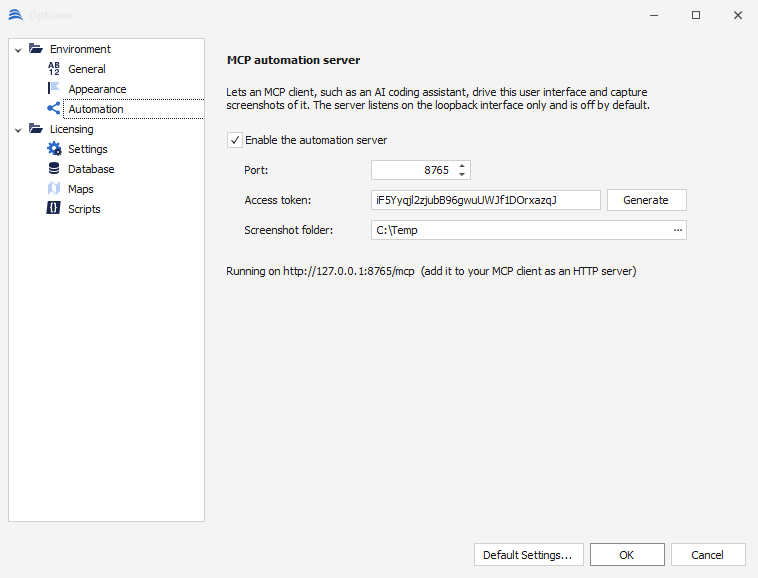
Options → Environment → Automation
Changes take effect immediately — you do not need to restart Babel. Unticking the box stops the server just as immediately.
Settings
| Setting | Default | Meaning |
|---|---|---|
| Enable the automation server | off | Master switch. Nothing listens while this is off. |
| Port | 8765 | The loopback port the server listens on. |
| Require an access token | off | When on, a client must present the token in the X-Babel-Token header; when off, any client on your machine can connect. Ticking it generates a token if the field is empty. On upgrade it starts on for anyone who already had a token, so existing setups keep their protection. |
| Access token | — | The shared secret, active only while Require an access token is ticked. Generate makes a new one. |
| Screenshot folder | empty | Where ui_screenshot writes PNG files. Empty means %TEMP%\BabelAutomation. |
Connecting your AI assistant
The server speaks MCP over HTTP at:
http://127.0.0.1:8765/mcpConfigure that address in your MCP client as an HTTP (streamable HTTP) server, and send the access token as the X-Babel-Token header. The Automation page builds this configuration for you from the current port and token — press its Copy button and paste the result into your client. It has the shape:
{
  "mcpServers": {
    "babel-obfuscator": {
      "type": "http",
      "url": "http://127.0.0.1:8765/mcp",
      "headers": {
        "X-Babel-Token": "paste-the-token-from-the-options-page"
      }
    }
  }
}
If you did not require an access token, omit the headers block entirely — the page’s copy button does this for you.
Claude Code
With the Claude Code CLI, the same registration is one command:
claude mcp add --transport http babel-obfuscator http://127.0.0.1:8765/mcp \
  --header "X-Babel-Token: paste-the-token-from-the-options-page"
Start Babel first, then the assistant. Ask it to list its tools, or simply say “take a screenshot of the Babel window” — if a PNG comes back, you are connected.
Checking the connection yourself
The server answers a plain readiness probe that needs no MCP client:
curl http://127.0.0.1:8765/healthA healthy server replies with its address, the number of requests it has served, and how many connections are open:
Babel automation server: ready
url: http://127.0.0.1:8765/mcp
requests: 128
connections: 1
If that responds but your assistant does not, the problem is the client configuration — usually the token or the transport type — not Babel.
What the assistant can do
The server exposes its capabilities as MCP tools. They come in two layers: tools for the operations you perform most often, and generic tools that reach any control the first layer does not cover — so an assistant is never limited to a fixed menu.
Application and navigation
| Tool | Purpose |
|---|---|
app_get_state | Version, license, hosted view, open project, whether an obfuscation is running |
ui_list_views | Every view that can be hosted in the main window |
ui_show_view | Navigate to a view |
ui_screenshot | Capture the window, a dialog, or a single control to a PNG file |
app_screenshot_folder | Where those PNG files are written |
Any control, by name
| Tool | Purpose |
|---|---|
ui_tree | List the controls of the current view or open dialog, with their type, value and state |
ui_get_value / ui_set_value | Read or write a control: check box, editor, text |
ui_invoke | Click a button, toggle a check box |
ui_open_options / ui_close_dialog | Open the Options dialog on a given page, and close it |
Projects and input assemblies
| Tool | Purpose |
|---|---|
project_new / project_open / project_save / project_info | Manage the obfuscation project |
assembly_add / assembly_list / assembly_select / assembly_remove | Manage input assemblies |
Obfuscation settings
| Tool | Purpose |
|---|---|
settings_list | Every obfuscation setting of the selected assembly, with type and current value |
settings_get / settings_set | Read or write one setting — a boolean, number or string such as DynamicProxyCalls or GenerateMapFile, or a list or property-bag setting such as SearchDirectories or MsilEncryptionFilters |
settings_set_many | Write several settings in a single call, refreshing the views once — for example, turn on a whole set of protections at once |
These cover the whole settings surface of the Settings, Optimization and Output views — the assistant does not need a separate tool per option. settings_set also writes the list and property-bag settings (search directories, MSIL-encryption filters, control-flow properties, and the like), replacing their contents.
Rules, merge and embed
| Tool | Purpose |
|---|---|
project_rules | Read the selected assembly’s inline XML rules, quick rules, rule files, and the assemblies chosen to merge or embed |
project_set_xml_rules | Set the inline XML obfuscation rules (checked for well-formedness; empty clears them) |
project_set_quickrules / project_set_rulesfiles | Replace the quick rules or the external rule-file list |
project_set_merge / project_set_embed | Choose which assemblies are merged into, or embedded in, the selected target |
The tool descriptions explain when to prefer each: merge folds an assembly’s code into the target and renames it together, for a single output assembly; embed stores an assembly whole as a resource loaded at run time, for third-party or strong-named assemblies you must not alter. The assistant weighs a given set of assemblies against that and picks.
Running an obfuscation
| Tool | Purpose |
|---|---|
obfuscate_start | Run the obfuscation, as the Play button does |
obfuscate_cancel / obfuscate_status | Stop a run; check whether one is in progress and how the last one ended |
output_get | The obfuscation log shown in the Console view |
warnings_get / statistics_get | Warnings and statistics from the last run |
Stack Decoder
| Tool | Purpose |
|---|---|
stackdecoder_decode | Load XML map files, set the obfuscated trace, optionally tick Hide Babel generated frames, decode, and return the result |
The Stack Decoder view is left populated afterwards, so a follow-up ui_screenshot captures the real decoded trace. See Decoding Stack Traces.
Themes
The assistant can drive the whole look of the interface, and author new themes.
| Tool | Purpose |
|---|---|
theme_list / theme_current / theme_skins | The installed themes, the active one, and the skin names a theme can use |
theme_apply | Switch the UI to a theme and repaint at once |
theme_get | A theme’s skin, style, app colours and fonts |
theme_create | Author a new theme by copying an existing one and overriding its skin, style, colours or fonts |
theme_update / theme_delete | Recolour a theme in place, or remove it (not the active one) |
A theme is authored by copying an existing theme and rewriting only its skin, style, colours and fonts; the icons recolour themselves from the skin, so they carry over. So “make me a dark theme with a teal accent” is one theme_create call, applied on the spot.
Licensing
The licensing tools appear only on the editions that carry the licensing features — Server and Data Center (and the Demo edition). On other editions they are not offered, and calling one returns an edition error. They act on the licensing database configured under Data → Database; if none is configured yet, a tool says so and points you there rather than failing obscurely. See the Babel Licensing manual for the full picture.
| Tool | Purpose |
|---|---|
licensing_entities | Every manageable entity — Customer, Contact, Product, Release, Assembly, Order, License, LicenseToken, LicenseTemplate, Resource (signature keys), Report and the rest — with each one’s fields |
licensing_list | Rows of an entity, paged, with an optional field=value filter |
licensing_get / licensing_create / licensing_update / licensing_delete | Read and write any row of any entity |
report_view | Read an obfuscation report together with all of its properties in one call |
signkey_create | Generate an RSA or ECDSA signature key pair, stored as a signing-key resource |
license_generate | Build and sign a license, storing the signed text on its row |
license_export | Write a generated license to a .licenses file |
Rather than a tool per entity, the licensing_* tools drive the licensing model directly, so orders, customers, products, releases, assemblies, reports — every entity, and any added later — are created and read through licensing_create and licensing_list with the entity name. report_view is a convenience for reading a report and its details together; signkey_create, license_generate and license_export add the operations that are more than row editing.
Working with it
Ask for outcomes, not tool names — the assistant picks the tools. A few requests that work well:
Open
C:\Projects\Acme\Acme.babel, selectAcme.exe, turn on dynamic proxy for all calls and map file generation, then obfuscate it and tell me about any warnings.
Decode the stack trace in
crash.txtusingAcme.exe.map.xml. Then tick “Hide Babel generated frames” and show me the difference.
Show me every setting with “encrypt” in the name that is currently enabled for this assembly.
Start a new project with
Acme.exe, keep every public type and method with a rule, embedNewtonsoft.Json.dll, save it asAcme.babel, then obfuscate.
Create a customer “Contoso”, issue a one-year license for product
ACME-PRO, generate and sign it, and export it tocontoso.licenses.
Make a theme called “Midnight” based on Babel Dark with a teal accent, and switch to it.
Take a screenshot of the Output view so I can attach it to a support ticket.
The assistant is operating the real application: it can change your project settings, start obfuscation runs, and overwrite output assemblies. Work on a copy of a project when you are letting an assistant explore freely.
Long operations
Obfuscating a large assembly can take longer than an AI client is willing to wait for a single reply. If a run is slow, tell the assistant to start it without waiting and poll instead — obfuscate_start accepts a wait argument, and obfuscate_status reports progress. A well-behaved client does this on its own when a run times out.
Security
The automation server is a deliberate hole in a desktop application, so it is drawn tight:
- Off by default. You have to enable it.
- Loopback only. It binds to
127.0.0.1and is not reachable from the network — not from another machine, not from another user’s session. - Token protected. Tick Require an access token and every request must present it in
X-Babel-Token; a request without it is rejected with401. Anything running as your user on your machine can reach the port, so on a shared or multi-user machine, require one. - Bounded. The server accepts a limited number of simultaneous connections and drops idle ones, so it cannot be tied up.
- Local only. Screenshots are written to a folder on your machine. Nothing is uploaded anywhere by Babel; what your AI client does with a file you point it at is governed by that client.
Turn the server off when you are not using it. The check box is the whole story — no leftover process, no listening port.
Reliability
An in-process automation server is only useful if it stays up for the length of a working session, so the server is built not to need a restart:
- Kept-alive connections. An assistant issues a stream of small calls; they are served over the same connection instead of reconnecting for each one.
- Nothing hangs. Every request is bounded. If the user interface is busy or you have a dialog open, the call returns a clear error saying so, rather than leaving the client waiting on a dead socket — and the server keeps serving.
- Failures stay local. A tool that fails reports the failure as a result; it does not disturb the connection or the other tools. A dropped, truncated or malformed request is discarded without affecting anything else.
- Self-healing. If the listening socket is ever lost, the server rebinds it instead of quietly dying.
If the assistant does report that it cannot reach Babel, work through this in order:
| Symptom | Cause | Fix |
|---|---|---|
| Client cannot connect at all | Server not enabled, or Babel not running | Check the status line on the Automation page |
401 from every call | Token missing or mismatched | Re-copy the token from the Options page into the client configuration |
| Server did not start; Options shows a reason | Port already in use | Choose another port and press OK |
| Calls report the UI did not respond | A modal dialog is open, or a long operation is running in the UI | Close the dialog or let the operation finish; the server is still running |
| There is no Automation page in Options | This build does not carry the server | The automation server is available with the Ultimate license |
Command line
For scripted and unattended use, the user interface accepts an --automation switch:
Babel.Win.exe --automation
Babel.Win.exe --automation=9100
This enables the server for that run only, on the given port (8765 if omitted), without changing your saved settings and without an access token. It is meant for local automation and test runs on a machine you control — for everyday use, prefer the Options page with a token.